class teacher

  • Marking Student Attendance

    Marking Student Attendance

    The Attendance module in the Teacher App is designed to simplify daily record-keeping. Teachers can quickly log presence, track late arrivals, and instantly notify parents, ensuring accurate student data is maintained across the LMS.

    Academic Attendance marking is a core responsibility for teachers and academic staff. While records can be viewed on the web, the Mobile App is optimized for real-time classroom use.

    How to Mark Attendance

    1. Access the Attendance Module

    There are two ways to start:

    • From the Dashboard: Look for the Attendance Reminder Card. It displays your class size, progress, and the time remaining to submit. Tap Start or Continue.
    • From the Menu: Tap More in the bottom navigation and select Attendance.

    2. Set the Context (Class and Date)

    By default, the app loads the Current Date and your Assigned Class.

    • Change Class: Use the Class Dropdown at the top if you manage multiple sections.
    • Change Date: Tap the Date Field to select a previous date from the calendar to record backdated entries.

    3. Record Student Status

    You can mark students individually or use time-saving bulk tools:

    • Individual Selection: Toggle between Present, Absent, Late, or Left Early for each student. You can also add specific notes for administrative records.
    • Bulk Mark: To save time, use the Select All option to mark the entire class as Present, then manually update only the few students who are absent or late.

    4. Save and Notify

    Once the list is accurate, tap Save & Send Notification to Parents. This action performs two tasks simultaneously:

    1. Saves the data to the secure school database.
    2. Triggers an instant alert to the parents of any student marked with an updated status (like “Absent”).

    Important Information

    • Daily Requirement: Attendance should be recorded during the designated morning window to ensure parents receive timely notifications.
    • Corrections: If you make a mistake, you can return to the module at any time during the day to update a student’s status.
    • Transparency: All saved records are stored securely and can be reviewed by school leadership for official reporting.

    Frequently Asked Questions (FAQs)

    Simply open the Attendance module again, select the student, and change their status from “Absent” to “Late.” Be sure to tap Save & Send Notification again to update the system and inform the parents.

    You can typically select the statuses offline, but you must connect to Wi-Fi or cellular data and tap Save for the data to sync with the school server and for notifications to be sent.

    Yes. Saving any status other than “Present” (unless configured otherwise by your school) will trigger a notification to ensure parents are aware of their child’s current status.

    Next to each student’s name, there is a Notes icon. You can type details there, such as “Parent called in sick” or “Attending school event,” which will be visible to administrators.

    Use the Bulk Mark feature. Select the “Present” checkbox at the very top of the list to mark everyone at once, then simply scroll down and uncheck the 2 or 3 students who are actually absent.

    Yes. Tap the Date field at the top, select the missed date from the calendar, and record the attendance as usual. Note that some schools may “lock” dates after a certain period.

    This means you haven’t clicked the final Save & Send Notification button. Even if you have selected statuses for every student, the record is not official until you save it.

  • Managing Attendance Records & Analytics

    Managing Attendance Records & Analytics
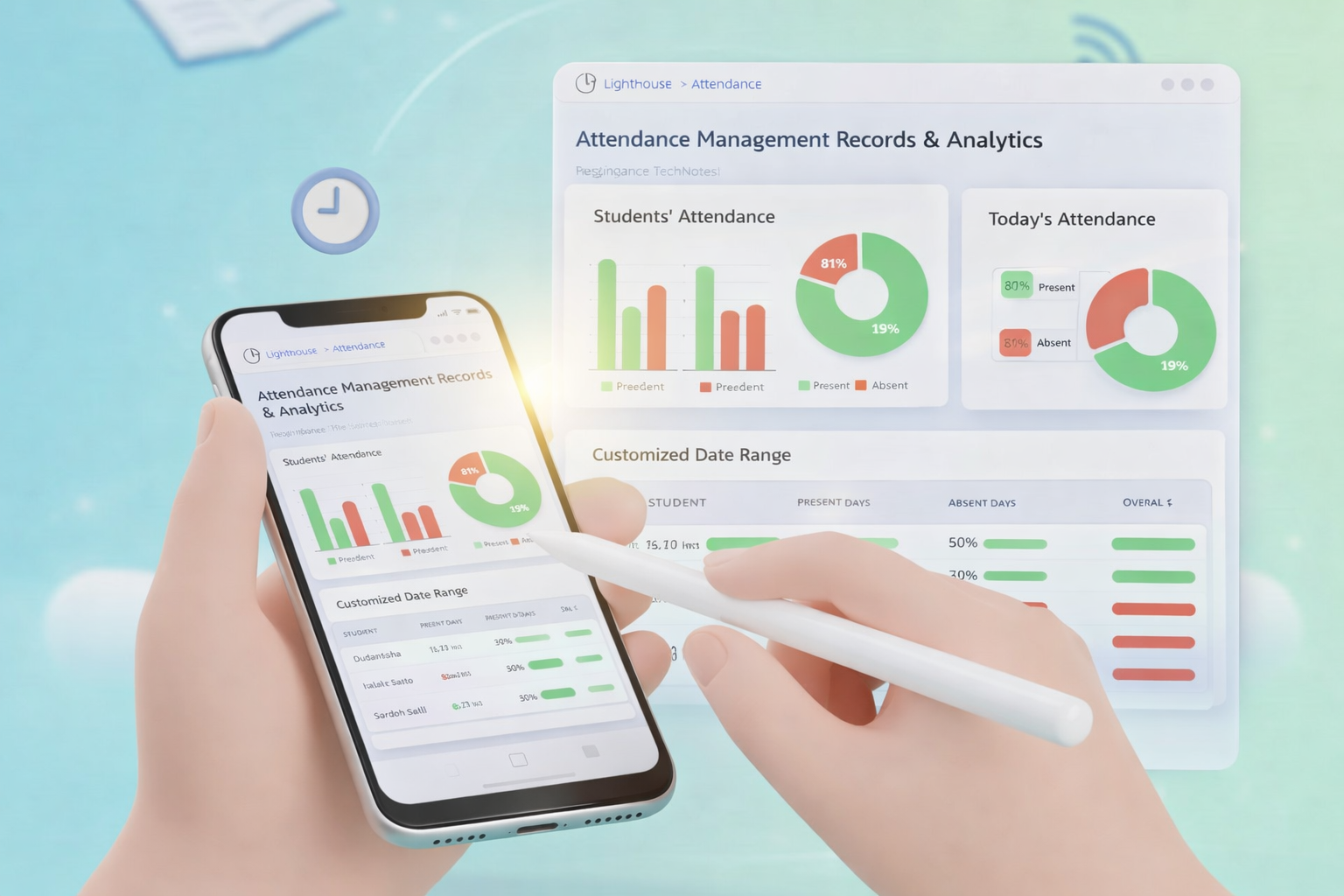
    Attendance Management involves the oversight of school-wide data, the generation of reports, and the ability to perform administrative corrections to historical attendance records.

    How to Manage and Audit Attendance

    • Access Admin Reports: Navigate to School Management > Attendance Reports via the web portal.
    • Review the Attendance Summary:
      • View school-wide percentages for the day, week, or month.
      • Identify classes that have Pending Attendance (where the teacher hasn’t submitted yet).
    • Perform Administrative Overrides:
      • If a teacher makes an error on a past date, admins can search for the student, select the specific date, and click Edit Record.
      • Select the corrected status and add an Admin Note explaining the change for audit purposes.
    • Export Data: Use the Export button to download attendance sheets in CSV or PDF format for official government or board reporting.

    Note:

    • Audit Logs: All changes made by an Admin to a Teacher’s original entry are tracked in the system audit log.
    • Lock Periods: Attendance records for previous academic terms may be “locked” and require Super Admin permission to modify.

    Frequently Asked Questions (FAQs)

    On the Attendance Management Dashboard, look for the “Pending Submissions” or “Teacher Compliance” report. This will list all classes that have not yet hit the “Save” button for the current date.

    Yes. Admins have “Override” permissions. You can navigate to the specific class and date, edit the student’s status, and save it. The system will log that an Admin performed this change.

    Yes. Go to the Analytics/Reports section and select the “Monthly Summary Report.” You can filter this by grade, board, or the entire institution to see aggregate percentage trends.

    This depends on your school’s configuration. In the Settings menu, you can define if “Late” counts as a full day of presence, a half-day, or simply as “Present with Remarks.”

    Absolutely. Every report view has an Export button that allows you to download the data in CSV (Excel) or PDF formats.

    Typically, no. Notes added in the Management module are intended for internal administrative tracking and audit trails, while “Status” is the primary information shared with parents.

    The system uses “Last-In Wins” logic, but as an Admin, your web-based portal usually has higher priority. We recommend that admins only edit records after the morning marking window has closed.

    Yes. Most LMS configurations allow for “Attendance Threshold Alerts.” You can set these up in the Notification Settings to flag chronic absenteeism to the Principal or Counselor.