staffs

  • Library User Manual

    PRODUCT CONTEXT:

    The Library module provides visibility into a student’s reading activity within the school’s physical library. It displays books issued to the student, their expected return dates, overdue indications, and return confirmations. The module helps parents and students stay informed about reading habits and ensures timely returns to support responsible academic behavior.

    FEATURE DESCRIPTION:

    The Library module automatically receives book issuance and return updates from the school’s library management system (Skolaro). It displays this information in a structured, easy-to-understand format within the LMS on both web and mobile platforms. Parents and students receive notifications when a book is issued, returned, or overdue.

    PLATFORMS SUPPORTED:

    • Web
    • Mobile

    PERSONAS INVOLVED:

    • Parent
    • Student

    BUSINESS RULES:

    • Skolaro (3rd-party) triggers issue/return events to LMS via API.
    • LMS stores and displays these events in the Library tab under Student Profile.
    • LMS computes overdue status automatically when expected return date has passed without a return event.
    • Data is displayed in tabular (web) or card (mobile) format with clear status indicators.

    PERMISSIONS LOGIC:

    • Student_Library_View — Allows students to see the Library module.
    • Parent_Library_View — Allows parents to see the Library module for their child.

    NOTIFICATIONS:

    • In-app notifications for Parents and Students:
    – When a book is issued
    – When a book is returned
    – When a book becomes overdue

    1. Introduction

    The Library feature provides a transparent and structured view of a student’s reading activity through the school library. It exists to:

    Why the Feature Exists

    • Promote awareness of students’ reading habits.
    • Improve communication between school and home regarding library engagements.
    • Encourage timely return of borrowed books.

    What Problem It Solves

    • Parents currently have limited visibility into library interactions.
    • Students often forget return dates due to lack of reminders or centralized tracking.
    • Schools face overdue returns, causing operational delays.

    Who Benefits

    Parents — visibility into reading choices and responsibility habits.
    Students — a clear view of borrowed books and reminders.
    School stakeholders — reduced overdue management load.

    How It Improves the System

    • Creates a unified academic profile by integrating library activity.
    • Reduces missed due dates through clear notifications.
    • Fosters positive reading behavior.

    2. Role-Based Access Overview

    RBAC Table

    RoleWeb AccessMobile AccessCreateEditDeleteView
    ParentYesYesNoNoNoYes (Parent_Library_View)
    StudentYesYesNoNoNoYes (Student_Library_View)

    LMS displays Library information only to Student & Parent personas.

    RBAC Logic

    • Access is purely view-only.
    • Permissions must be explicitly granted at user-role level.
    • Notifications are received regardless of permissions, but opening them will respect RBAC.

    3. Super Admin Guide

    3.1 Responsibilities

    • Oversee configuration of incoming APIs.
    • Ensure RBAC mapping is correct.
    • Monitor ingestion logs.

    3.2 Administration

    • Verify Skolaro → LMS API is active.

    3.3 Configuration

    • Maintain API credentials in secure configuration layer.

    3.4 Permissions

    • Ensure Parent_Library_View and Student_Library_View are assigned correctly.

    3.5 Reporting
    • Access ingestion reports and logs if required.

    3.6 Use Cases

    • Troubleshooting when ingestion fails.
    • Supporting school admins reporting missing transactions.

    4. HO Admin Guide

    HO admins do not access the Library feature.

    5. School Admin Guide

    School admins do not access the Library feature.

    6. Teacher Guide

    Teachers do not access the Library feature.

    7. Parent Guide (Web & Mobile)

    7.1 Access

    • Parent navigates: Student Profile → Library.
    • Requires Parent_Library_View permission.

    7.2 Default View & Navigation

    • Two tabs:
    History
    Library Analytics (basic placeholder)

    7.3 What Parents Can Do

    • View books issued.
    • View expected return date.
    • View returned books.
    • View overdue indicator.
    • Receive notifications.

    7.4 Notifications

    Parents receive:
    • Book Issued
    • Book Returned
    • Book Overdue

    7.5 Use Cases

    • Tracking child’s reading activity.
    • Ensuring timely book returns.

    8. Student Guide (Web & Mobile)

    8.1 Access

    • Student navigates: Profile → Library.
    • Requires Student_Library_View.

    8.2 Default View & Navigation

    Same UI as parent view.

    8.3 What Students Can Do

    • View their issued books and upcoming return dates.
    • Understand which books are overdue.

    8.4 Notifications

    Students receive the same 3 notifications as parents.

    8.5 Use Cases

    • Managing personal responsibility for borrowed books.

    9. How-To Guide

    How to View Library Books (Parents & Students)

    1. Log in to the LMS.
    2. Open the Student Profile.
    3. Select the Library tab.
    4. View the History list of books.
    5. Check the Return By date and status.

    How Overdue Works (System Logic)

    1. LMS checks expected return date.
    2. If today > expected return date AND returned event not received → status becomes Overdue.
    3. Overdue reminder notifications are triggered automatically.

    How Notifications Work

    1. Book Issued → Skolaro sends event → LMS triggers notification.
    2. Book Returned → LMS updates status → notification sent.
    3. Overdue → LMS computes & sends reminders.

    10. Feature Logic & Display Rules

    System Behavior

    • LMS stores each Skolaro event.
    • Status can be:
    – Issued
    – Returned
    – Overdue

    Display Hierarchy

    • Web: Table format
    • Mobile: Card format

    Sorting Rules

    • Latest issued books appear at the top.

    Data Grouping

    • Grouped by student profile.

    Visibility Rules

    • Only visible to Student & Parent personas with permissions.

    11. Notifications Overview

    Notification Types

    1. Book Issued
    2. Book Returned
    3. Overdue Reminder

    Triggers

    • Triggered automatically during ingestion or overdue processing.

    Audience

    • Parent
    • Student

    Redirection Behavior

    Each notification opens Library → History.

    12. Governance & Compliance Rules

    Business Rules

    • LMS is only the visibility layer; Skolaro remains the operational system.
    • No data editing is allowed in LMS.

    Permission Rules

    • Parent & Student only receive view access.

    Restrictions

    • No manual entries permitted.
    • No editing or deleting entries.

    System Validations

    • Validate payload completeness.
    • Validate enrollment mapping.
    • Log and handle malformed data.

    13. Frequently Asked Questions

    Q1. Why don’t I see any book records?
    The student has not taken any library books OR Skolaro has not sent an event.

    Q2. Why can’t I edit or delete an entry?
    Library operations occur only in Skolaro, not in the LMS.

    Q3. Why did I receive an overdue reminder?
    The expected return date has passed, and no return event was received.

    Q4. What if a book was returned but still shows overdue?
    The school may not have updated Skolaro yet.

    Q5. Who can view the Library module?
    Only Parents and Students with the appropriate RBAC permissions.

    14. Conclusion

    The Library module brings clarity and accountability to students’ reading activity by integrating Skolaro’s library data directly into the LMS. Parents and students benefit from transparent book history, timely reminders, and improved awareness of reading habits. By centralizing this information, the LMS strengthens academic communication and enhances the overall school–home ecosystem.

  • Transfer Certificate User Manual

    PRODUCT CONTEXT

    The Transfer Certificate (TC) feature is part of the Lighthouse K12 LMS ecosystem used by Lighthouse Learning schools. The feature enables parents to digitally raise a request when they intend to withdraw their child from the school.

    Traditionally, transfer certificate requests required physical visits to the school and manual paperwork. This feature digitizes the entire workflow within the LMS platform, allowing parents to submit requests directly through the system while enabling school administrators to review, approve, or request reconsideration.

    The TC feature ensures transparency, traceability, and efficient communication between parents and school administrators.

    FEATURE DESCRIPTION

    The Transfer Certificate feature allows parents to submit a formal request for a student’s exit from the school by providing a reason and feedback. Once submitted, the request is reviewed by the school administration.

    Administrators can either:

    Approve the request, allowing the TC process to proceed
    Ask the parent to reconsider, prompting a conversation before final approval

    The feature helps schools capture valuable feedback about student exits while ensuring the process is handled in a structured and auditable manner.

    PLATFORMS SUPPORTED

    PlatformAvailability
    WebAdmin access only
    MobileParent access
    BothNotifications

    Note: Parent TC functionality is currently mobile-first.

    PERSONAS INVOLVED

    • Head Office (HO) Admin
    • Principal/ School Admin
    • Parent

    Students are not directly involved in the TC process.

    BUSINESS RULES

    The TC feature operates under the following business logic:

    • Parents can raise a TC request only for the current Academic Year (AY)
    • The system automatically captures the current AY
    • Parents cannot edit or select the academic year
    • A parent cannot create multiple active TC requests simultaneously

    Existing request handling:

    • If an existing request is pending, parents cannot create another request
    • If an existing request is withdrawn, parents may create a new request

    PERMISSIONS LOGIC

    Access and actions depend on the user’s role.

    RoleCreateEditApproveReconsiderView
    HO AdminNoNoNoNoYes
    School AdminNoNoYesYesYes
    PrincipalNoNoYesYesYes
    ParentYesLimitedNoRespondYes

    Parents cannot edit requests after submission.

    NOTIFICATIONS

    The TC feature generates system notifications to keep stakeholders informed.

    Notification types include:

    In-app notifications
    Email notifications

    Notifications are triggered during:

    • Request submission
    • Request reconsideration
    • Request approval

    Cross-platform handling:

    If a user opens a notification on a platform where the TC module is unavailable:

    • The notification appears read-only
    • CTA buttons remain disabled
    • Clicking the notification marks it as read

    A toast message will display:

    “Transfer Certificate feature is not available on [platform] platform currently.”

    Example:

    “Transfer Certificate feature is not available on Web platform currently.”

    1. Introduction

    The Transfer Certificate feature digitizes the process of student withdrawal from the school.

    Schools often lose valuable insights into why parents choose to move their children to other institutions. This feature enables structured feedback collection during the exit process.

    The feature solves several operational challenges:

     • Eliminates manual paperwork
    • Allows parents to submit requests digitally
    • Provides schools with actionable feedback
    • Creates an auditable record of exit requests
    • Ensures controlled approval workflows

    Beneficiaries include:

     • Parents requesting student transfers
    • School administrators managing exits
    • Head Office teams monitoring retention trends

    2. Role-Based Access Overview

    RoleWeb AccessMobile AccessCreateEditDeleteView
    HO AdminYesNoNoNoNoYes
    Principal/ School adminYesNoNoNoNoYes
    ParentNoYesYesLimitedWithdrawYes

    RBAC Logic:

     • Parents initiate TC requests
    • School leadership reviews requests
    • HO Admin monitors data but does not intervene directly

    3. Super Admin Guide

    3.1 Responsibilities

     • Monitor TC activity across schools
    • Ensure policy compliance
    • Review analytics and trends
    • Ensure correct permissions are tagged

    3.2 Administration

     • System configuration of TC workflows
    • Monitoring TC data integrity

    3.3 Configuration

    Super Admin can configure:

     • Review analytics and trends
    • Ensure correct permissions are tagged

    3.4 Permissions

    Super Admin has:

     • Full system visibility
    • Configuration privileges

    3.5 Reporting

    Reports may include:

     • TC requests by school
    • Exit trends by academic year
    • Reasons for withdrawal

    4. HO Admin Guide

    4.1 Responsibilities

     • Monitor TC requests across all schools
    • Identify patterns in student exits

    4.2 Administration

    HO Admin may:

     • Review TC dashboards
    • Track school-level exit metrics

    4.3 Configuration

    HO Admin typically does not configure the TC module.

    4.4 Permissions

    HO Admin can:

     • View all TC requests
    • Export reports

    4.5 Reporting

    Typical reports include:

     • Monthly TC trends
    • Brand-level exit analysis

    5. School Admin/Principal Guide

    5.1 Responsibilities

     • Review TC requests raised by parents
    • Communicate with parents where necessary
    • Approve or request reconsideration

    5.2 Administration

    Admins manage the TC approval workflow.

    5.3 Event / Content Management

    Admins can:

     • View request details
    • Review reasons submitted by parents
    • Decide next action

    5.4 Permissions

    Admins can:

     • Approve TC requests
    • Mark requests as reconsidered

    5.5 Best Practices

     • Contact parents before approving TC
    • Use reconsider option to retain students where possible

    5.6 Use Cases

    Example:

     • Parent requests TC due to relocation
    • Admin approves after verification

    6. Parent Guide (Mobile)

    6.1 Access

    Parents access TC requests through the mobile application.

    6.2 Default View & Navigation

    Parents can navigate to:

    More → Transfer Certificate → Create Request

    6.3 What Parents Can Do

    Parents can:

     • Submit a TC request
    • Provide reason for exit
    • Share feedback
    • Withdraw request before approval

    6.4 Notifications

    Parents receive notifications when:

     • Request is reconsidered
    • Request is approved

    6.5 Use Cases

    Example:

    • Parent moving to another city raises TC request.

    7. Student Guide

    Students do not interact directly with this feature.

    8. Teacher Guide

    Teachers do not interact directly with this feature.

    9. How-To Guide

    How to Raise a TC Request (Parent)

    1. Open the mobile application
    2. Navigate to the More → Transfer Certificate
    3. Select Transfer Certificate Request
    4. Enter the reason for requesting TC and review
    5. Provide feedback if required
    6. Submit the request

    How Admin Reviews a TC Request

    1. Login to the LMS web portal
    2. Navigate to School Management → Transfer Certificate Requests
    3. Open the parent request
    4. Review submitted details
    5. Choose one action: Approve / Request reconsideration

    10. Feature Logic & Display Rules

     • Only one active TC request per student is allowed
    • Requests are displayed in card format
    • Statuses include:

     Pending
    Reconsider
    Approved
    Withdrawn

    Activity timeline tracks all status changes.

    11. Notifications Overview

    Notifications are triggered when:

    EventAudience
    TC Request SubmittedSchool Admin and relevant stakeholders
    TC ReconsiderationParent
    Continue with TCSchool Admin and relevant stakeholders
    TC ApprovedParent

    Notifications include:

     • In-app alerts
    • Email notifications

    12. Governance & Compliance Rules

    System validations ensure:

    • TC requests apply only to the current academic year
    • Duplicate requests for the same Student + School + AY are prevented

    Audit logs maintain a record of:

    • Request creation
    • Status changes
    • Approval actions

    13. Frequently Asked Questions

    Who can create a TC request?
    Parents.

    Why can’t I raise another TC request?
    An existing request is still active.

    Why can’t I edit my request?
    Requests cannot be modified after submission.

    What happens when the school asks me to reconsider?
    You will receive a notification and may discuss the request with the school.

    14. Conclusion

    The Transfer Certificate feature simplifies and digitizes the student withdrawal process while enabling schools to capture valuable feedback from parents.

    By centralizing requests within the LMS, the feature ensures transparency, accountability, and operational efficiency for parents, school administrators, and the Head Office.

  • Managing Attendance Records & Analytics

    Managing Attendance Records & Analytics

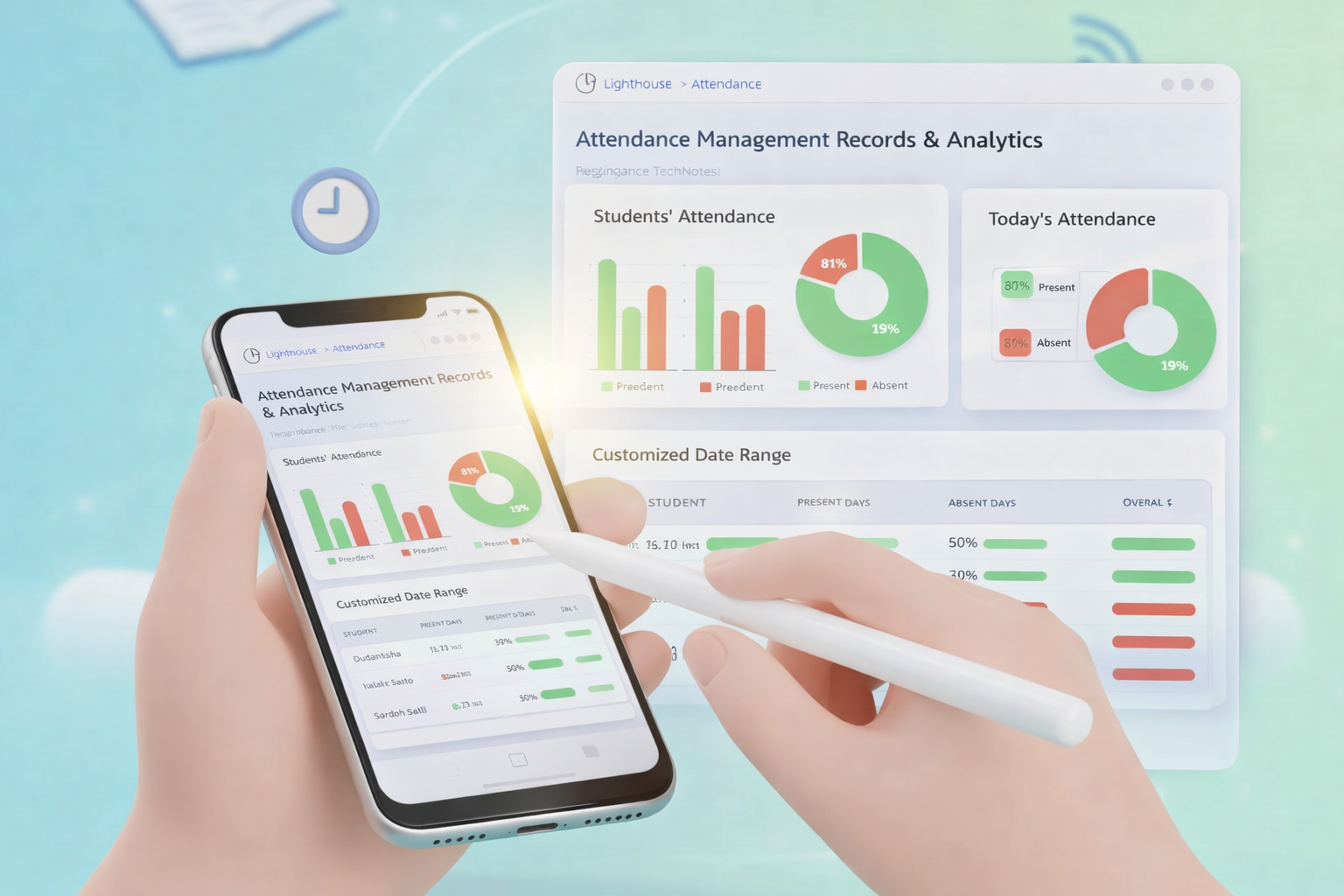
    Attendance Management involves the oversight of school-wide data, the generation of reports, and the ability to perform administrative corrections to historical attendance records.

    How to Manage and Audit Attendance

    • Access Admin Reports: Navigate to School Management > Attendance Reports via the web portal.
    • Review the Attendance Summary:
      • View school-wide percentages for the day, week, or month.
      • Identify classes that have Pending Attendance (where the teacher hasn’t submitted yet).
    • Perform Administrative Overrides:
      • If a teacher makes an error on a past date, admins can search for the student, select the specific date, and click Edit Record.
      • Select the corrected status and add an Admin Note explaining the change for audit purposes.
    • Export Data: Use the Export button to download attendance sheets in CSV or PDF format for official government or board reporting.

    Note:

    • Audit Logs: All changes made by an Admin to a Teacher’s original entry are tracked in the system audit log.
    • Lock Periods: Attendance records for previous academic terms may be “locked” and require Super Admin permission to modify.

    Frequently Asked Questions (FAQs)

    On the Attendance Management Dashboard, look for the “Pending Submissions” or “Teacher Compliance” report. This will list all classes that have not yet hit the “Save” button for the current date.

    Yes. Admins have “Override” permissions. You can navigate to the specific class and date, edit the student’s status, and save it. The system will log that an Admin performed this change.

    Yes. Go to the Analytics/Reports section and select the “Monthly Summary Report.” You can filter this by grade, board, or the entire institution to see aggregate percentage trends.

    This depends on your school’s configuration. In the Settings menu, you can define if “Late” counts as a full day of presence, a half-day, or simply as “Present with Remarks.”

    Absolutely. Every report view has an Export button that allows you to download the data in CSV (Excel) or PDF formats.

    Typically, no. Notes added in the Management module are intended for internal administrative tracking and audit trails, while “Status” is the primary information shared with parents.

    The system uses “Last-In Wins” logic, but as an Admin, your web-based portal usually has higher priority. We recommend that admins only edit records after the morning marking window has closed.

    Yes. Most LMS configurations allow for “Attendance Threshold Alerts.” You can set these up in the Notification Settings to flag chronic absenteeism to the Principal or Counselor.