staffs

  • Open and view ticket details in Parent Connect

    Open and view ticket details in Parent Connect

    Overview

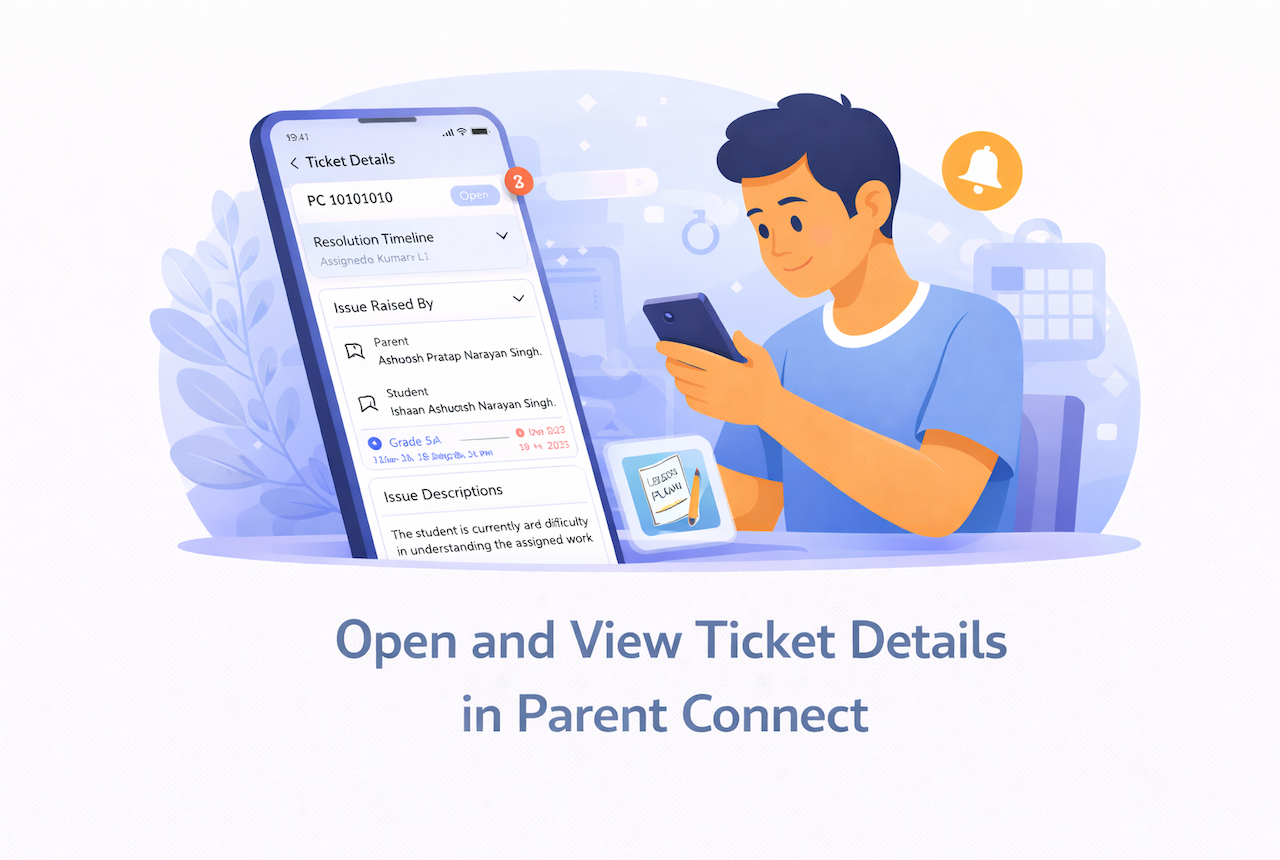
    This guide explains how staff can open a ticket in Parent Connect and view the full ticket details, including the issue summary, parent and student information, resolution timeline, and attachments.

    What You’ll Learn

    • How to open a ticket from the ticket list
    • How to view ticket details and issue information
    • How to view attachments inside a ticket

    Who Can Use This

    Applicable Role:

    • Staff mapped in Parent Connect

    Before You Begin

    • You must be logged in to the LMS app with a valid staff account
    • You must have access to Parent Connect
    • At least one ticket must be visible in your ticket list

    Steps to Open and View Ticket Details

    Step 1: Open Parent Connect

    Go to: More → Parent Connect

    Expected Result: The Parent Connect tickets screen opens.


    Step 2: Select a ticket

    From the ticket list, tap the ticket card that you want to open.

    You can open a ticket from either:

    • Assign to me
    • All Tickets

    Expected Result: The selected ticket opens on the Ticket Details screen.


    Step 3: View the ticket header

    At the top of the ticket details page, you can see key information such as:

    • Ticket ID
    • Current status

    Expected Result: You can quickly identify which ticket you are viewing and its current state.


    Step 4: Review the Resolution Timeline

    On the ticket details page, the Resolution Timeline section shows the current stage of the ticket.

    This section may help you understand:

    • Which level is currently handling the ticket
    • Whether the ticket is still open, escalated, or closed
    • Where the ticket stands in the resolution flow

    Expected Result: You can understand the current progress of the ticket.


    Step 5: Review the Issue Raised By section

    The Issue Raised By section shows who raised the ticket and who it is related to.

    This section may include:

    • Parent name
    • Student name
    • Student ID
    • Grade & Division

    Expected Result: You can identify the parent and student linked to the ticket.


    Step 6: Review the Issue Description section

    Open the Issue Descriptions section to read the problem raised by the parent.

    This section may show:

    • The query description
    • A short or full version of the issue
    • Supporting text entered by the parent

    Expected Result: You can understand the issue clearly before taking action.

    ℹ️ Important: Always review the issue description carefully before replying or taking action on the ticket.


    Step 7: View ticket attachments

    If the parent has uploaded a file, it will appear inside the ticket details section.

    You may be able to:

    • View the file name
    • Open the image or document
    • See the attachment preview

    Expected Result: You can review the attachment shared by the parent.


    Important Information

    ℹ️ Important: The ticket details page gives you the full context of the issue before you reply, escalate, or send a close request.

    ℹ️ Important: Some sections may appear collapsed by default. Tap the section to expand it and view more details.

    Tip: Review the Resolution Timeline, Issue Raised By, and Issue Description sections before taking any action on the ticket.


    FAQs

    Tap any ticket card from the Parent Connect list to open its full details.

    You can see the ticket ID, status, resolution timeline, parent and student details, issue description, and attachments.

    Yes. If the parent has uploaded an attachment, it appears inside the ticket details section.

    Reviewing the ticket details helps you understand the issue clearly and respond correctly.

    Yes. If the ticket is visible to you, you can tap it from either tab and open the details page.

    Expand the Issue Descriptions section. If the parent has added attachments, review those as well for better context.

  • Filter and search tickets in Parent Connect

    Filter and search tickets in Parent Connect

    Overview

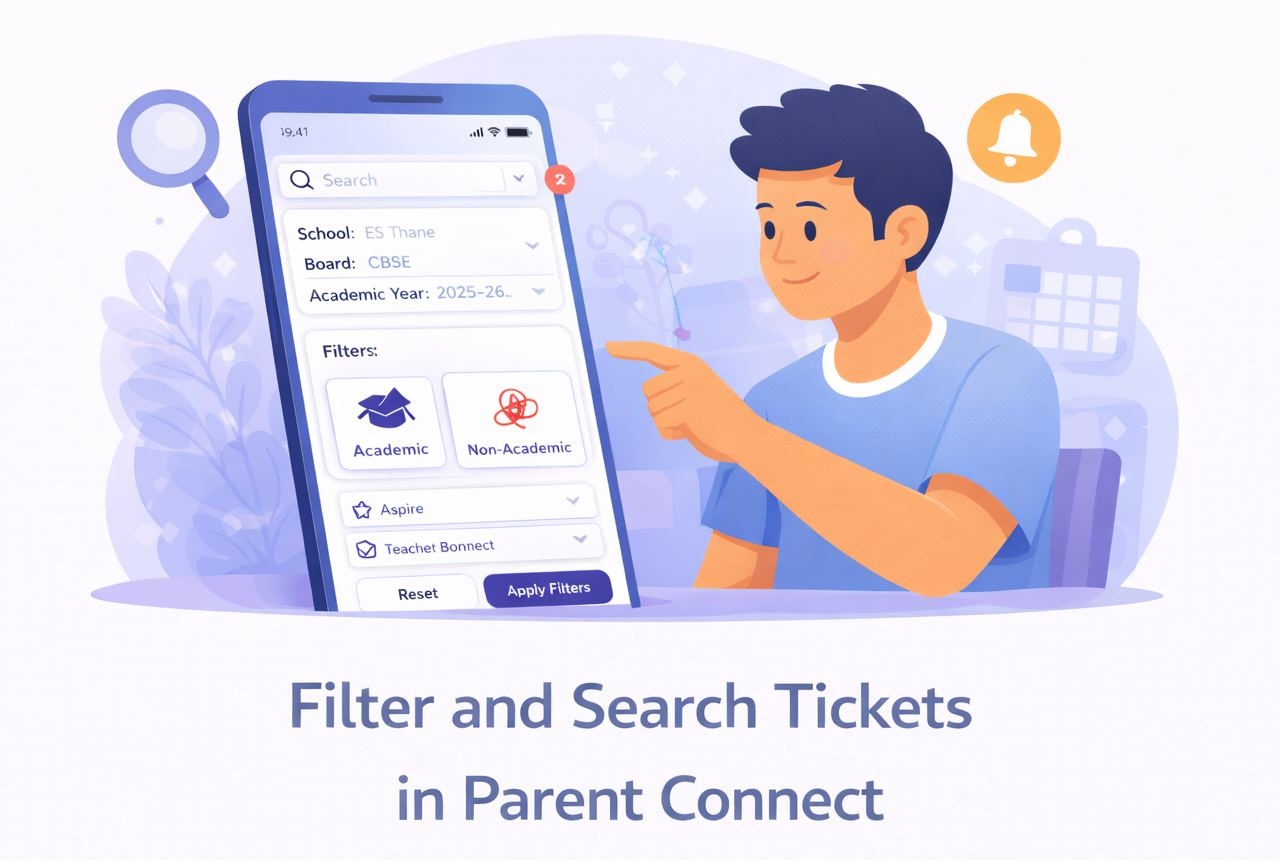
    This guide explains how staff can use search and filters in Parent Connect to quickly find the right tickets.

    What You’ll Learn

    • How to search for tickets in Parent Connect
    • How to apply filters to narrow ticket results
    • How to reset filters and return to the full ticket list

    Who Can Use This

    Applicable Role:

    • Staff mapped in Parent Connect

    Before You Begin

    • You must be logged in to the LMS app with a valid staff account
    • You must have access to Parent Connect

    Steps to Filter and Search Tickets

    Step 1: Open Parent Connect

    Go to: More → Parent Connect

    Expected Result: The Parent Connect tickets screen opens.


    Step 2: Use the search bar

    At the top of the Parent Connect screen, tap the search bar.

    You can search using details such as:

    • Ticket ID
    • Parent name
    • Assignee name

    Expected Result: The ticket list updates to show matching results.

    ℹ️ Important: Use search when you already know the ticket ID or want to quickly find a specific parent or ticket.


    Step 3: Open the filter panel

    Tap the Filter icon on the Parent Connect screen.

    Expected Result: The Filter panel opens.


    Step 4: Select basic filters

    You can filter tickets using the available fields, such as:

    • School
    • Board
    • Academic Year

    Select the values that match the tickets you want to view.

    Expected Result: Your selected values are added to the filter panel.


    Step 5: Select a category

    Choose the ticket category you want to view:

    • Academic
    • Non-Academic

    Expected Result: The selected category is highlighted.


    Step 6: Select one or more sub-categories

    Under Sub-category, choose the required option or options.

    Examples may include:

    • Aspire
    • Teacher Connect
    • Student Behavior

    Expected Result: The selected sub-categories are highlighted.

    ℹ️ Important: You may be able to select more than one sub-category, depending on the filter design.


    Step 7: Apply the filters

    Tap Apply Filters.

    Expected Result: The ticket list refreshes and shows only tickets that match the selected filters.


    Step 8: Reset filters if needed

    If you want to remove the selected filters, tap Reset.

    Expected Result: All selected filters are cleared, and the full ticket list is shown again.


    Important Information

    ℹ️ Important: Filters help you narrow down a large ticket list and find the right tickets faster.

    ℹ️ Important: Search and filters can be used together for more accurate results.

    Tip: Use School, Board, and Academic Year first, then apply Category and Sub-category filters for better results.


    Frequently Asked Questions

    You can search using details such as ticket ID, parent name, or assignee name.

    Use filters when you want to narrow down a group of tickets, such as all Academic tickets for a specific school or year. Use search when you want to find one specific ticket or person quickly.

    Yes. You can combine multiple filters such as School, Board, Academic Year, Category, and Sub-category to refine the ticket list.

    Yes, you can select more than on sub-category to filter out specific tickets.

    This may happen if no tickets match the selected filters. Try changing or clearing some filters and apply them again.

    Yes. You can first apply filters and then use the search bar to narrow the results even more.

  • View assigned tickets in Parent Connect

    View assigned tickets in Parent Connect

    Overview

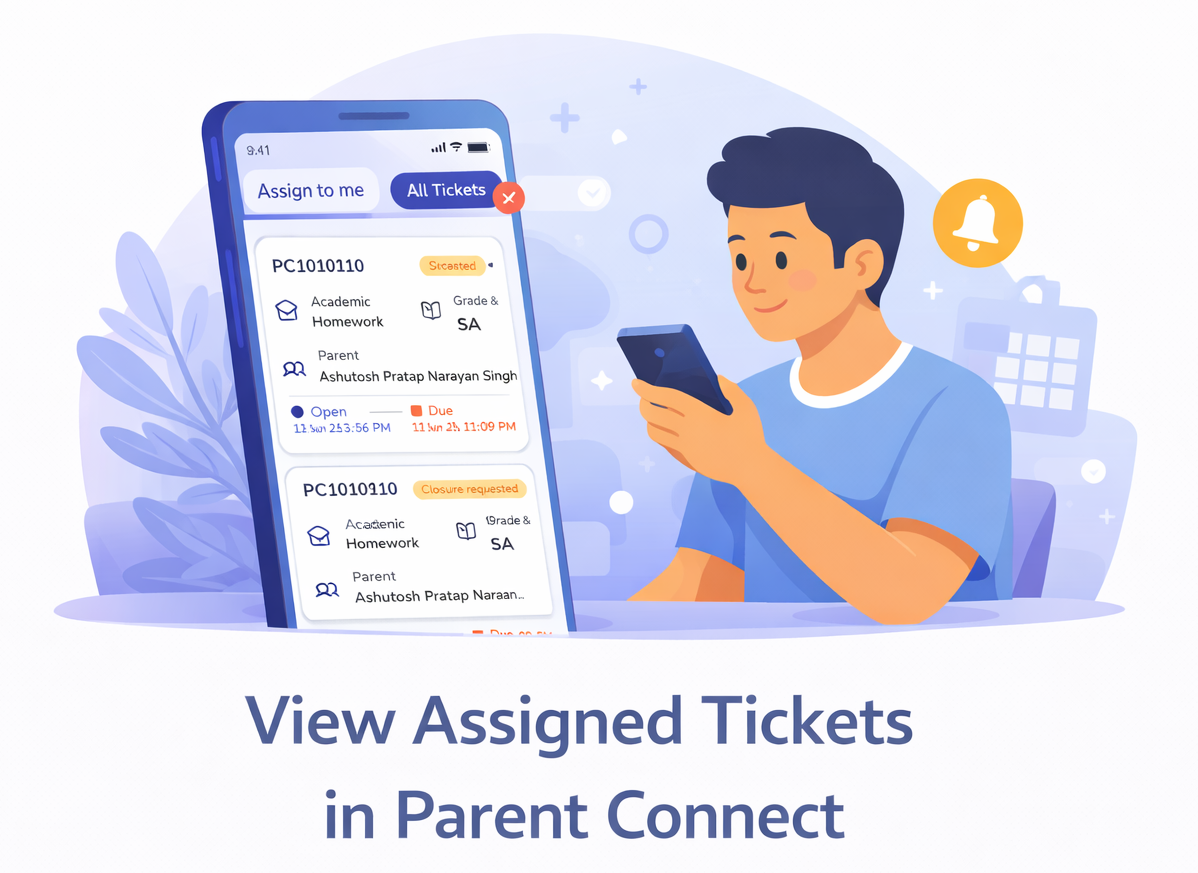
    This guide explains how staff can open Parent Connect, view their assigned tickets, and understand the ticket list shown in the app.

    What You’ll Learn

    • How to open Parent Connect
    • How to view tickets under Assign to me and All Tickets
    • What information is shown on each ticket card

    Who Can Use This

    Applicable Role:

    • Staff mapped in Parent Connect

    Before You Begin

    • You must be logged in to the LMS app with a valid staff account
    • You must be mapped in Parent Connect as a ticket handler

    Steps to View Assigned Tickets

    Step 1: Open the LMS app

    Log in to the LMS app using your staff credentials.

    Step 2: Open the More menu

    Tap More from the bottom navigation bar.

    Step 3: Select Parent Connect

    Tap Parent Connect from the menu.

    Expected Result: The Parent Connect tickets screen opens.


    Step 4: View tickets under Assign to me

    By default, Parent Connect opens on the Assign to me tab.
    This tab shows tickets that are currently assigned to you for action.

    Expected Result You can see all tickets that you are currently responsible for handling.

    ℹ️ Important: Use this tab when you want to work only on tickets that need your action.


    Step 5: View tickets under All Tickets

    Tap the All Tickets tab to view a broader list of tickets available to you.

    This tab may include:

    • Tickets currently assigned to you
    • Tickets previously assigned to you
    • Tickets visible to you based on your role and mapping

    Expected Result You can see a wider list of tickets available for your reference.

    ℹ️ Important: The tickets shown in All Tickets depend on your role, level, and Parent Connect mapping.


    Step 6: Review the ticket card details

    Each ticket card gives a quick summary of the ticket.

    A ticket card may show:

    • Ticket ID
    • Category and Sub-category
    • Parent name
    • Grade & Division
    • Status such as:
      • Open
      • Closure requested
      • Escalated
      • Closed
    • Timeline details such as:
      • Created
      • Due
    • Assigned level or current stage

    Expected Result: You can quickly understand the ticket type, ticket status, and whether action may be required.


    Step 7: Open a ticket

    Tap any ticket card to open the ticket details page.

    Expected Result: The selected ticket opens and shows the full details.


    Important Information

    ℹ️ Important:

    • Assign to me is the main working tab for tickets currently assigned to you.
    • All Tickets is useful when you want to review other visible tickets based on your mapping and access.
    • Ticket visibility may vary depending on whether you are L1, L2, or L3 staff.

    Frequently Asked Questions

    Assign to me shows tickets currently assigned to you for action.
    All Tickets shows a broader list of tickets visible to you based on your role and mapping as well as tickets previously assigned to you.

    This helps staff quickly access tickets that need their immediate attention.

    A ticket card may show the ticket ID, category, sub-category, parent name, grade and division, status, and timeline details such as created date and due date.

    This may happen if no tickets are currently assigned to you or if you are not mapped to any active Parent Connect category.

    All Tickets may include other tickets visible to you based on your role, level, and Parent Connect mapping, not just the ones currently assigned to you.

    No. Ticket visibility depends on the staff member’s level, mapping, and access in Parent Connect.

  • Create & Manage Notice Board

    Create & Manage Notice Board

    Notice Board is used to share important, official announcements with students, parents, or staff.

    How to Create a Notice

    1. Click + New Post
    2. Select Notice
    3. Select Audience:
      • School / Multiple Schools
      • Board → Grade → Division
    4. Choose visibility:
      • Students / Parents (or both)
    5. Add:
      • Title
      • Description
      • Optional: URL / Attachments (upto 5 attachments only)
    6. Select Post Tag (Alert / Circular if needed)
    7. Click Save & Publish

    ⚠️ Important Guidelines

    • Use for official communication only
    • Avoid using for daily updates or homework
    • Pin only critical notices

    Manage Notices

    • Go to Notice Board
    • Use 3 dots (⋮) to:
      • Edit
      • Delete
      • Pin (Max 3 pinned posts per school)

    Frequently Asked Questions

    Only staff members with the required permissions (Admin/Coordinator/Authorized Staff) can create notices.

    Yes. You can select multiple schools. In this case, Board–Grade–Division defaults to “All”.

    Yes. Go to Notice Board → click the 3 dots (⋮) → select Edit.

    You can pin up to 3 notices per school. Older pinned notices must be unpinned first.

    Yes. Use the checkboxes under “Visible to” while creating the notice.

  • Viewing and Managing Transfer Certificate Requests in Dashboard

    Viewing and Managing Transfer Certificate Requests in Dashboard

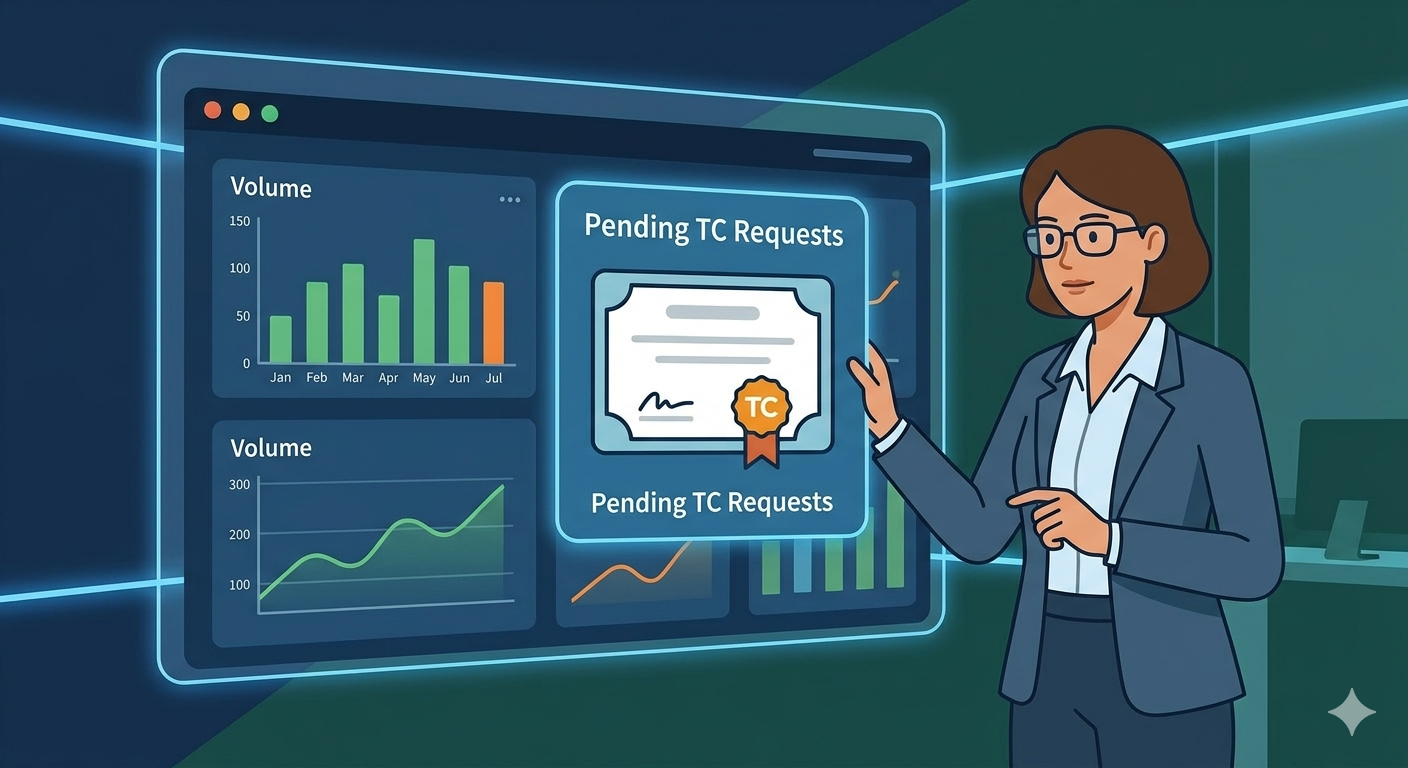
    The Transfer Certificate Requests Dashboard allows school staff to view all TC requests submitted by parents. Staff can search, filter, sort, and export requests to efficiently manage student exit processes.

    This dashboard helps administrators quickly identify pending requests, review request trends, and download data for reporting or follow-up.

    Viewing Transfer Certificate Requests


    1. Log in to the School Web Portal.
    2. Navigate to the School Management > Transfer Certificate module
    3. Opens the Requests Dashboard.
    4. The system will display a list of all submitted TC requests.

    Each row in the dashboard represents one parent request.


    Filtering Transfer Certificate Requests

    Filters help staff narrow down the request list based on specific criteria.

    1. Open the Transfer Certificate Dashboard.
    2. Select the required filter criteria such as:
      • Academic Year
      • Status
      • School
      • Reason

    The dashboard will update to show only the matching requests.

    Download button will download requests as per the filters selected.

    You can reset the filters by clicking the Reset filter button.


    Important Note

    Each student can have only one active TC request at a time. Older requests remain visible in the dashboard for historical reference


    Frequently Asked Questions (FAQs)

    Requests may not appear if filters are applied. Clear or adjust filters such as Academic Year, Status, or Date Range to view all requests.

    Yes. If filters are applied on the dashboard, the download/export file will include only the filtered results currently visible in the list.

    Each row represents one Transfer Certificate request submitted by a parent for a specific student. Clicking the row will open the detailed request view.

    Approved or withdrawn requests remain visible in the dashboard to maintain historical records and audit trails. They can still be filtered by status.

  • Reviewing and Acting on a Transfer Certificate (TC) Request

    Reviewing and Acting on a Transfer Certificate (TC) Request

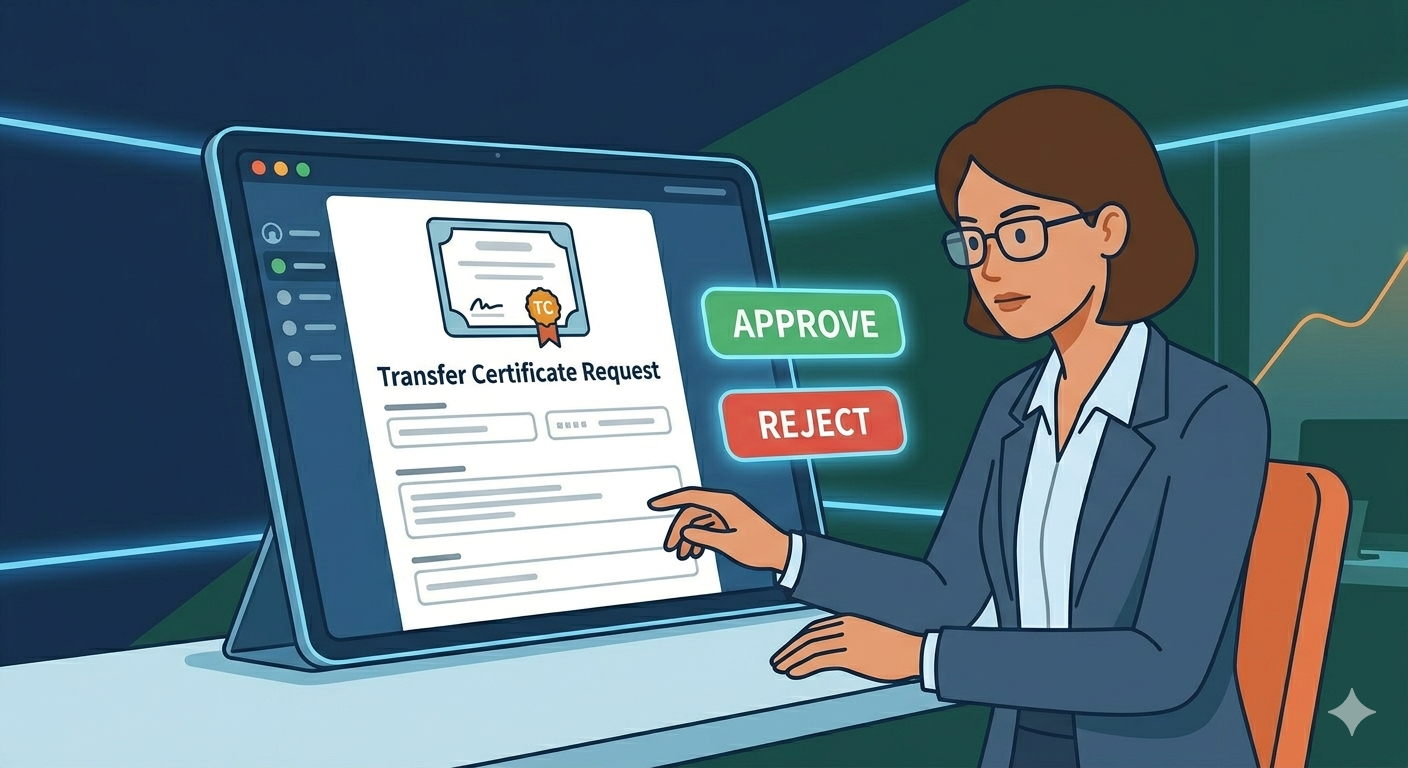
    When a parent submits a Transfer Certificate request, school staff can open the request in detail view to review the parent’s feedback and take action.

    Staff can either:

    • Approve the request, confirming the student’s exit process
    • Ask the parent to reconsider, allowing the school to initiate a conversation before final approval

    All actions taken are recorded in the request activity timeline.

    Opening a Transfer Certificate Request


    1. Log in to the School Web Portal.
    2. Navigate to the School Management > Transfer Certificate module
    3. Locate the request you want to review.
    4. Click on the View icon option under the Action column.

    The system will open the Transfer Certificate Detail Page.


    Request Detail Page contains

    Student Information: Name, Grade, School, Academic Year.

    Request Information: TC id, Request Date, Parent feedback and reason for leaving.

    Activity Timeline: The timeline shows all actions taken on the request including submission, approval and status changes.


    Asking a Parent to Reconsider

    If the school wishes to discuss the decision before approving the request, staff can mark the request as Reconsider.

    1. Open the Transfer Certificate request in detail view.
    2. Review the parent’s reason for requesting the TC.
    3. Click Ask for Reconsider button.
    4. Enter a comment explaining the request for reconsideration.
    5. Click Submit.

    The system will:

    • Update the request status to Reconsider
    • Record the action in the activity timeline
    • Send a notification to the parent

    Approving a Transfer Certificate Request

    If the request is valid and ready for closure, the school can approve it.

    1. Open the Transfer Certificate request in detail view.
    2. Review all submitted details.
    3. Click Approve Request.
    4. Enter an approval comment.
    5. Confirm the action.

    The system will:

    • Update the request status to Approved
    • Record the action in the activity timeline
    • Notify the parent about the approval

    Adding Internal Notes on a Request

    Staff can add internal add notes. These notes help:

    • Explain the decisions taken
    • Provide context for future reference

    All notes are recorded in the Internal notes section and are only visible to staff.


    Request Statuses Explained

    StatusMeaning
    SubmittedParent has submitted the request
    ReconsiderSchool has asked parent to reconsider the request
    ApprovedSchool has approved the request
    WithdrawnParent has withdrawn the request

    Important Note

    Only authorized school staff can approve or reconsider requests.

    Each request maintains a complete activity timeline.

    Duplicate requests for the same Student + School + Academic Year are prevented by the system.

    Actions taken by staff trigger notifications to the parent.


    Frequently Asked Questions (FAQs)

    No. Parent-submitted details cannot be edited by staff. However, staff can review the request and respond by approving it or asking the parent to reconsider.

    When a request is marked as Reconsider, the parent receives a notification informing them that the school would like them to reconsider the request. The action is also recorded in the activity timeline.

    Once a request is approved, it is treated as a final administrative action and cannot typically be reversed within the system. Any further changes may require administrative intervention outside the system.

    All comments added during Reconsider or Approval actions are recorded in the Activity Timeline within the request detail page. This helps maintain a transparent record of decisions.

  • Marking Student Attendance

    Marking Student Attendance

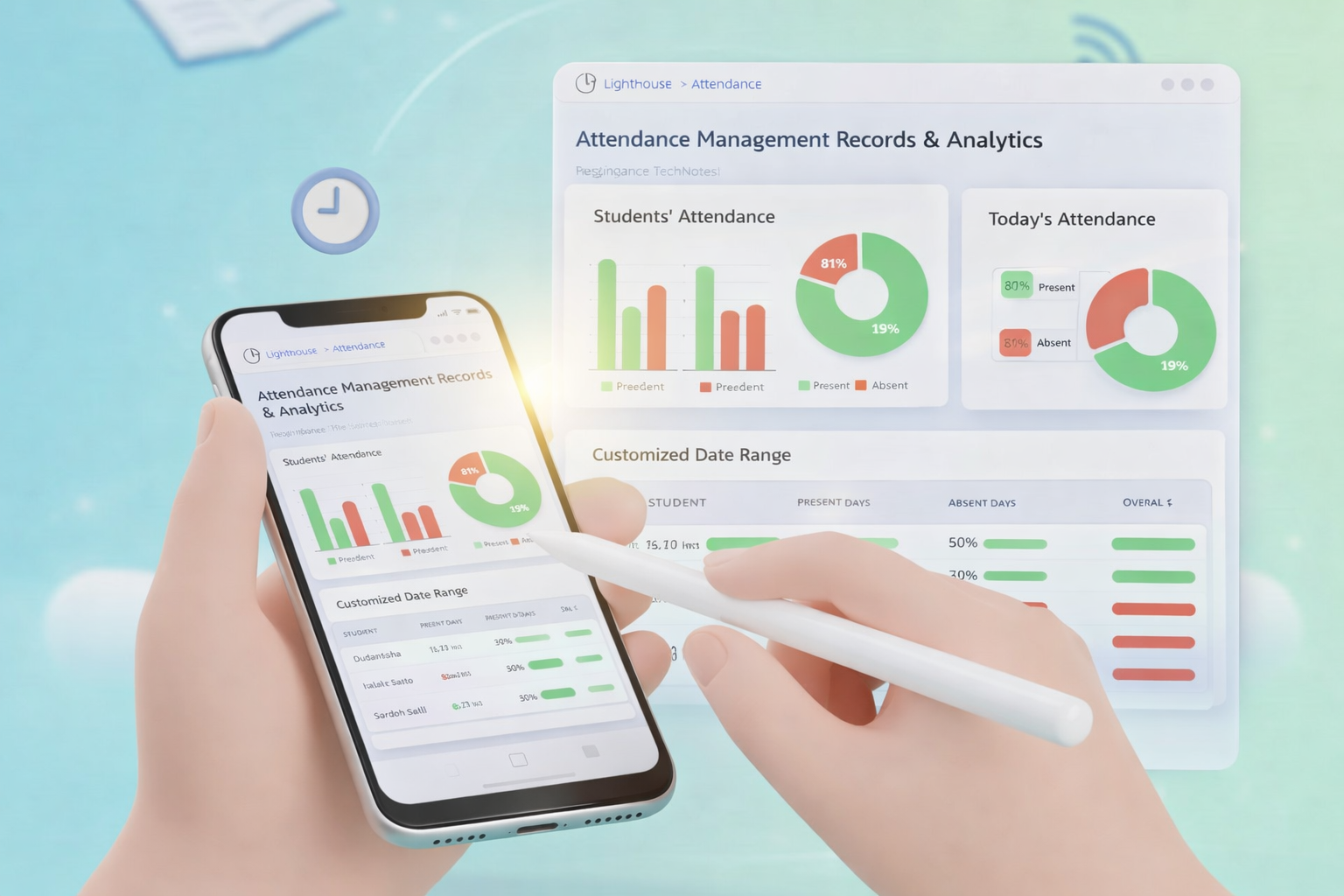
    The Attendance module in the Teacher App is designed to simplify daily record-keeping. Teachers can quickly log presence, track late arrivals, and instantly notify parents, ensuring accurate student data is maintained across the LMS.

    Academic Attendance marking is a core responsibility for teachers and academic staff. While records can be viewed on the web, the Mobile App is optimized for real-time classroom use.

    How to Mark Attendance

    1. Access the Attendance Module

    There are two ways to start:

    • From the Dashboard: Look for the Attendance Reminder Card. It displays your class size, progress, and the time remaining to submit. Tap Start or Continue.
    • From the Menu: Tap More in the bottom navigation and select Attendance.

    2. Set the Context (Class and Date)

    By default, the app loads the Current Date and your Assigned Class.

    • Change Class: Use the Class Dropdown at the top if you manage multiple sections.
    • Change Date: Tap the Date Field to select a previous date from the calendar to record backdated entries.

    3. Record Student Status

    You can mark students individually or use time-saving bulk tools:

    • Individual Selection: Toggle between Present, Absent, Late, or Left Early for each student. You can also add specific notes for administrative records.
    • Bulk Mark: To save time, use the Select All option to mark the entire class as Present, then manually update only the few students who are absent or late.

    4. Save and Notify

    Once the list is accurate, tap Save & Send Notification to Parents. This action performs two tasks simultaneously:

    1. Saves the data to the secure school database.
    2. Triggers an instant alert to the parents of any student marked with an updated status (like “Absent”).

    Important Information

    • Daily Requirement: Attendance should be recorded during the designated morning window to ensure parents receive timely notifications.
    • Corrections: If you make a mistake, you can return to the module at any time during the day to update a student’s status.
    • Transparency: All saved records are stored securely and can be reviewed by school leadership for official reporting.

    Frequently Asked Questions (FAQs)

    Simply open the Attendance module again, select the student, and change their status from “Absent” to “Late.” Be sure to tap Save & Send Notification again to update the system and inform the parents.

    You can typically select the statuses offline, but you must connect to Wi-Fi or cellular data and tap Save for the data to sync with the school server and for notifications to be sent.

    Yes. Saving any status other than “Present” (unless configured otherwise by your school) will trigger a notification to ensure parents are aware of their child’s current status.

    Next to each student’s name, there is a Notes icon. You can type details there, such as “Parent called in sick” or “Attending school event,” which will be visible to administrators.

    Use the Bulk Mark feature. Select the “Present” checkbox at the very top of the list to mark everyone at once, then simply scroll down and uncheck the 2 or 3 students who are actually absent.

    Yes. Tap the Date field at the top, select the missed date from the calendar, and record the attendance as usual. Note that some schools may “lock” dates after a certain period.

    This means you haven’t clicked the final Save & Send Notification button. Even if you have selected statuses for every student, the record is not official until you save it.

  • Creating a New Event in Almanac

    Creating a New Event in Almanac

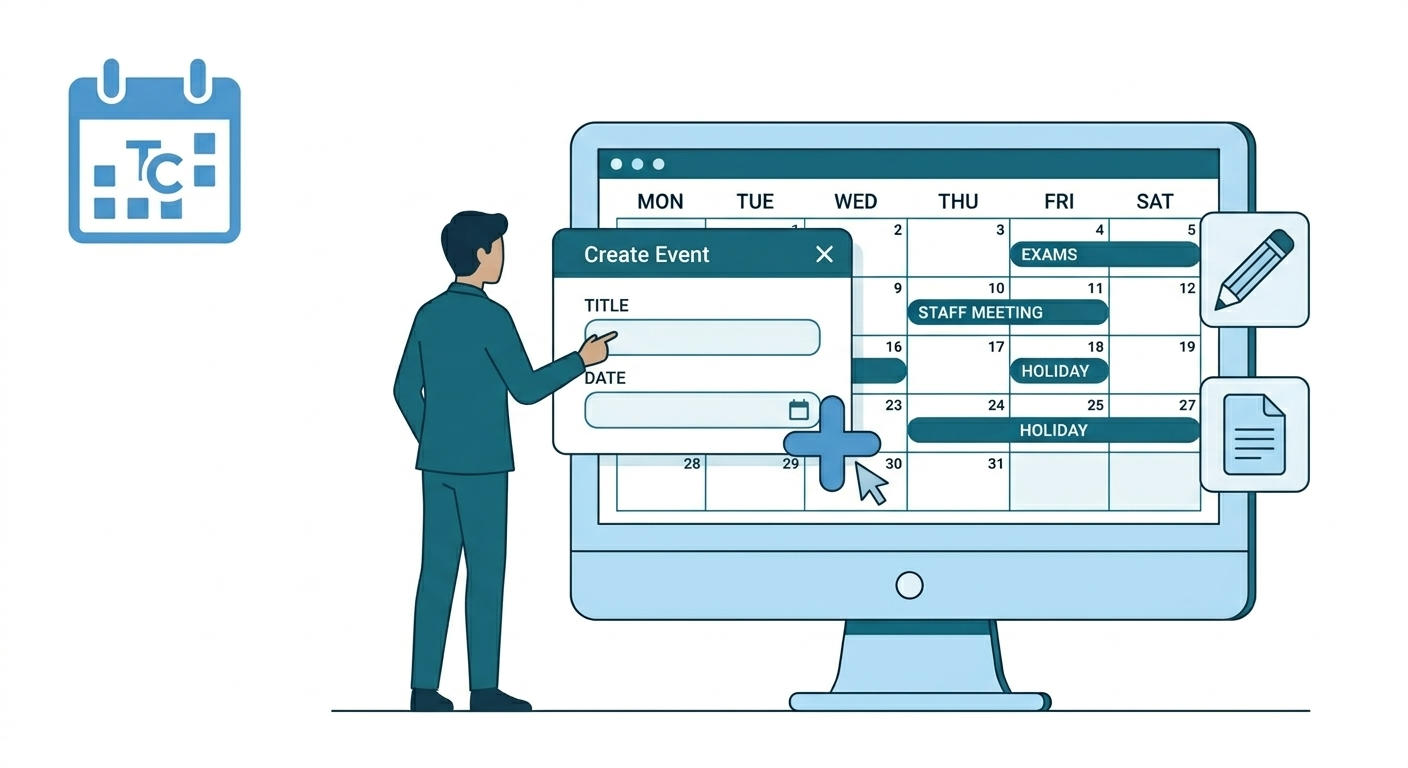
    Creating a new event in Almanac is the primary method for broadcasting essential academic and institutional dates to your school community. By utilizing the web-based creation suite, authorized administrators can build highly targeted entries—ranging from single-class exams to school-wide holidays—by defining specific audiences through advanced filters such as Board, Grade, and Division. This centralized process ensures that once an event is confirmed, it is instantly mapped to the personalized dashboards of relevant teachers, students, and parents, maintaining a synchronized and reliable schedule across both web and mobile platforms.

    Almanac is the centralized academic calendar module within the K-12 LMS. It provides a structured and reliable source of information for all school-related events, including academic activities, examinations, holidays, vacations, and institutional events.

    Role & Platform Matrix

    Access to Almanac features is determined by your user role. Please note that administrative tasks, such as creating events, are currently restricted to the web platform.

    RoleWeb AccessMobile AccessCreate/Edit/DeleteView
    Super AdminYesNoYesYes
    HO AdminYesNoYesYes
    School AdminYes (View Only and Personalised to LMS mapping)NoYesYes
    TeacherYes (View Only and Personalised)NoNoYes
    ParentYes (View Only)YesNoYes
    StudentYes (View Only)YesNoYes

    School Admins and Teachers see events personalized to their specific LMS mapping and assignments.

    How to Create an Event

    To ensure accuracy across the LMS, creating events must be done via a web browser. Follow these steps to add a new activity to the calendar:

    1. Navigate to Almanac: Open the LMS on your computer and go to School Management > Almanac (Web).
    2. Initiate Setup: Click the Add Event button.
    1. Define Your Audience: Select the scope of the event by choosing the relevant School, Board, and Grade.
      • Optional: Use Advanced Filters to narrow the audience down to specific Divisions or individual Students.
      • Fill required fields:
        • Audience
          1. School
          2. Board
          3. Grade
          4. Advanced filters (Optional)
            1. Division
            2. Students
        • Event Type Selection (Custom / Sports Day, Annual Day, Holidays, Vacations, Exams, PTM)
        • Event Details:
          1. Event Title
          2. Subtype
          3. Full day event (Y/N)
          4. Date range
          5. Time Range (if not full-day)
          6. Mark as Holiday (Y/N)
          7. Mark attendance (Y/N)
    2. Finalize: Once all mandatory fields are complete, click Create event.
    1. Confirm: Click Confirm on the pop-up notification to publish the event to the calendar.

    Web-Only Creation: Event creation and management tools are not available on the mobile app. To add or modify the academic calendar, you must log in via the web portal.


    Frequently Asked Questions (FAQs)

    Yes. Use the Advanced Filters during the creation process to select a specific Division. This ensures only the relevant students and teachers see the event on their personalized calendars.

    Marking an event as a holiday typically designates that day as non-instructional. This status is reflected on attendance reports and student/parent dashboards to indicate that school is not in session.

    The Create event button only becomes active once all mandatory fields (marked with an asterisk) are filled. Double-check that you have selected an Audience, Event Type, and Date Range.

    Yes. While parents cannot create events, any event you publish on the web version of Almanac syncs instantly to the parent and student mobile apps.

    Yes. Ensure the Full day event toggle is set to No. This will open the Time Range fields, allowing you to set specific start and end times for the activity.

  • Edit/ Update or Delete Events in Almanac

    Edit/ Update or Delete Events in Almanac

    To update an existing event in Almanac, authorized administrators must log in via the web portal and navigate to the calendar grid or side navigation. Clicking on the event name opens its detailed view in the side panel, where a pencil icon triggers the edit mode. In this mode, users can modify targeted fields like Audience (School, Board, Grade, or Division) and Event Details (Title, Date Range, Time, or Holiday status). However, to preserve data integrity, specific rules apply: events that have already started or finished can only have their Title and Description changed, while the Event Type remains a permanent classification that cannot be altered for any event once created. After all required adjustments are made, clicking Update Event and confirming on the subsequent pop-up publishes the changes in real-time across all user dashboards and mobile apps.

    Role-Based Access Overview

    Your ability to modify events depends on your assigned administrative role. Modification tools are available exclusively through the Web portal.

    RoleWeb AccessMobile AccessManagerView
    Super AdminYesNoYesYes
    HO AdminYesNoYesYes
    School AdminYes (View Only and Personalised to LMS mapping)NoYesYes
    TeacherYes (View Only and Personalised)NoNoYes
    ParentYes (View Only)YesNoYes
    StudentYes (View Only)YesNoYes

    School Admins can edit events within their specific LMS school mapping.

    How to Update an Event

    To maintain calendar integrity, the system applies specific rules based on when the event occurs.

    Future Events: You can edit all fields for events that have not yet started.

    Past Events: For events that have already started or finished, you can only edit the Title and Description.

    Permanent Fields: The Event Type (e.g., Holiday vs. Exam) cannot be changed once an event is created. If the type is incorrect, you must delete the event and create a new one.

    1. Locate the Event – Navigate to the Almanac module on the web. Find your event either directly on the Calendar grid or by using the Side Navigation list. Click on the event name to open its details.
    2. Enter the edit mode – Once the event details expand in the side panel, click the Update/Edit (pencil) icon.
    3. Event details open up on the Side Navigation
    1. Modify Required Fields:
      1. Audience
        1. School
        2. Board
        3. Grade
        4. Advanced filters (Optional)
          1. Division
          2. Students
      2. Event Details:
        1. Event Title
        2. Subtype
        3. Full day event (Y/N)
        4. Date range
        5. Time Range (if not full-day)
        6. Mark as Holiday (Y/N)
        7. Mark attendance (Y/N)
    1. Save Changes
      • Click Update event (after all mandatory details are filled)
      • Click Confirm on Confirmation Pop up

    How to Delete an Event

    1. Locate the Event: Find the event on the main calendar or via the Side Navigation and click on it.
    2. Open Details: The event details will expand in the Side Navigation panel.
    3. Enter Edit Mode: Click the Update/Edit icon (usually represented by a pencil).
    1. Remove Event: Click the Delete icon (trash can).
    1. Confirm: A pop-up will appear asking for confirmation. Click Delete to permanently remove the event.

    Only events with Start time in the future can be deleted


    Frequently Asked Questions (FAQs)

    The delete option only appears for events scheduled in the future. Additionally, ensure your user role (such as Super Admin or HO Admin) has the necessary permissions to manage events.

    Currently, creating, editing, or deleting events is only supported on the Web version of the LMS for authorized administrators. Mobile access is primarily for viewing the calendar.

    This means you only see the events relevant to your specific school, grade level, or classes. For example, a Teacher will see their specific academic milestones rather than the entire district’s administrative schedule.

    No. Once you click “Delete” on the confirmation pop-up, the event is permanently removed from the Almanac module. Please double-check before confirming.

    Yes. Because Almanac is the centralized module, any changes made by an Admin are updated in real-time across all user dashboards and mobile apps.

    To preserve the accuracy of school records, the system locks the date and time settings once an event has passed. You can still update the title or description for clarity, but the timing remains fixed.

    No. The Event Type is a permanent classification. If an event was categorized incorrectly at the time of creation, you will need to delete it and create a new entry with the correct type.

    Changes made in Almanac update the calendar in real-time across all user dashboards and mobile apps. Depending on your school’s notification settings, users may see the update reflected instantly.

    In the Audience section of the edit screen, open Advanced Filters. Here, you can select a specific Division to ensure the update only applies to that group.

    If the pencil icon is missing, it is likely because your user role does not have “Edit” permissions for that specific event or school mapping. Contact your Super Admin to verify your access levels.

  • View Almanac (Staff)

    View Almanac (Staff)

    Almanac is the centralized academic calendar module within the K-12 LMS. It provides a structured and reliable source of information for all school-related events, including academic activities, examinations, holidays, vacations, and institutional events.

    Role-Based Access Overview

    Access to Almanac is governed by role-based permissions.

    RoleWeb AccessMobile AccessCreate/Edit/DeleteView
    Super AdminYesNoYesYes
    HO AdminYesNoYesYes
    School AdminYes (View Only and Personalised to LMS mapping)NoYesYes
    TeacherYes (View Only and Personalised)NoNoYes
    ParentYes (View Only)YesNoYes
    StudentYes (View Only)YesNoYes

    Access Almanac

    • Click School management
    • Click Almanac to view
    • Opens Almanac screen with current month as default. School , Board and Grade filters will be selected as per LMS access.
    • Click on filters to change view

    Default View & Navigation

    • Current month opens as default
    • Side bar auto-scrolls to current date
    • Event Detail contains Event name, Date, Time and Description

    Frequently Asked Questions (FAQs)

    Event creation, editing, and deletion can only be done from the web version of the LMS.

    Events visible to you depend on your role and LMS mapping (such as school, grade, or board).
    If an event is not relevant to your assigned mapping, it may not appear in your view.

    You can use the filter option available on the Almanac screen.
    Tapping the filter icon opens a selection panel where you can refine the events displayed based on available filter criteria.

    Editing permissions depend on your role and access level.
    Only authorized administrators can edit events, and past or ongoing events cannot be modified due to system rules.