
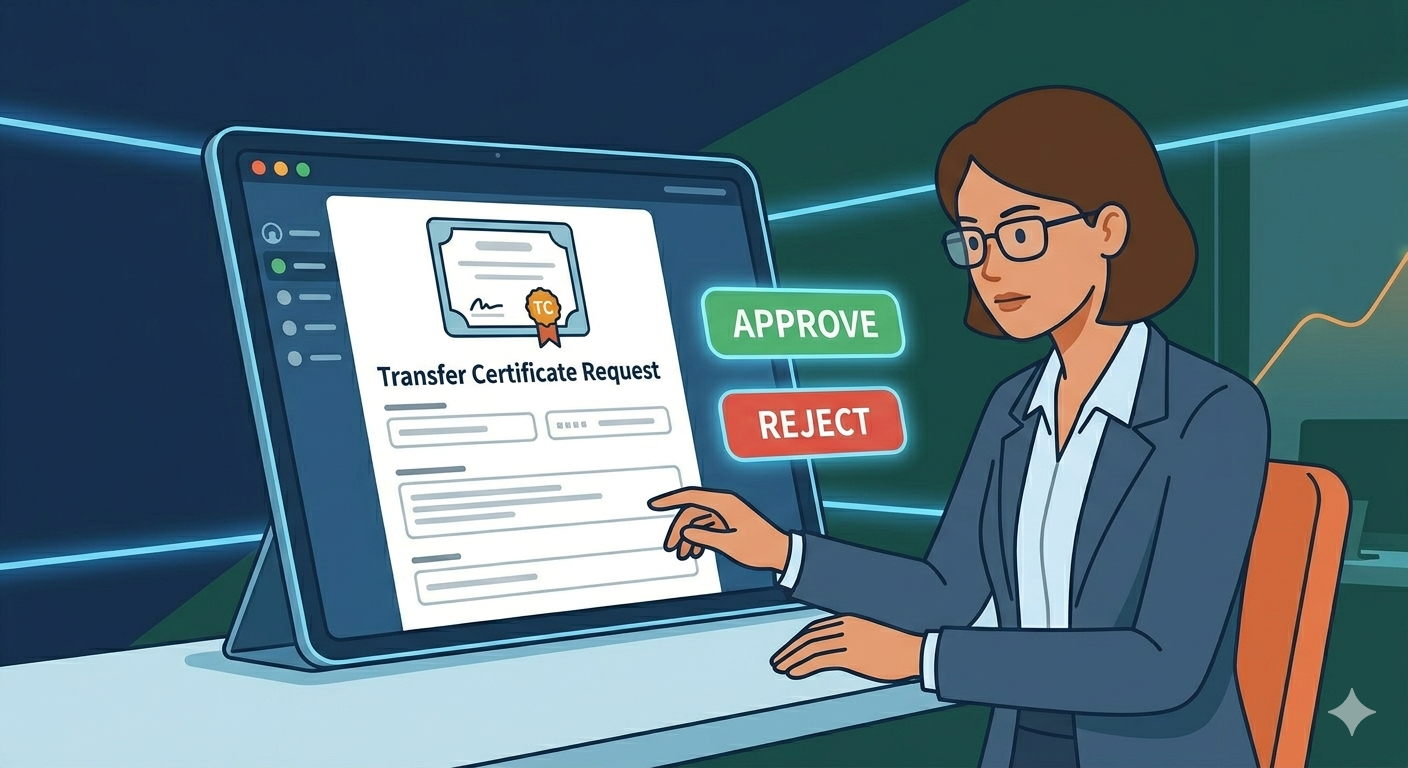
When a parent submits a Transfer Certificate request, school staff can open the request in detail view to review the parent’s feedback and take action.
Staff can either:
- Approve the request, confirming the student’s exit process
- Ask the parent to reconsider, allowing the school to initiate a conversation before final approval
All actions taken are recorded in the request activity timeline.
Opening a Transfer Certificate Request
- Log in to the School Web Portal.
- Navigate to the School Management > Transfer Certificate module
- Locate the request you want to review.
- Click on the View icon option under the Action column.
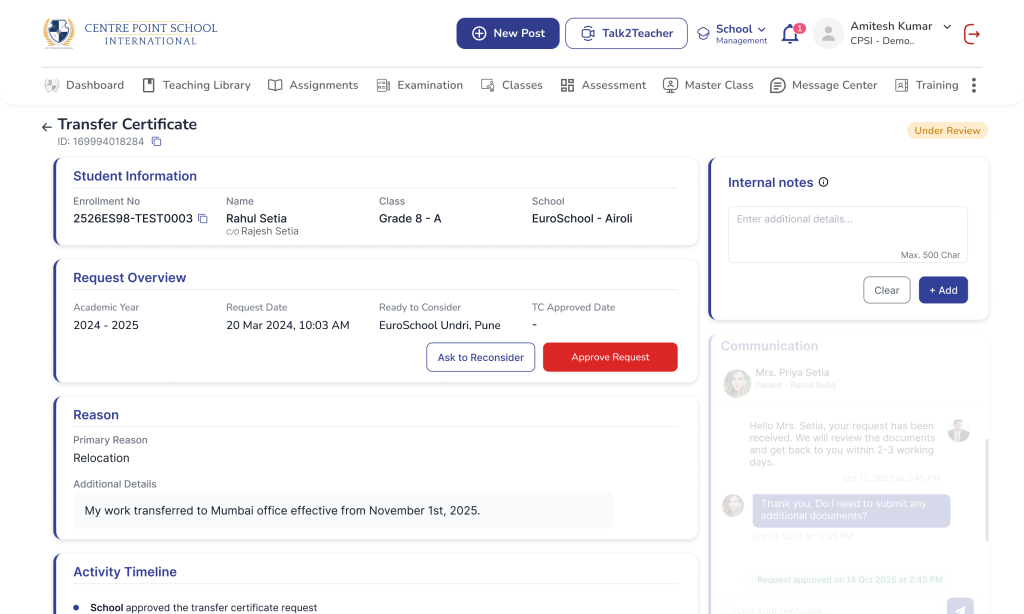
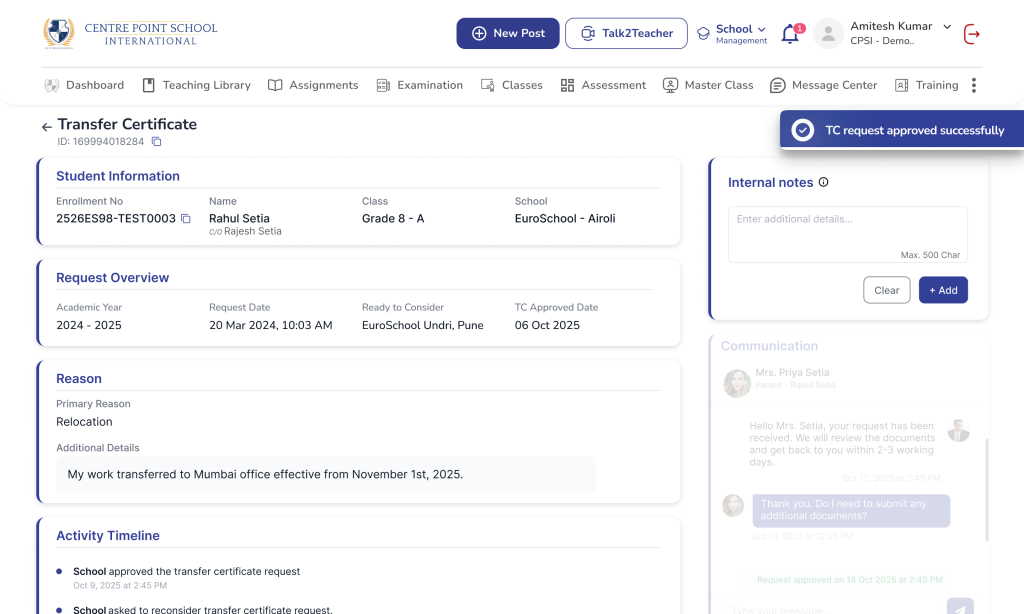
The system will open the Transfer Certificate Detail Page.
Request Detail Page contains
Student Information: Name, Grade, School, Academic Year.
Request Information: TC id, Request Date, Parent feedback and reason for leaving.
Activity Timeline: The timeline shows all actions taken on the request including submission, approval and status changes.
Asking a Parent to Reconsider
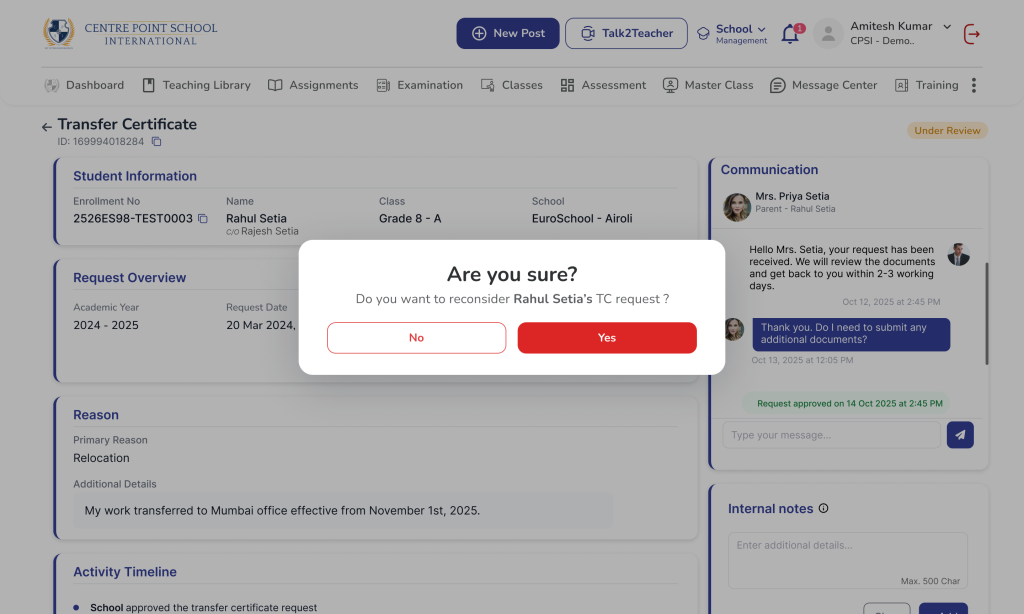
If the school wishes to discuss the decision before approving the request, staff can mark the request as Reconsider.
- Open the Transfer Certificate request in detail view.
- Review the parent’s reason for requesting the TC.
- Click Ask for Reconsider button.
- Enter a comment explaining the request for reconsideration.
- Click Submit.
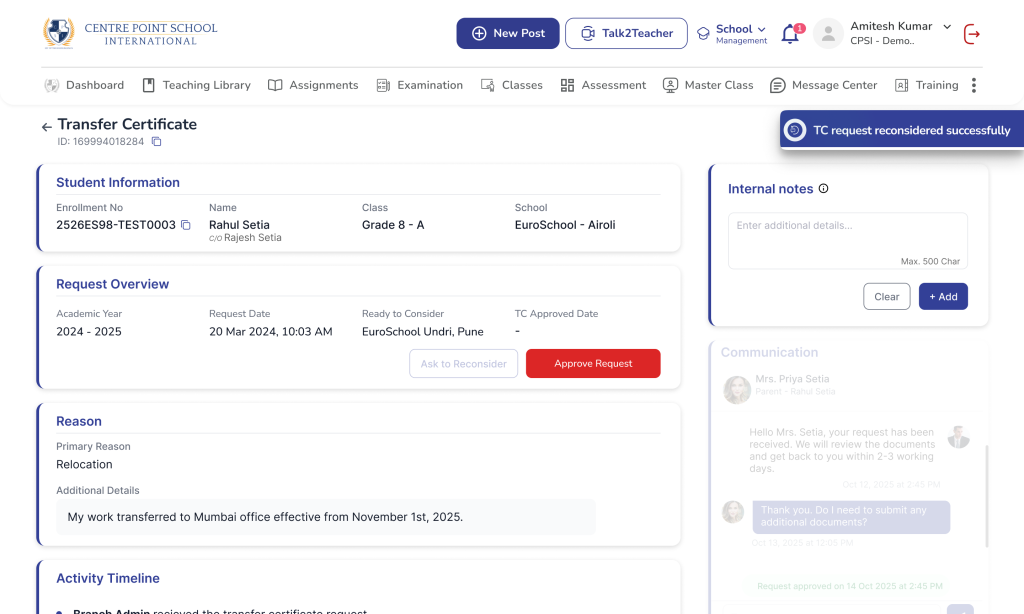
The system will:
- Update the request status to Reconsider
- Record the action in the activity timeline
- Send a notification to the parent
Approving a Transfer Certificate Request
If the request is valid and ready for closure, the school can approve it.
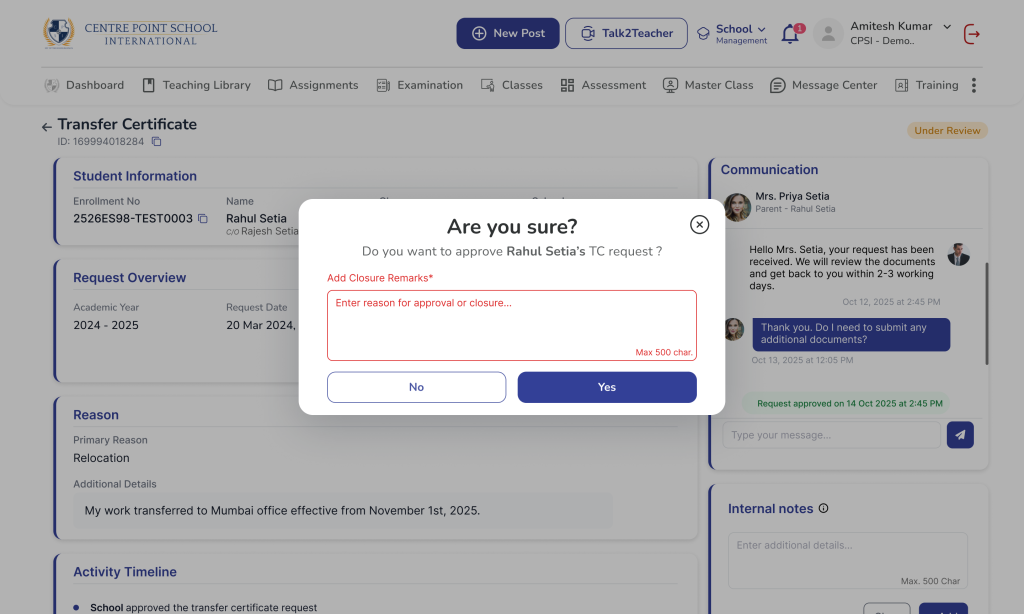
- Open the Transfer Certificate request in detail view.
- Review all submitted details.
- Click Approve Request.
- Enter an approval comment.
- Confirm the action.
The system will:
- Update the request status to Approved
- Record the action in the activity timeline
- Notify the parent about the approval
Adding Internal Notes on a Request
Staff can add internal add notes. These notes help:
- Explain the decisions taken
- Provide context for future reference
All notes are recorded in the Internal notes section and are only visible to staff.
Request Statuses Explained
| Status | Meaning |
|---|---|
| Submitted | Parent has submitted the request |
| Reconsider | School has asked parent to reconsider the request |
| Approved | School has approved the request |
| Withdrawn | Parent has withdrawn the request |
Important Note
Only authorized school staff can approve or reconsider requests.
Each request maintains a complete activity timeline.
Duplicate requests for the same Student + School + Academic Year are prevented by the system.
Actions taken by staff trigger notifications to the parent.
Frequently Asked Questions (FAQs)
No. Parent-submitted details cannot be edited by staff. However, staff can review the request and respond by approving it or asking the parent to reconsider.
When a request is marked as Reconsider, the parent receives a notification informing them that the school would like them to reconsider the request. The action is also recorded in the activity timeline.
Once a request is approved, it is treated as a final administrative action and cannot typically be reversed within the system. Any further changes may require administrative intervention outside the system.
All comments added during Reconsider or Approval actions are recorded in the Activity Timeline within the request detail page. This helps maintain a transparent record of decisions.