

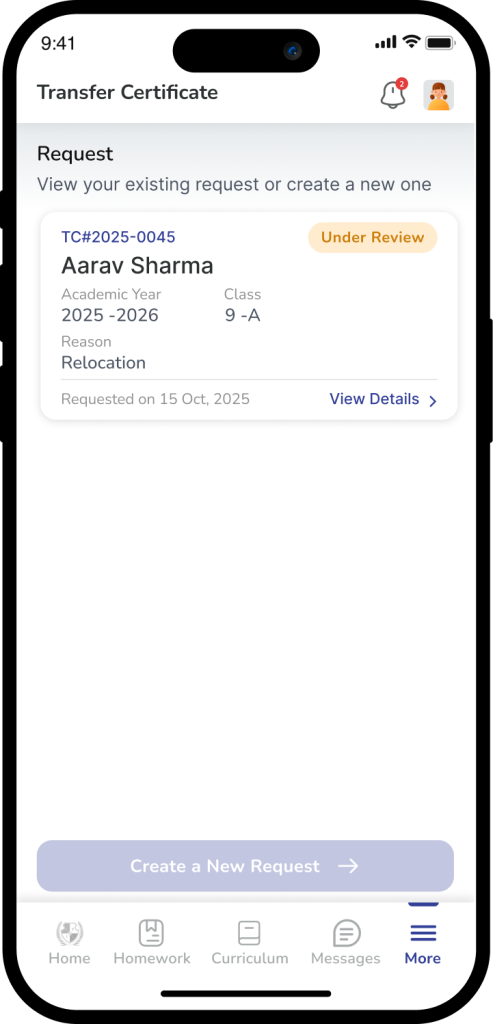
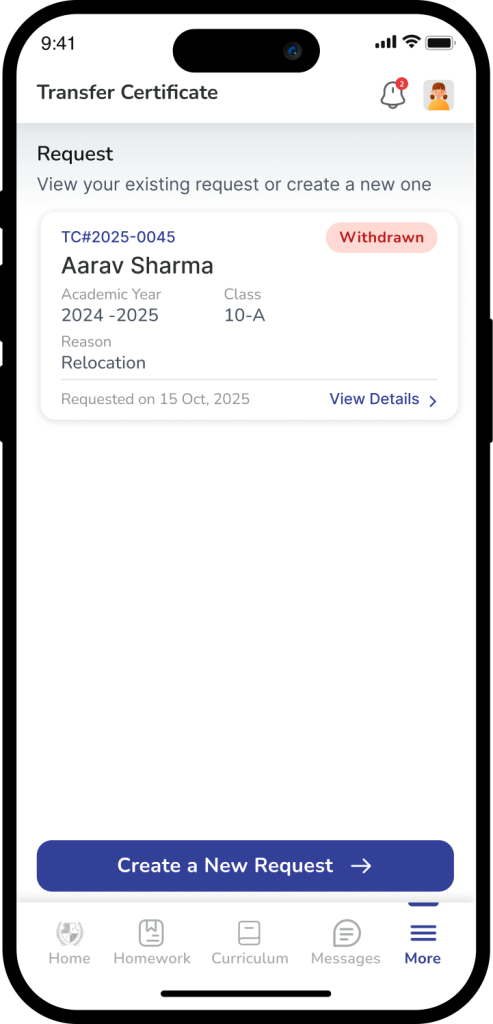
To stay informed on a student’s withdrawal progress, parents can easily track an existing Transfer Certificate (TC) request through the dedicated module in the school app. Upon logging in and navigating to the student’s profile, the system displays a “Request Card” that acts as a real-time status tracker for any active submission. This card provides essential visibility into the administrative workflow, highlighting key stages such as Under Review, Reconsider (awaiting further parent-school discussion), Approved (clearances complete), or Withdrawn (request cancelled). By centralizing this information, it eliminates the need for manual follow-ups, ensuring that families can monitor everything from the initial reason for withdrawal to the final issuance of the certificate in one transparent location.
How to View an Existing Request
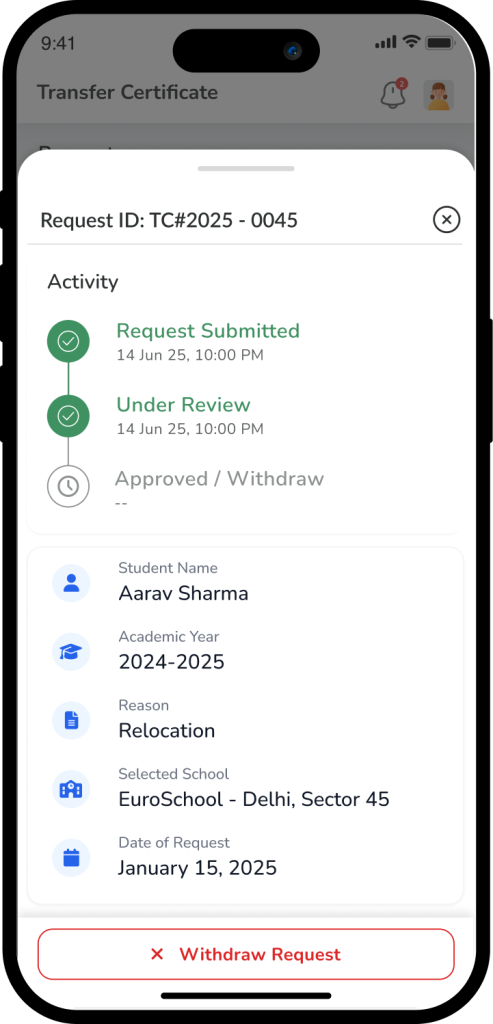
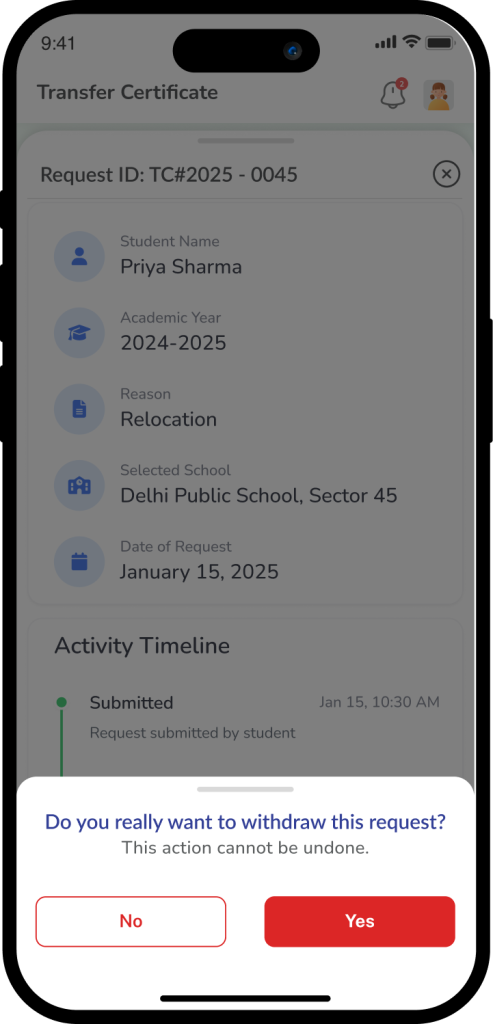
If you have already submitted a withdrawal request, follow these steps to check its current progress:
- Log In: Open the school app and log in using your Parent Account.
- Select Student: Navigate to the specific student profile for whom the request was raised.
- Open TC Section: Select the Transfer Certificate option from the main menu.
- Review the Request Card: If a request is active, it will appear as a dedicated Request Card on your screen.
- Check Details: The card will display essential information, including:
- Request ID & Date: For tracking and reference.
- Reason: The reason provided during submission.
- Current Status: A real-time label indicating the progress of your file.
Understanding Request Statuses
As your request moves through the school’s administrative departments (Accounts, Library, Academics, etc.), the status label will change:
- Pending: Your request has been received and is currently waiting for the school administration to begin the review process.
- Reconsider: The school has requested a follow-up discussion. This may occur if the administration wishes to address the reason for withdrawal or offer alternatives.
- Approved: All internal clearances (No-Dues) have been completed, and the Transfer Certificate is being prepared for issuance.
- Withdrawn: The request has been cancelled, either at the parent’s request or by the administration, and the student remains enrolled.
Important Note
No-Dues Clearance: A “Pending” status often remains active until all school property (books, uniforms, or equipment) is returned and all outstanding fees are settled. Please ensure all dues are clear to speed up the transition to “Approved.”
Frequently Asked Questions (FAQs)
Processing times vary by school policy but generally depend on the “No-Dues” clearance from various departments. Check with the school office for a specific timeline.
A “Reconsider” status usually means the school principal or counselor would like to speak with you regarding the withdrawal. Please check your email or app notifications for a meeting request or call.
Once the status is marked as “Approved,” the school will notify you if a digital copy is available for download or if a physical, signed copy must be collected from the campus.
Ensure you have selected the correct child’s profile. If the card is still missing and you are certain a request was submitted, contact the school’s IT support or administration.
Yes. Once a request is concluded or withdrawn, the “Create New Request” button will be re-enabled, allowing you to start the process again if needed.
Ensure you have selected the correct child’s profile. If the card is still missing and you are certain a request was submitted, contact the school’s IT support or administration.