
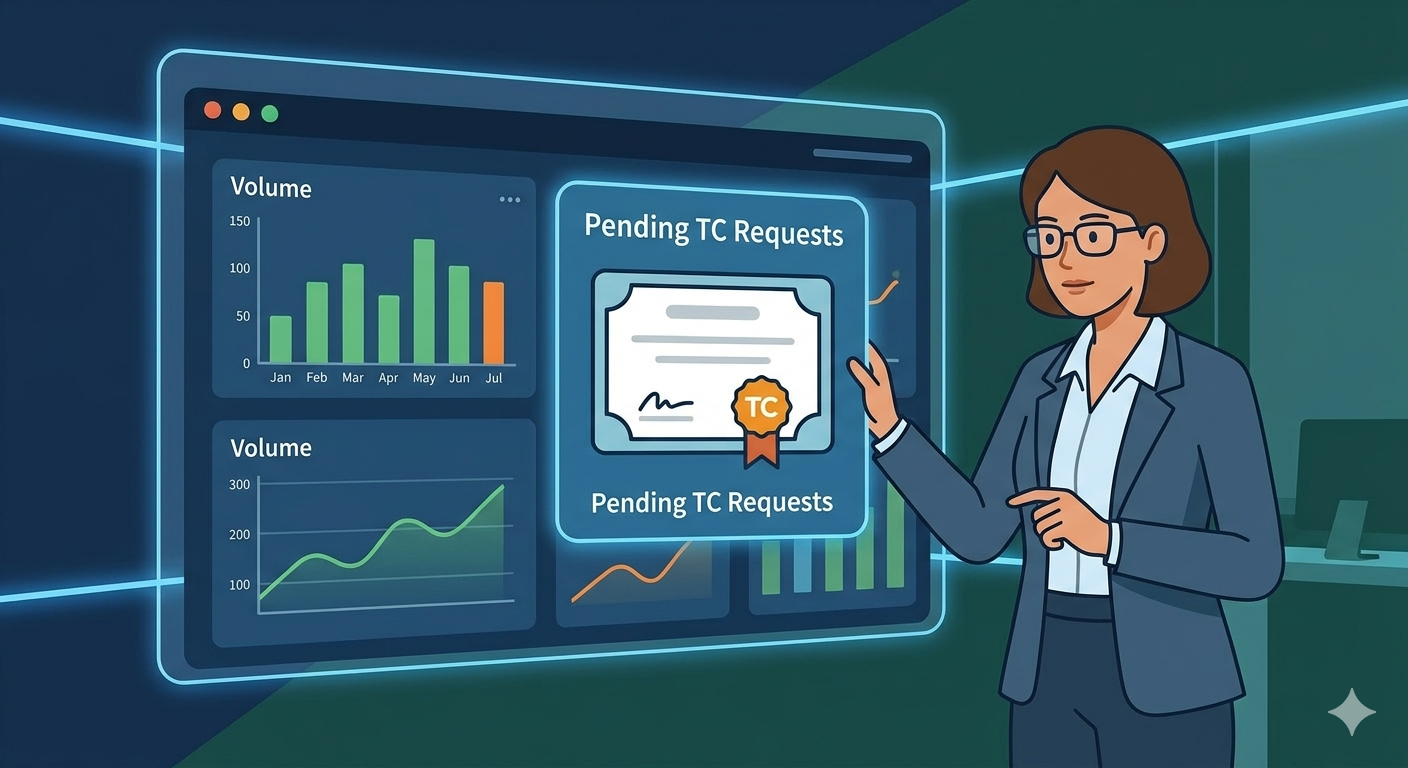
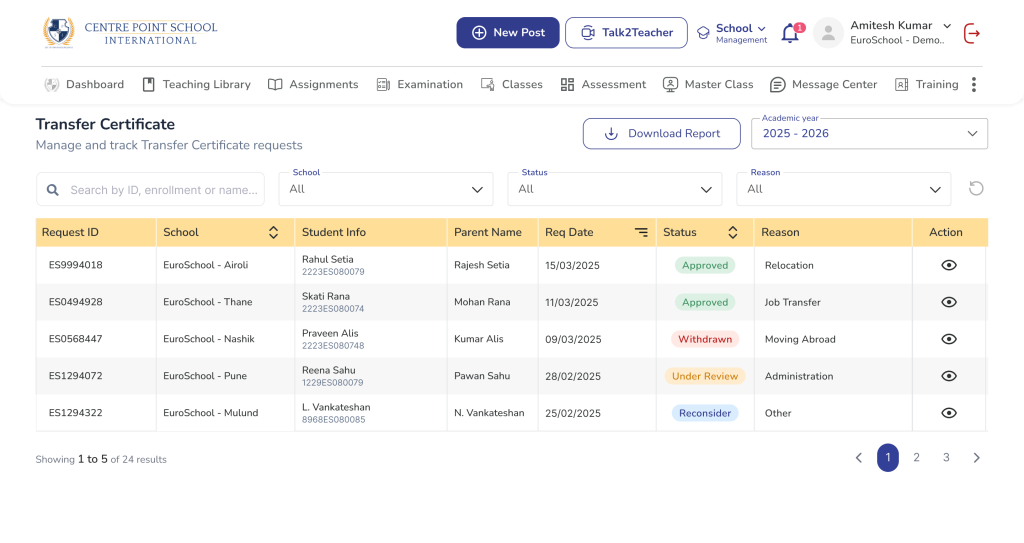
The Transfer Certificate Requests Dashboard allows school staff to view all TC requests submitted by parents. Staff can search, filter, sort, and export requests to efficiently manage student exit processes.
This dashboard helps administrators quickly identify pending requests, review request trends, and download data for reporting or follow-up.
Viewing Transfer Certificate Requests
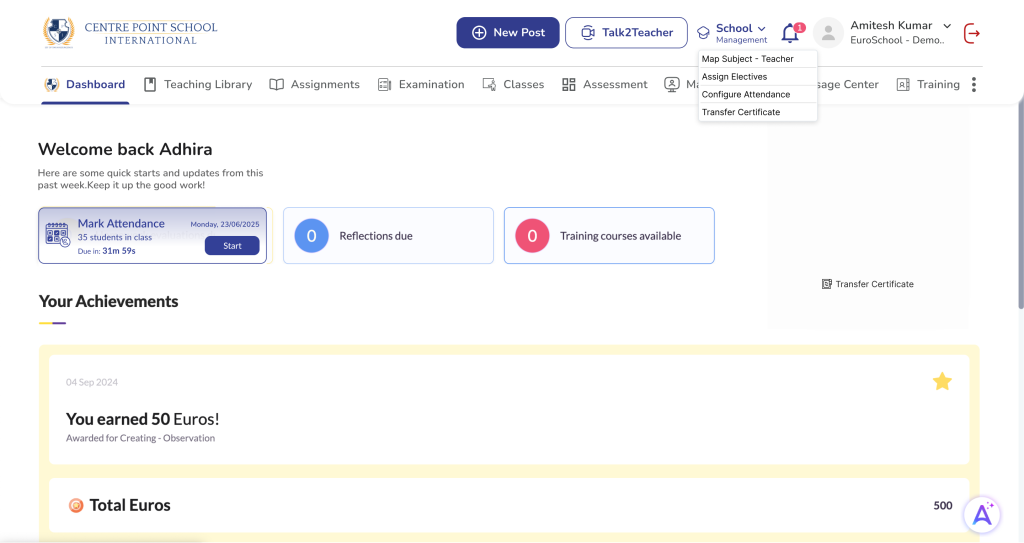
- Log in to the School Web Portal.
- Navigate to the School Management > Transfer Certificate module
- Opens the Requests Dashboard.
- The system will display a list of all submitted TC requests.
Each row in the dashboard represents one parent request.
Filtering Transfer Certificate Requests
Filters help staff narrow down the request list based on specific criteria.
- Open the Transfer Certificate Dashboard.
- Select the required filter criteria such as:
- Academic Year
- Status
- School
- Reason
The dashboard will update to show only the matching requests.
Download button will download requests as per the filters selected.
You can reset the filters by clicking the Reset filter button.
Important Note
Each student can have only one active TC request at a time. Older requests remain visible in the dashboard for historical reference
Frequently Asked Questions (FAQs)
Requests may not appear if filters are applied. Clear or adjust filters such as Academic Year, Status, or Date Range to view all requests.
Yes. If filters are applied on the dashboard, the download/export file will include only the filtered results currently visible in the list.
Each row represents one Transfer Certificate request submitted by a parent for a specific student. Clicking the row will open the detailed request view.
Approved or withdrawn requests remain visible in the dashboard to maintain historical records and audit trails. They can still be filtered by status.