Argus

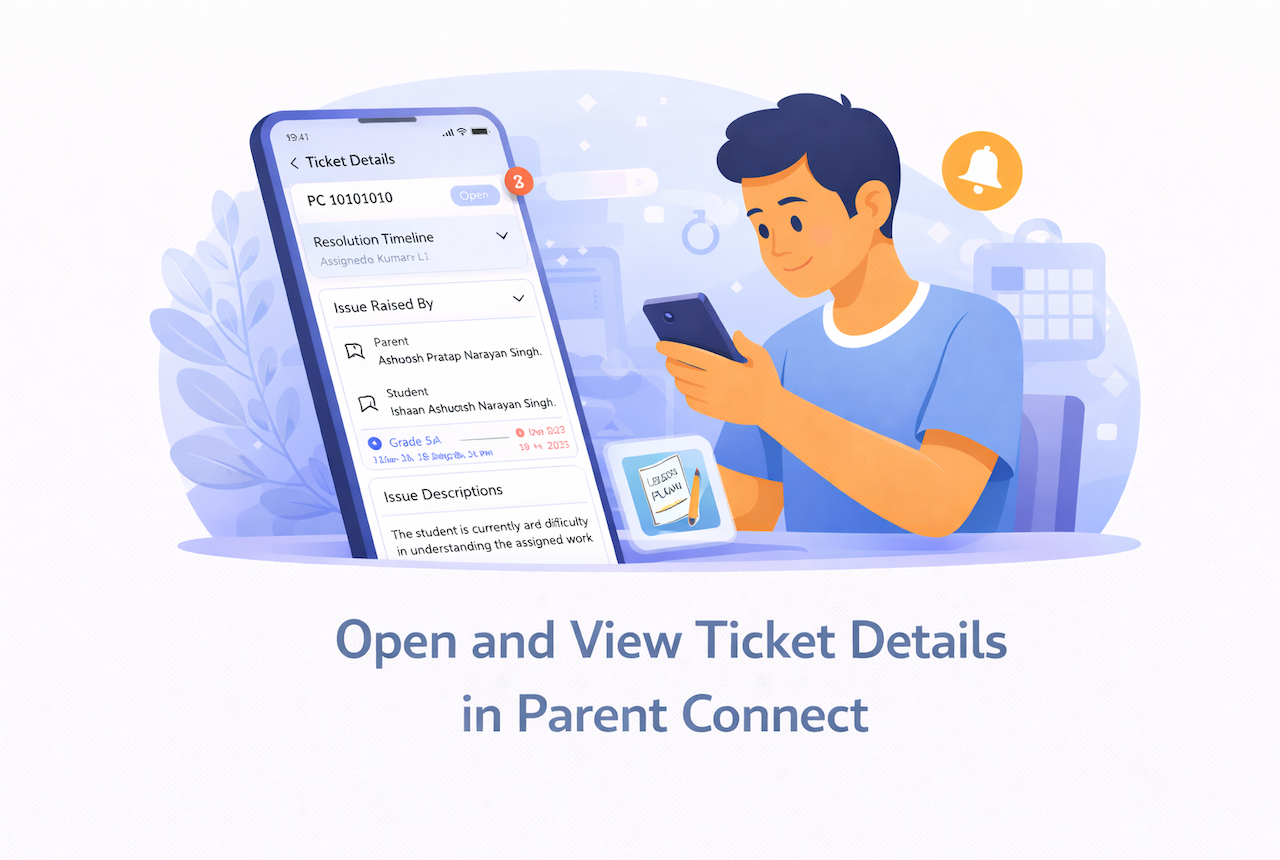
  • Open and view ticket details in Parent Connect

    Open and view ticket details in Parent Connect

    Overview

    This guide explains how staff can open a ticket in Parent Connect and view the full ticket details, including the issue summary, parent and student information, resolution timeline, and attachments.

    What You’ll Learn

    • How to open a ticket from the ticket list
    • How to view ticket details and issue information
    • How to view attachments inside a ticket

    Who Can Use This

    Applicable Role:

    • Staff mapped in Parent Connect

    Before You Begin

    • You must be logged in to the LMS app with a valid staff account
    • You must have access to Parent Connect
    • At least one ticket must be visible in your ticket list

    Steps to Open and View Ticket Details

    Step 1: Open Parent Connect

    Go to: More → Parent Connect

    Expected Result: The Parent Connect tickets screen opens.


    Step 2: Select a ticket

    From the ticket list, tap the ticket card that you want to open.

    You can open a ticket from either:

    • Assign to me
    • All Tickets

    Expected Result: The selected ticket opens on the Ticket Details screen.


    Step 3: View the ticket header

    At the top of the ticket details page, you can see key information such as:

    • Ticket ID
    • Current status

    Expected Result: You can quickly identify which ticket you are viewing and its current state.


    Step 4: Review the Resolution Timeline

    On the ticket details page, the Resolution Timeline section shows the current stage of the ticket.

    This section may help you understand:

    • Which level is currently handling the ticket
    • Whether the ticket is still open, escalated, or closed
    • Where the ticket stands in the resolution flow

    Expected Result: You can understand the current progress of the ticket.


    Step 5: Review the Issue Raised By section

    The Issue Raised By section shows who raised the ticket and who it is related to.

    This section may include:

    • Parent name
    • Student name
    • Student ID
    • Grade & Division

    Expected Result: You can identify the parent and student linked to the ticket.


    Step 6: Review the Issue Description section

    Open the Issue Descriptions section to read the problem raised by the parent.

    This section may show:

    • The query description
    • A short or full version of the issue
    • Supporting text entered by the parent

    Expected Result: You can understand the issue clearly before taking action.

    ℹ️ Important: Always review the issue description carefully before replying or taking action on the ticket.


    Step 7: View ticket attachments

    If the parent has uploaded a file, it will appear inside the ticket details section.

    You may be able to:

    • View the file name
    • Open the image or document
    • See the attachment preview

    Expected Result: You can review the attachment shared by the parent.


    Important Information

    ℹ️ Important: The ticket details page gives you the full context of the issue before you reply, escalate, or send a close request.

    ℹ️ Important: Some sections may appear collapsed by default. Tap the section to expand it and view more details.

    Tip: Review the Resolution Timeline, Issue Raised By, and Issue Description sections before taking any action on the ticket.


    FAQs

    Tap any ticket card from the Parent Connect list to open its full details.

    You can see the ticket ID, status, resolution timeline, parent and student details, issue description, and attachments.

    Yes. If the parent has uploaded an attachment, it appears inside the ticket details section.

    Reviewing the ticket details helps you understand the issue clearly and respond correctly.

    Yes. If the ticket is visible to you, you can tap it from either tab and open the details page.

    Expand the Issue Descriptions section. If the parent has added attachments, review those as well for better context.

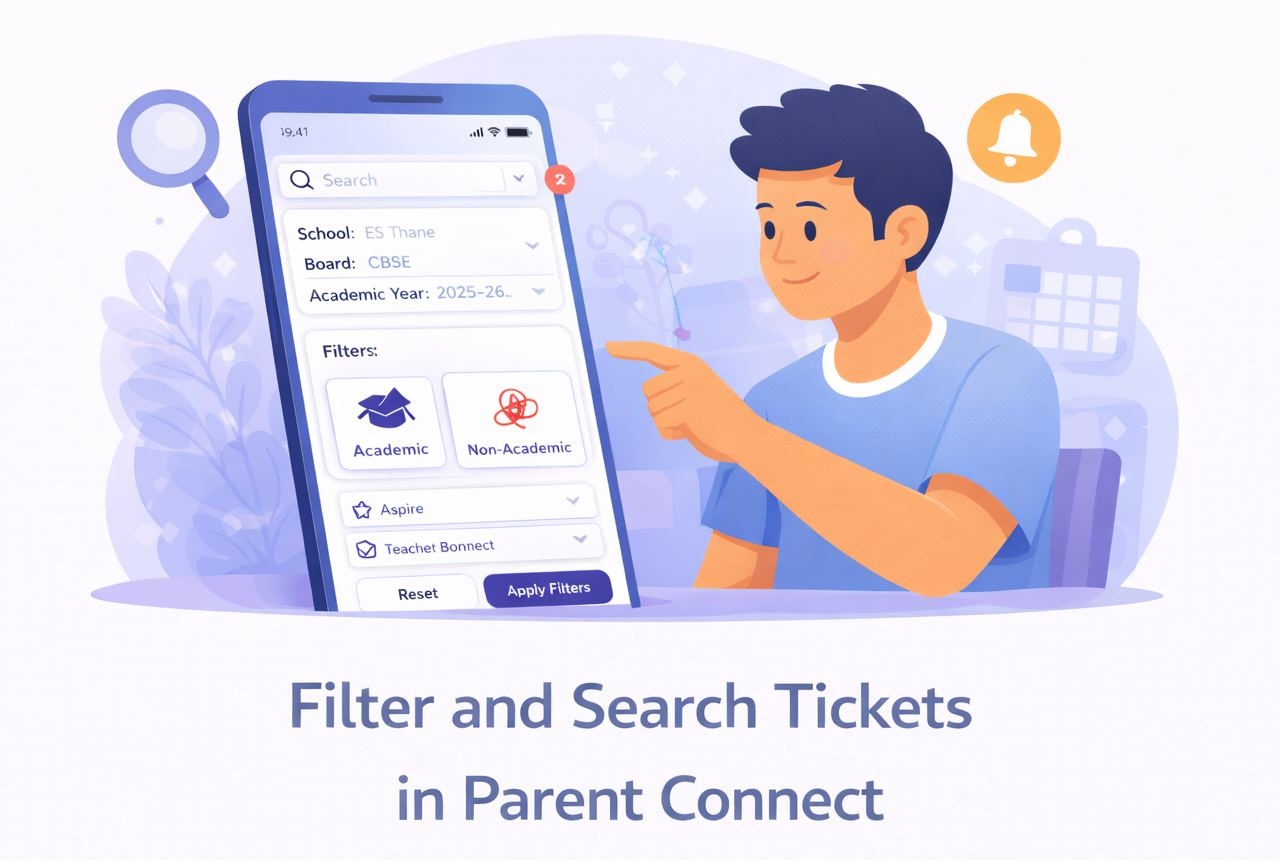
  • Filter and search tickets in Parent Connect

    Filter and search tickets in Parent Connect

    Overview

    This guide explains how staff can use search and filters in Parent Connect to quickly find the right tickets.

    What You’ll Learn

    • How to search for tickets in Parent Connect
    • How to apply filters to narrow ticket results
    • How to reset filters and return to the full ticket list

    Who Can Use This

    Applicable Role:

    • Staff mapped in Parent Connect

    Before You Begin

    • You must be logged in to the LMS app with a valid staff account
    • You must have access to Parent Connect

    Steps to Filter and Search Tickets

    Step 1: Open Parent Connect

    Go to: More → Parent Connect

    Expected Result: The Parent Connect tickets screen opens.


    Step 2: Use the search bar

    At the top of the Parent Connect screen, tap the search bar.

    You can search using details such as:

    • Ticket ID
    • Parent name
    • Assignee name

    Expected Result: The ticket list updates to show matching results.

    ℹ️ Important: Use search when you already know the ticket ID or want to quickly find a specific parent or ticket.


    Step 3: Open the filter panel

    Tap the Filter icon on the Parent Connect screen.

    Expected Result: The Filter panel opens.


    Step 4: Select basic filters

    You can filter tickets using the available fields, such as:

    • School
    • Board
    • Academic Year

    Select the values that match the tickets you want to view.

    Expected Result: Your selected values are added to the filter panel.


    Step 5: Select a category

    Choose the ticket category you want to view:

    • Academic
    • Non-Academic

    Expected Result: The selected category is highlighted.


    Step 6: Select one or more sub-categories

    Under Sub-category, choose the required option or options.

    Examples may include:

    • Aspire
    • Teacher Connect
    • Student Behavior

    Expected Result: The selected sub-categories are highlighted.

    ℹ️ Important: You may be able to select more than one sub-category, depending on the filter design.


    Step 7: Apply the filters

    Tap Apply Filters.

    Expected Result: The ticket list refreshes and shows only tickets that match the selected filters.


    Step 8: Reset filters if needed

    If you want to remove the selected filters, tap Reset.

    Expected Result: All selected filters are cleared, and the full ticket list is shown again.


    Important Information

    ℹ️ Important: Filters help you narrow down a large ticket list and find the right tickets faster.

    ℹ️ Important: Search and filters can be used together for more accurate results.

    Tip: Use School, Board, and Academic Year first, then apply Category and Sub-category filters for better results.


    Frequently Asked Questions

    You can search using details such as ticket ID, parent name, or assignee name.

    Use filters when you want to narrow down a group of tickets, such as all Academic tickets for a specific school or year. Use search when you want to find one specific ticket or person quickly.

    Yes. You can combine multiple filters such as School, Board, Academic Year, Category, and Sub-category to refine the ticket list.

    Yes, you can select more than on sub-category to filter out specific tickets.

    This may happen if no tickets match the selected filters. Try changing or clearing some filters and apply them again.

    Yes. You can first apply filters and then use the search bar to narrow the results even more.

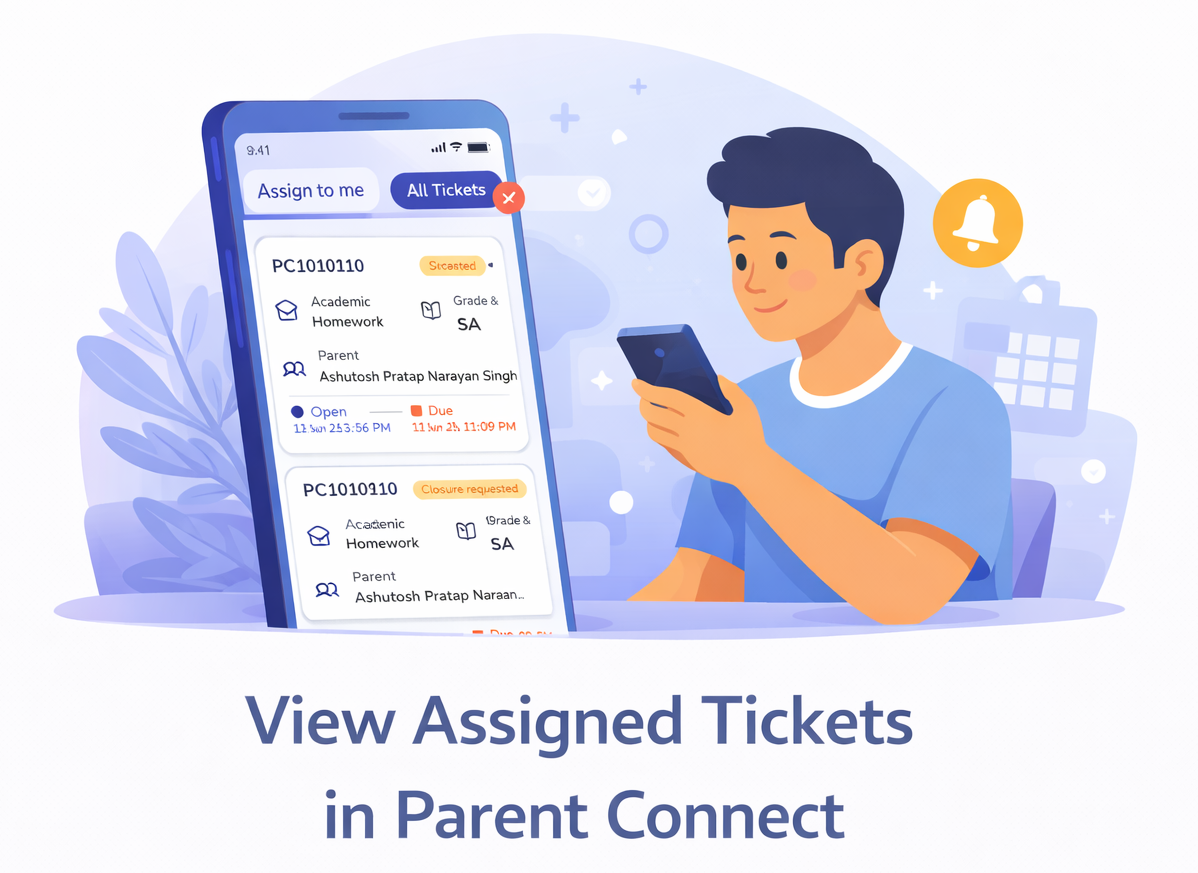
  • View assigned tickets in Parent Connect

    View assigned tickets in Parent Connect

    Overview

    This guide explains how staff can open Parent Connect, view their assigned tickets, and understand the ticket list shown in the app.

    What You’ll Learn

    • How to open Parent Connect
    • How to view tickets under Assign to me and All Tickets
    • What information is shown on each ticket card

    Who Can Use This

    Applicable Role:

    • Staff mapped in Parent Connect

    Before You Begin

    • You must be logged in to the LMS app with a valid staff account
    • You must be mapped in Parent Connect as a ticket handler

    Steps to View Assigned Tickets

    Step 1: Open the LMS app

    Log in to the LMS app using your staff credentials.

    Step 2: Open the More menu

    Tap More from the bottom navigation bar.

    Step 3: Select Parent Connect

    Tap Parent Connect from the menu.

    Expected Result: The Parent Connect tickets screen opens.


    Step 4: View tickets under Assign to me

    By default, Parent Connect opens on the Assign to me tab.
    This tab shows tickets that are currently assigned to you for action.

    Expected Result You can see all tickets that you are currently responsible for handling.

    ℹ️ Important: Use this tab when you want to work only on tickets that need your action.


    Step 5: View tickets under All Tickets

    Tap the All Tickets tab to view a broader list of tickets available to you.

    This tab may include:

    • Tickets currently assigned to you
    • Tickets previously assigned to you
    • Tickets visible to you based on your role and mapping

    Expected Result You can see a wider list of tickets available for your reference.

    ℹ️ Important: The tickets shown in All Tickets depend on your role, level, and Parent Connect mapping.


    Step 6: Review the ticket card details

    Each ticket card gives a quick summary of the ticket.

    A ticket card may show:

    • Ticket ID
    • Category and Sub-category
    • Parent name
    • Grade & Division
    • Status such as:
      • Open
      • Closure requested
      • Escalated
      • Closed
    • Timeline details such as:
      • Created
      • Due
    • Assigned level or current stage

    Expected Result: You can quickly understand the ticket type, ticket status, and whether action may be required.


    Step 7: Open a ticket

    Tap any ticket card to open the ticket details page.

    Expected Result: The selected ticket opens and shows the full details.


    Important Information

    ℹ️ Important:

    • Assign to me is the main working tab for tickets currently assigned to you.
    • All Tickets is useful when you want to review other visible tickets based on your mapping and access.
    • Ticket visibility may vary depending on whether you are L1, L2, or L3 staff.

    Frequently Asked Questions

    Assign to me shows tickets currently assigned to you for action.
    All Tickets shows a broader list of tickets visible to you based on your role and mapping as well as tickets previously assigned to you.

    This helps staff quickly access tickets that need their immediate attention.

    A ticket card may show the ticket ID, category, sub-category, parent name, grade and division, status, and timeline details such as created date and due date.

    This may happen if no tickets are currently assigned to you or if you are not mapped to any active Parent Connect category.

    All Tickets may include other tickets visible to you based on your role, level, and Parent Connect mapping, not just the ones currently assigned to you.

    No. Ticket visibility depends on the staff member’s level, mapping, and access in Parent Connect.

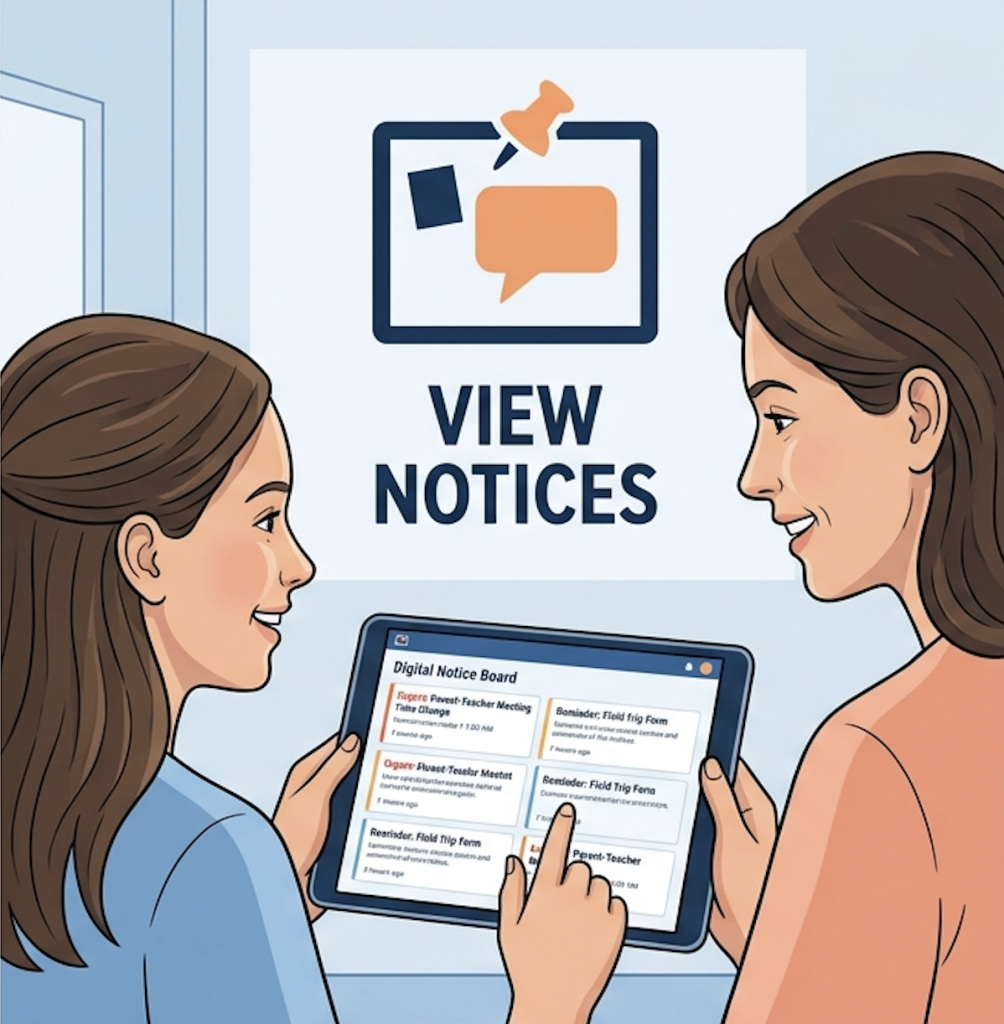
  • Viewing school announcements as a Student or Parent

    Viewing school announcements as a Student or Parent

    Notice Board is used to share important, official announcements with students, parents, or staff.

    View Notices

    Where to Access

    • Login as Student/ Parent
    • Go to Message Center → Notice Board

    What You’ll See

    • 📌 Pinned notices (on top)
    • Latest notices below
    • Filters:
      • Search
      • Tag
      • Date

    Frequently Asked Questions

    Go to Message Center → Notice Board.

    You may not be part of the selected audience (grade/division/school).

    Pinned notices are important announcements shown at the top for easy access.

    No. Notices are for viewing only and do not allow interaction.

    Yes. Use filters like Search, Tag, or Date to find specific notices.

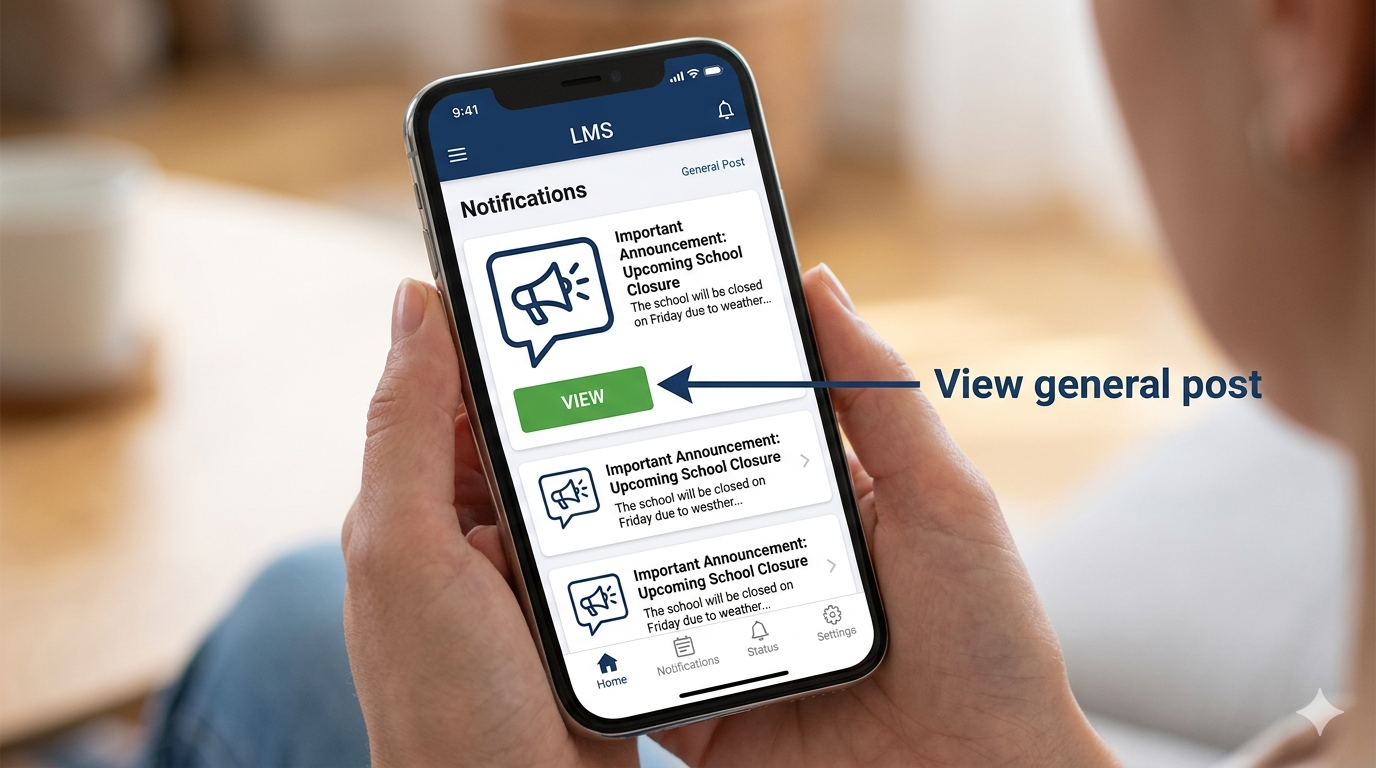
  • View General Post

    View General Post

    General Post is used to share non-homework updates within a group.

    View Posts

    Where to Access

    • Message Center → Group

    What You Can Do

    • Read updates
    • View attachments
    • Comment (if enabled)
    • Cannot create posts

    Frequently Asked Questions

    Go to Message Center → Your Group (Subject/Mentoring).

    Yes, but only if the teacher has enabled comments.

    You may not be part of the selected group.

    Yes. Click on the attachment to view or download it.

    General Post → Class-level updates Notice Board → Official announcements

  • Create & Manage Notice Board

    Create & Manage Notice Board

    Notice Board is used to share important, official announcements with students, parents, or staff.

    How to Create a Notice

    1. Click + New Post
    2. Select Notice
    3. Select Audience:
      • School / Multiple Schools
      • Board → Grade → Division
    4. Choose visibility:
      • Students / Parents (or both)
    5. Add:
      • Title
      • Description
      • Optional: URL / Attachments (upto 5 attachments only)
    6. Select Post Tag (Alert / Circular if needed)
    7. Click Save & Publish

    ⚠️ Important Guidelines

    • Use for official communication only
    • Avoid using for daily updates or homework
    • Pin only critical notices

    Manage Notices

    • Go to Notice Board
    • Use 3 dots (⋮) to:
      • Edit
      • Delete
      • Pin (Max 3 pinned posts per school)

    Frequently Asked Questions

    Only staff members with the required permissions (Admin/Coordinator/Authorized Staff) can create notices.

    Yes. You can select multiple schools. In this case, Board–Grade–Division defaults to “All”.

    Yes. Go to Notice Board → click the 3 dots (⋮) → select Edit.

    You can pin up to 3 notices per school. Older pinned notices must be unpinned first.

    Yes. Use the checkboxes under “Visible to” while creating the notice.

  • Track the status of your raised tickets in Parent Connect

    Track the status of your raised tickets in Parent Connect

    Overview

    This guide explains how parents can track ticket progress in Parent Connect and understand common ticket statuses.

    What You’ll Learn

    • How to check ticket status
    • How to understand ticket timeline updates
    • What common statuses mean
    • How to know whether action is pending

    Who Can Use This

    Applicable Role:

    • Parent

    Prerequisites

    • You must be logged in to the LMS app as a Parent
    • You must have raised at least one ticket in Parent Connect

    Steps to Track Ticket Status

    Step 1: Open Parent Connect

    Go to:
    More → Parent Connect

    Expected Result: The Parent Connect tickets screen opens.


    Step 2: View your tickets

    On the ticket list page, you can see all your tickets grouped under tabs like:

    • All
    • Open
    • Closed
    • Escalated

    Each ticket card shows a quick summary of the current status.

    Expected Result: You can identify the latest state of each ticket from the ticket list.


    Step 3: Open the ticket for more details

    Tap any ticket card to open the Query Details page.

    Step 4: Review the timeline

    In the ticket details section, you may see timeline labels such as:

    • Submitted
    • Updated
    • Due
    • Resolved

    These timestamps help you understand when the ticket was raised, when it was last updated, and when a response is expected.

    Expected Result: You can see where the ticket currently stands in the process.


    Common Ticket Statuses

    Open: The ticket has been raised and is still active.

    Updated: The school has shared a reply or an update.

    Due: The expected response or resolution time is approaching.

    Closed: The issue has been resolved and the ticket is complete.

    Important: Your school may also use internal escalation levels, but parents will mainly see the statuses available in the parent app.


    How to Know if Action is Pending

    You may need to take action if:

    • The school has replied and is waiting for your response
    • You see a closure request
    • You are asked whether you are happy with the resolution

    If no action is needed from you, you can continue tracking updates in the ticket.


    Frequently Asked Questions (FAQs)

    Open Parent Connect and tap the required ticket. You can view the latest status on the ticket card and inside the Query Details page.

    Open means your query has been raised successfully and is still active.

    Updated means the school has shared a new reply or update in the ticket.

    Closed means the issue has been resolved and the ticket is now complete.

    Due usually shows the expected response or resolution timeline for the ticket.

    You may need to act if the ticket asks whether you are happy with the resolution or if the school has sent a reply and is waiting for your response.

    Yes. Closed tickets remain available in Parent Connect so you can check them later if needed.

  • Review and close a ticket in Parent Connect

    Review and close a ticket in Parent Connect

    Overview

    This guide explains how parents can review the school’s response in Parent Connect and close a ticket after confirming that the issue is resolved.

    What You’ll Learn

    • How to review the school’s response
    • What the Yes / No resolution confirmation means
    • How to close a ticket
    • What happens after a ticket is closed

    Who Can Use This

    Applicable Role:

    • Parent

    Prerequisites

    • You must be logged in to the LMS app as a Parent
    • You must have an active ticket with a response from the school

    Steps to Review and Close a Ticket

    Step 1: Open Parent Connect

    Go to:
    More → Parent Connect

    Expected Result: The Parent Connect tickets screen opens.


    Step 2: Open the required ticket

    Tap the ticket that you want to review.

    Expected Result: The ticket details page opens.


    Step 3: Read the school’s response

    Go through the staff response in the ticket chat carefully.

    Review:

    • The action taken by the school
    • The clarification shared
    • Any next steps mentioned
    • Whether your issue has been resolved fully

    Expected Result: You understand the school’s response and are ready to confirm whether the issue is resolved.


    Step 4: Respond to the resolution confirmation

    If the ticket displays the message:

    Are you happy with the resolution?

    Choose one of the following:

    • Yes
    • No

    Step 5: Tap Yes

     if the issue is resolved

    If you are satisfied with the resolution, tap Yes.

    Expected Result: The ticket is closed, and you may see a confirmation message such as:

    This issue is now successfully resolved. Thank you!


    Step 6: Tap No

     if the issue is not resolved

    If you are not satisfied, tap No.

    Expected Result The ticket can continue for further review or action as per the school’s process.

    Important: If you are not satisfied, do not close the ticket. Use the available flow to continue the issue for re-check.


    What Happens After a Ticket is Closed

    Once you confirm the resolution:

    • The ticket status changes to Closed
    • The conversation remains visible in your history
    • You can still refer to the ticket later for records

    Warning: Review the staff response carefully before selecting Yes, because that action closes the ticket.


    Frequently Asked Questions (FAQs)

    When the school shares a resolution, you may see a prompt asking Are you happy with the resolution? inside the ticket.

    If you tap Yes, the ticket will be closed.

    If you tap No, the issue can continue for further review based on the school’s process.

    Usually, a closed ticket cannot be reopened directly. If more help is needed, you may need to raise a new query.

    Yes. Always read the school’s response carefully before selecting Yes, because that action closes the ticket.

    The Yes / No option appears only when the school has shared a resolution and is waiting for your confirmation. If you don’t see it yet, the ticket may still be in progress.

    Yes. Closed tickets remain visible in Parent Connect for future reference.

    If you need more help after closing a ticket, you may need to raise a new query for the same issue.

  • View and reply to tickets in Parent Connect

    View and reply to tickets in Parent Connect

    Overview

    This guide explains how parents can view their tickets in Parent Connect, open ticket details, and reply to school staff using the chat section.

    What You’ll Learn

    • How to view all your tickets
    • How to open ticket details
    • How to use chat inside a ticket
    • How to reply to school staff

    Who Can Use This

    Applicable Role:

    • Parent

    Prerequisites

    • You must be logged in to the LMS app as a Parent
    • You must have at least one query raised in Parent Connect

    Steps to View and Reply to Tickets

    Step 1: Open Parent Connect

    Go to:

    More → Parent Connect

    Expected Result: The Parent Connect tickets screen opens.


    Step 2: View your tickets

    On the Parent Connect screen, you can see your ticket list under tabs such as:

    • All
    • Open
    • Closed
    • Escalated

    Each ticket card may show:

    • Category and sub-category
    • Short query preview
    • Status
    • Assigned staff level
    • Timeline information

    Expected Result: You can see your active and past tickets in one place.


    Step 3: Open a ticket

    Tap any ticket card to open the Query Details page.

    Expected Result: The full ticket details page opens.


    Step 4: Review the ticket details

    On the Query Details screen, you may see:

    • Category
    • Sub-category
    • Current status
    • Query description
    • Attachment
    • Assigned staff details
    • Ticket ID
    • Timeline details such as:
      • Submitted
      • Updated
      • Due

    You can tap Show Details or Hide Details to expand or collapse the ticket details section.

    Expected Result: You can view the full ticket information clearly.


    Step 5: Use the chat box

    Scroll to the chat section. In the Type Your Query box, enter your message.

    Use the chat to:

    • Reply to staff updates
    • Ask follow-up questions
    • Share extra details
    • Continue the same conversation

    Expected Result: Your message is added to the ticket conversation.


    Step 6: Send your message

    Tap the send icon to reply.

    Expected Result: Your response appears in the chat history.

    Important: All messages stay inside the same ticket so you can view the complete conversation history anytime.


    Frequently Asked Questions (FAQs)

    You can see all your tickets inside Parent Connect. Open the More menu and tap Parent Connect to view your ticket list.

    A ticket card may show the category, sub-category, short query preview, status, and important timeline details such as submitted, updated, or closed.

    Tap any ticket card from the Parent Connect list. This opens the Query Details page where you can see the full ticket information.

    Yes. You can use the chat box inside the ticket to reply, ask follow-up questions, or share more details.

    Yes. All replies from you and the school staff stay inside the same ticket, so you can always view the full conversation history.

    Yes. Parent Connect shows both your active and past tickets, so you can refer to older queries whenever needed.

    Please check your internet connection and try again. If the issue continues, close and reopen the app, then retry.

  • Create a new query or ticket in Parent Connect

    Create a new query or ticket in Parent Connect

    Overview

    This guide explains how parents can raise a new school query using Parent Connect in the LMS app.

    What You’ll Learn

    • How to open Parent Connect
    • How to select a category and sub-category
    • How to add a description and attachment
    • How to submit a new query

    Who Can Use This

    Applicable Role:

    • Parent

    Prerequisites/Before you begin 

    • You must be logged in to the LMS app as a Parent
    • Your registered mobile number must be active for OTP login

    Steps to Raise a New Query

    Step 1: Open the LMS app

    Log in to the LMS app using your registered mobile number and OTP.


    Step 2: Open 

    More

    Tap More from the bottom navigation bar.


    Step 3: Select 

    Parent Connect

    Tap Parent Connect from the menu.

    Expected Result: The Parent Connect screen opens.


    Step 4: Start a new query

    Do one of the following:

    • Tap Raise a New Query if you do not have any tickets yet
    • Tap the + button if you already have tickets

    Expected Result: The Raise a New Query screen opens.


    Step 5: Select a category

    Choose the category that matches your query:

    • Academic
    • Non-Academic

    Expected Result: The selected category is highlighted, and the next section becomes available.


    Step 6: Select a sub-category

    Choose the sub-category that best matches your issue.

    Examples may include:

    • Aspire
    • Student Behavior
    • Curriculum
    • Lumos
    • Events
    • Others

    Expected Result: The selected sub-category is highlighted.

    Important: Select the most relevant sub-category to help the school team route your query correctly.


    Step 7: Enter your query details and add an attachment (optional)

    In the Describe your query field, enter a clear explanation of your concern.

    For example, include:

    • What the issue is
    • When it happened
    • What support or clarification you need

    If needed, tap Tap to upload files to add a supporting file.

    Supported file formats may include: JPG, PNG, PDF.

    Expected Result: Your query details are added successfully, and the selected file appears below the upload area.

    Warning: Make sure the file is clear and relevant to your query.


    Step 8: Submit the query

    Tap Submit Query.

    Expected Result: You see the message: Query Submitted Successfully!

    Important: The success screen may also show the expected response timeline, such as within 48 hours.


    Frequently Asked Questions (FAQs)

    The Submit Query button is enabled only after you complete the required fields. Make sure you have selected a category, selected a sub-category, and entered your query in the description box.

    Yes. You can raise multiple queries in Parent Connect whenever needed.

    Yes. You can upload supported files such as JPG, PNG, and PDF while creating a query.

    This may happen if the file type or file size is not supported. Try uploading a clear JPG, PNG, or PDF file within the allowed size limit (5MB)

    Your query is sent to the relevant school staff to resolve. After that, you can track the ticket in Parent Connect and check for updates or replies.

    This may happen if the feature is not loaded properly in your current app session. Try logging out and logging in again. If the issue continues, contact support.

    Yes. Selecting the correct category and sub-category helps the system send your query to the right school staff and can speed up the response.