
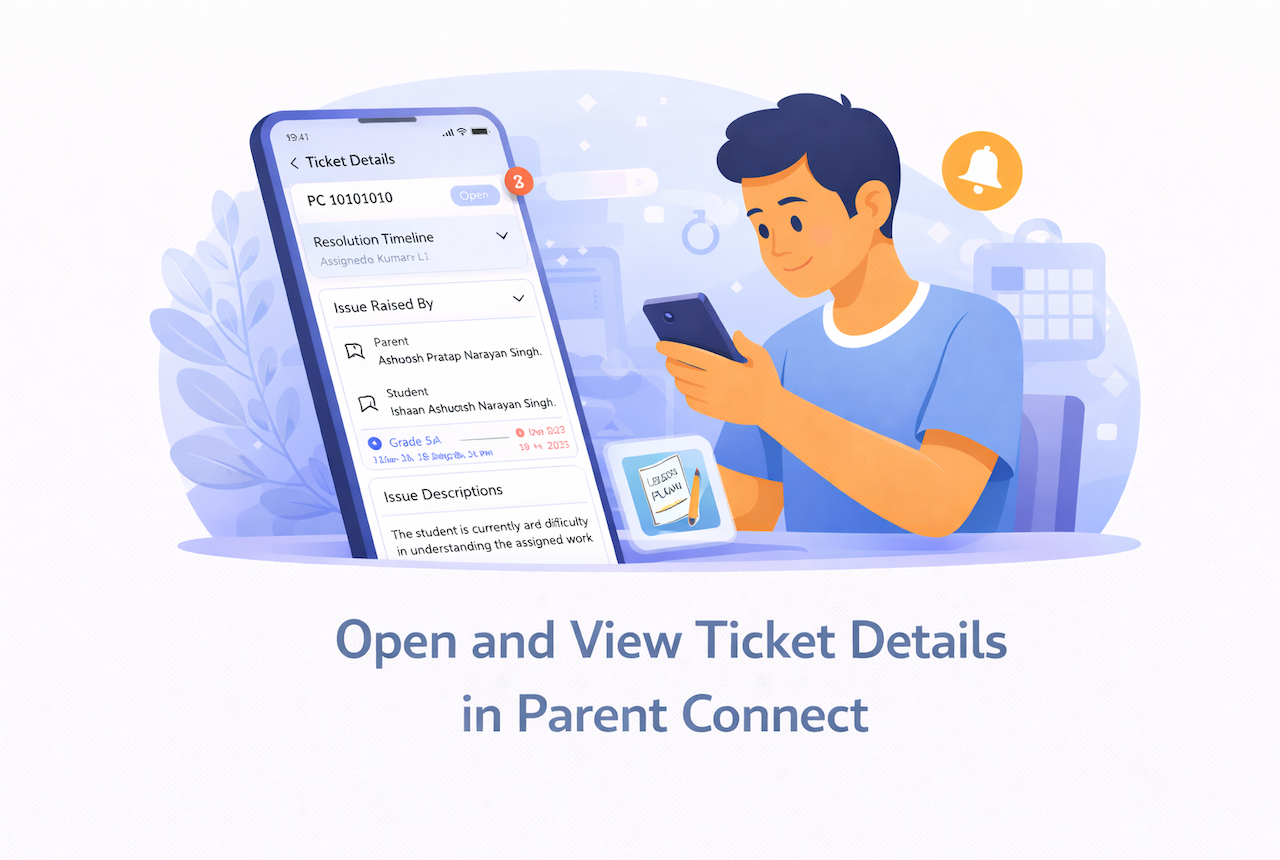
Overview
This guide explains how staff can open a ticket in Parent Connect and view the full ticket details, including the issue summary, parent and student information, resolution timeline, and attachments.
What You’ll Learn
- How to open a ticket from the ticket list
- How to view ticket details and issue information
- How to view attachments inside a ticket
Who Can Use This
Applicable Role:
- Staff mapped in Parent Connect
Before You Begin
- You must be logged in to the LMS app with a valid staff account
- You must have access to Parent Connect
- At least one ticket must be visible in your ticket list
Steps to Open and View Ticket Details
Step 1: Open Parent Connect
Go to: More → Parent Connect
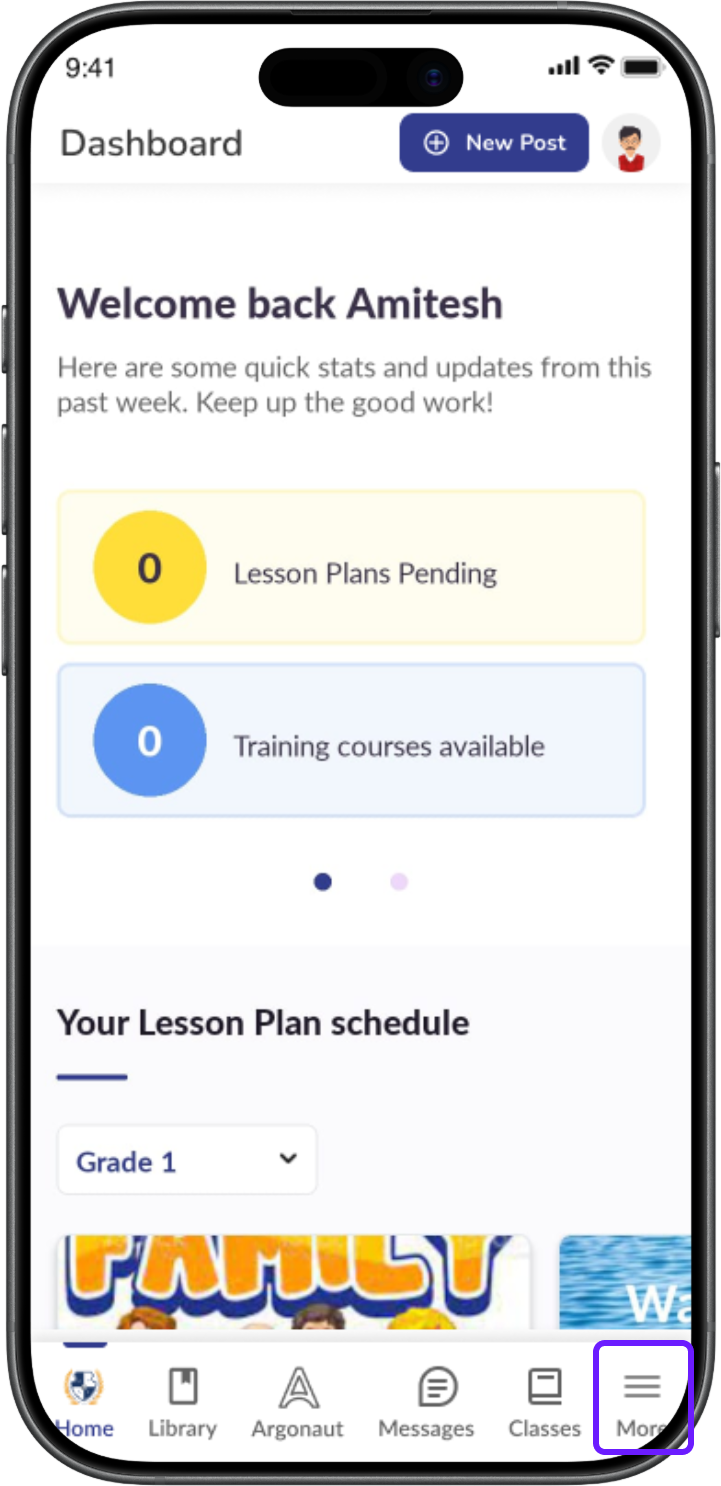
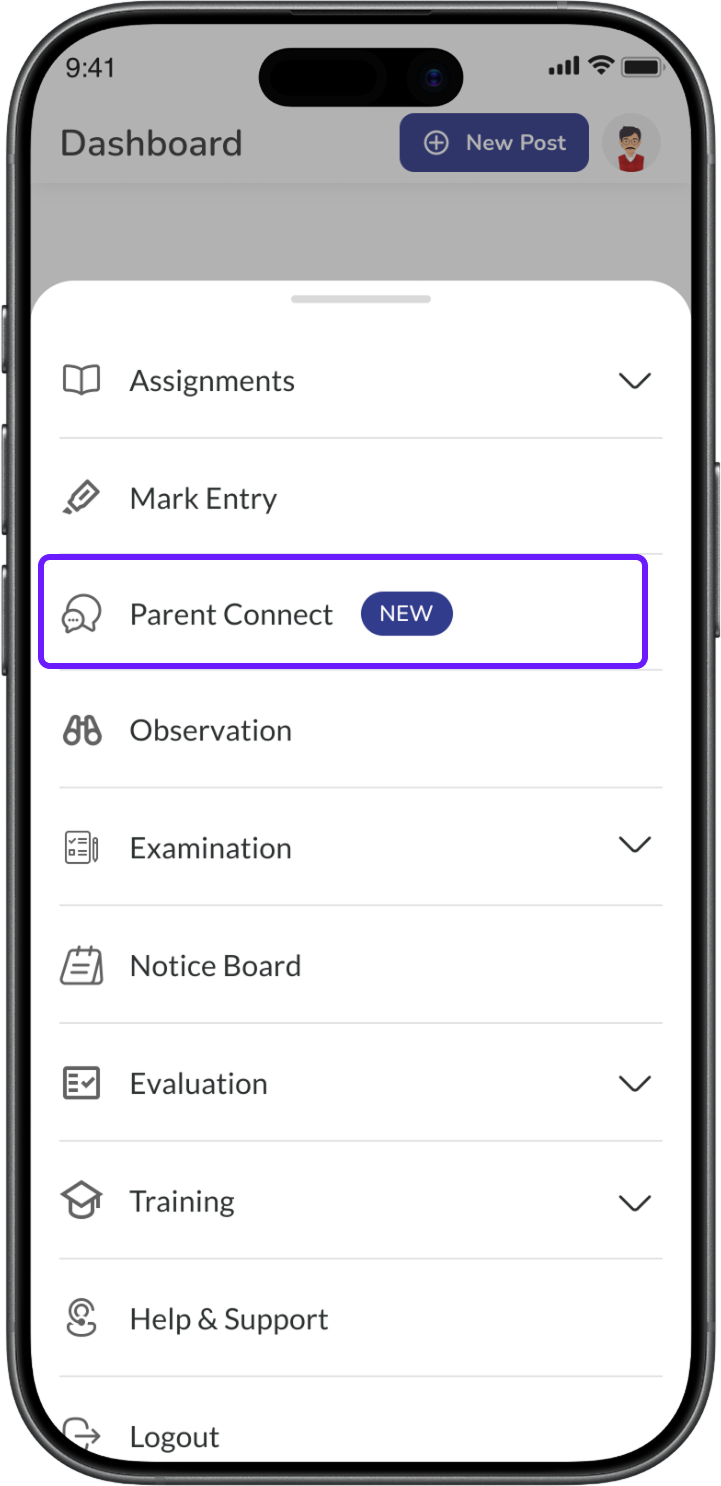
✅ Expected Result: The Parent Connect tickets screen opens.
Step 2: Select a ticket
From the ticket list, tap the ticket card that you want to open.
You can open a ticket from either:
- Assign to me
- All Tickets
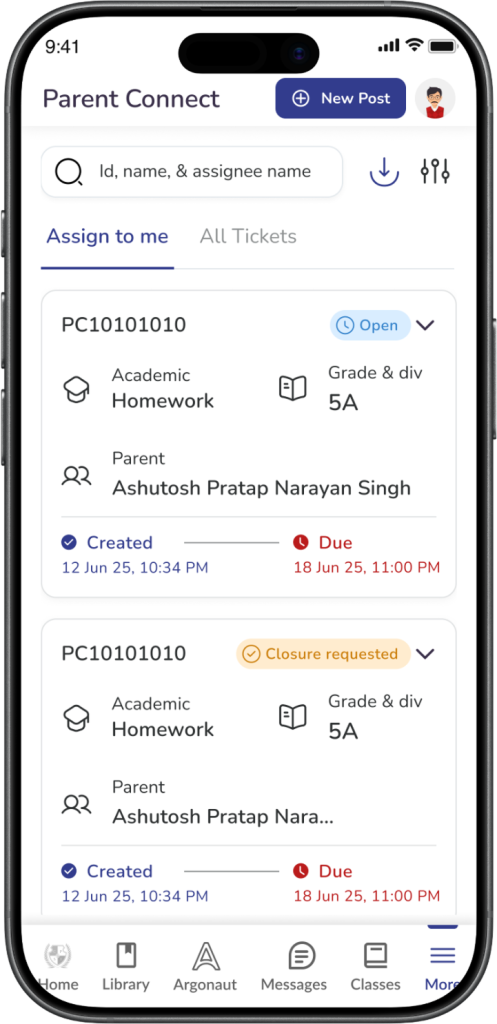
✅ Expected Result: The selected ticket opens on the Ticket Details screen.
Step 3: View the ticket header
At the top of the ticket details page, you can see key information such as:
- Ticket ID
- Current status
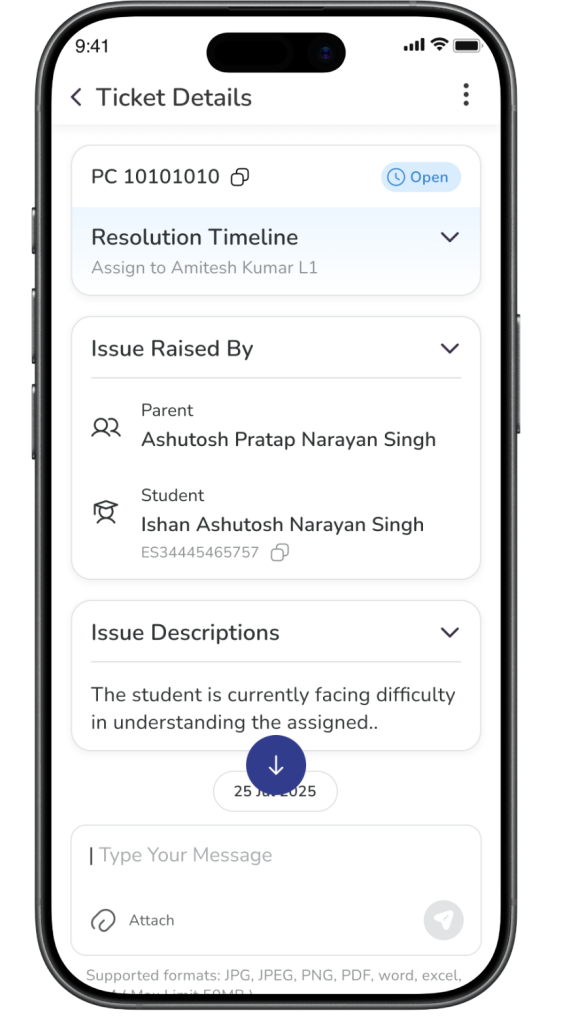
✅ Expected Result: You can quickly identify which ticket you are viewing and its current state.
Step 4: Review the Resolution Timeline
On the ticket details page, the Resolution Timeline section shows the current stage of the ticket.
This section may help you understand:
- Which level is currently handling the ticket
- Whether the ticket is still open, escalated, or closed
- Where the ticket stands in the resolution flow
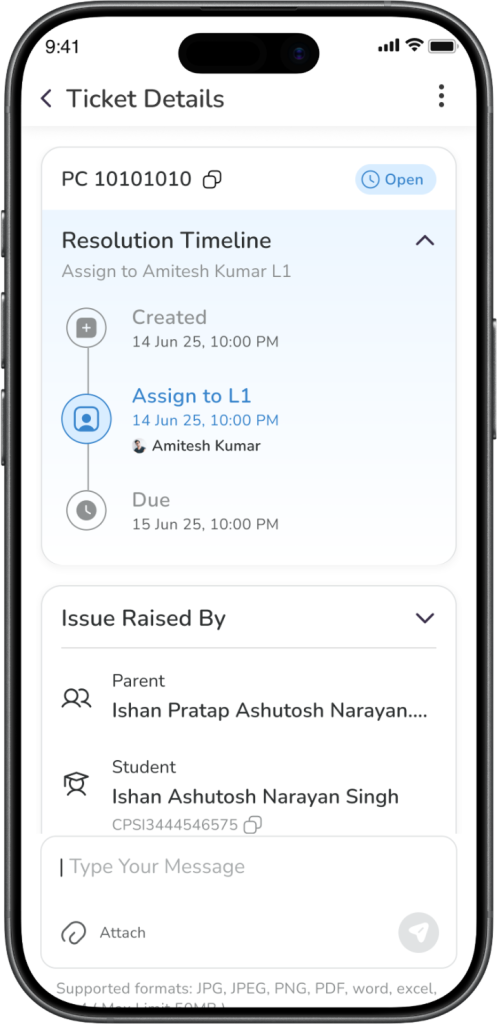
✅ Expected Result: You can understand the current progress of the ticket.
Step 5: Review the Issue Raised By section
The Issue Raised By section shows who raised the ticket and who it is related to.
This section may include:
- Parent name
- Student name
- Student ID
- Grade & Division
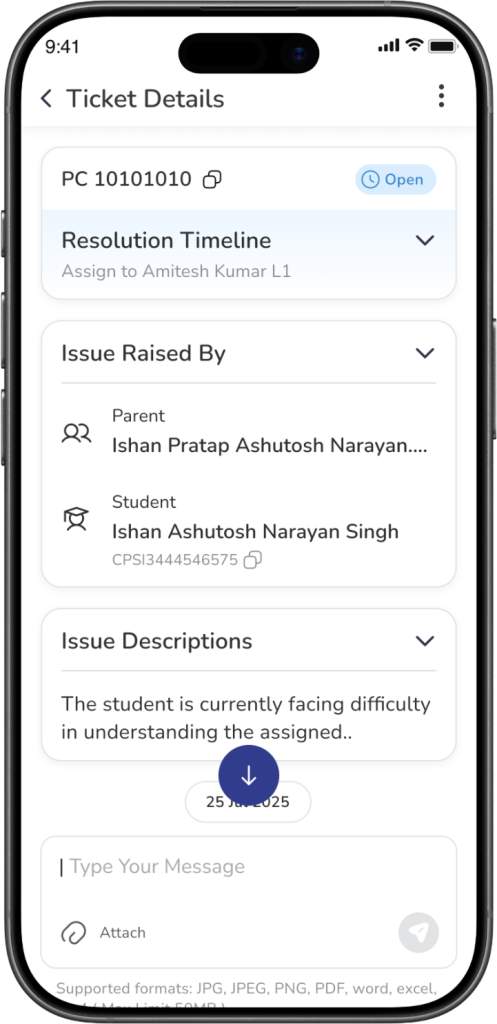
✅ Expected Result: You can identify the parent and student linked to the ticket.
Step 6: Review the Issue Description section
Open the Issue Descriptions section to read the problem raised by the parent.
This section may show:
- The query description
- A short or full version of the issue
- Supporting text entered by the parent
✅ Expected Result: You can understand the issue clearly before taking action.
ℹ️ Important: Always review the issue description carefully before replying or taking action on the ticket.
Step 7: View ticket attachments
If the parent has uploaded a file, it will appear inside the ticket details section.
You may be able to:
- View the file name
- Open the image or document
- See the attachment preview
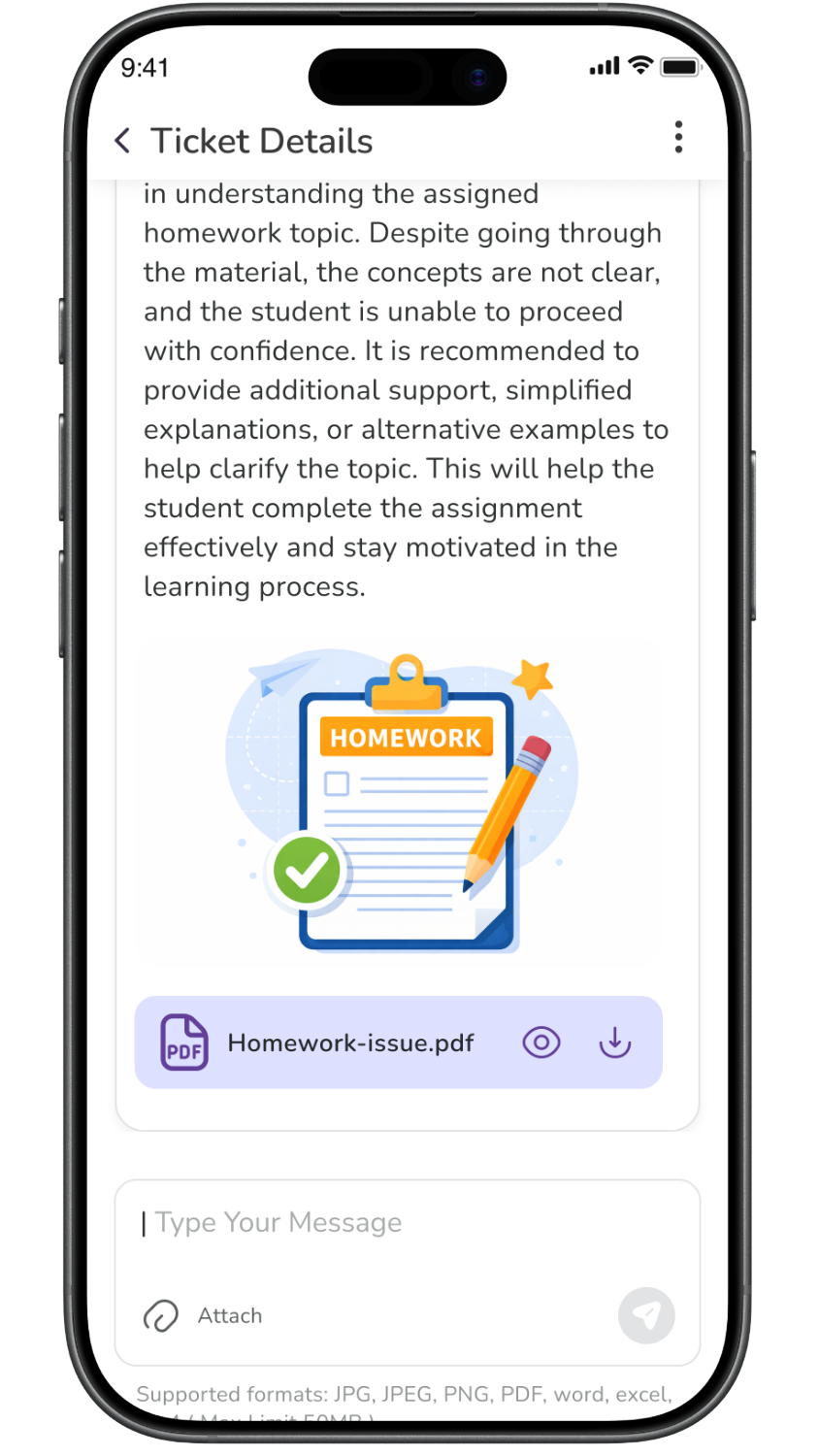
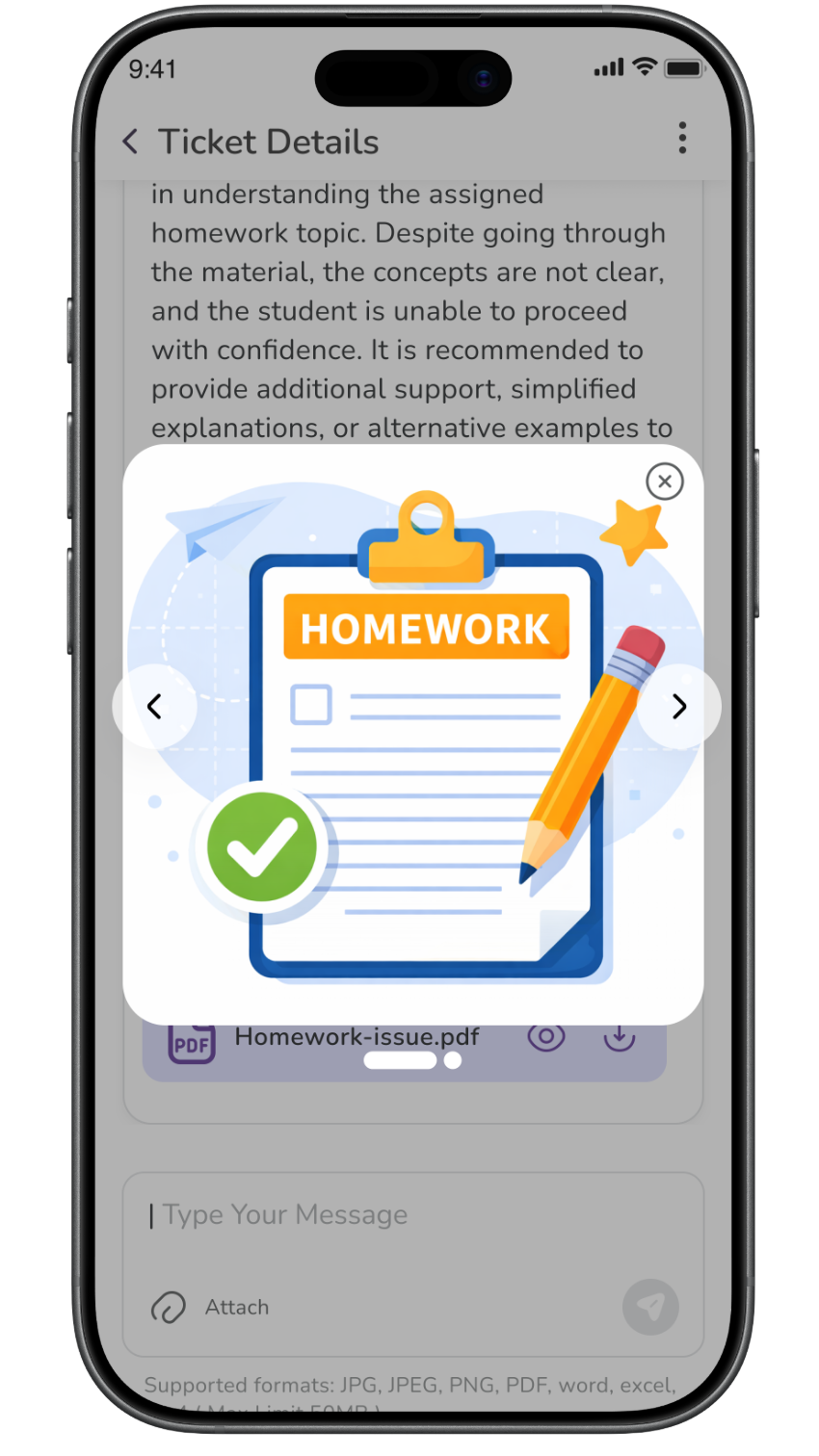
✅ Expected Result: You can review the attachment shared by the parent.
Important Information
ℹ️ Important: The ticket details page gives you the full context of the issue before you reply, escalate, or send a close request.
ℹ️ Important: Some sections may appear collapsed by default. Tap the section to expand it and view more details.
✅ Tip: Review the Resolution Timeline, Issue Raised By, and Issue Description sections before taking any action on the ticket.
FAQs
Tap any ticket card from the Parent Connect list to open its full details.
You can see the ticket ID, status, resolution timeline, parent and student details, issue description, and attachments.
Yes. If the parent has uploaded an attachment, it appears inside the ticket details section.
Reviewing the ticket details helps you understand the issue clearly and respond correctly.
Yes. If the ticket is visible to you, you can tap it from either tab and open the details page.
Expand the Issue Descriptions section. If the parent has added attachments, review those as well for better context.