

Notice Board is used to share important, official announcements with students, parents, or staff.
How to Create a Notice
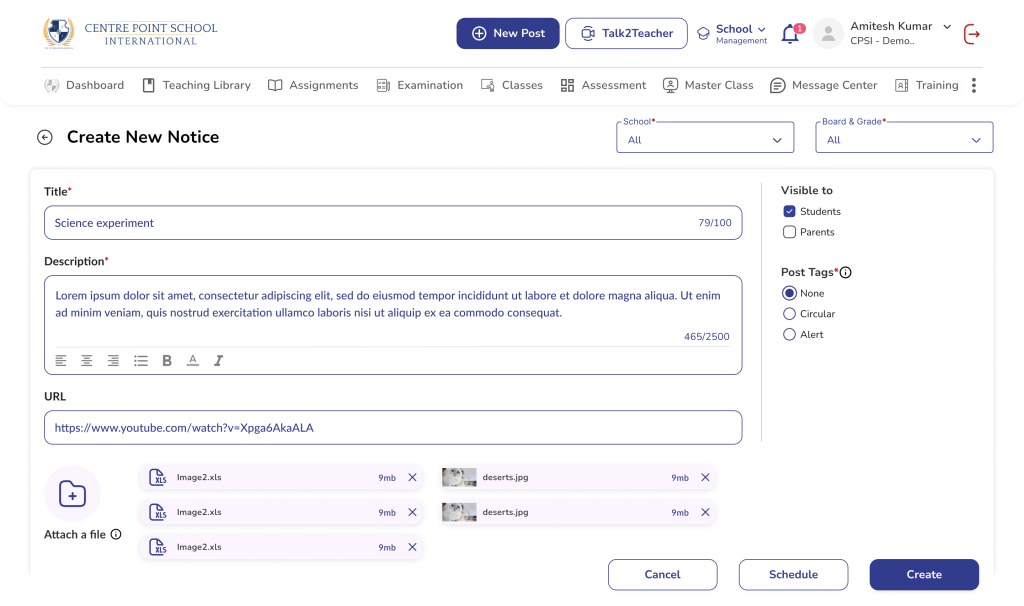
- Click + New Post
- Select Notice
- Select Audience:
- School / Multiple Schools
- Board → Grade → Division
- Choose visibility:
- Students / Parents (or both)
- Add:
- Title
- Description
- Optional: URL / Attachments (upto 5 attachments only)
- Select Post Tag (Alert / Circular if needed)
- Click Save & Publish
⚠️ Important Guidelines
- Use for official communication only
- Avoid using for daily updates or homework
- Pin only critical notices
Manage Notices
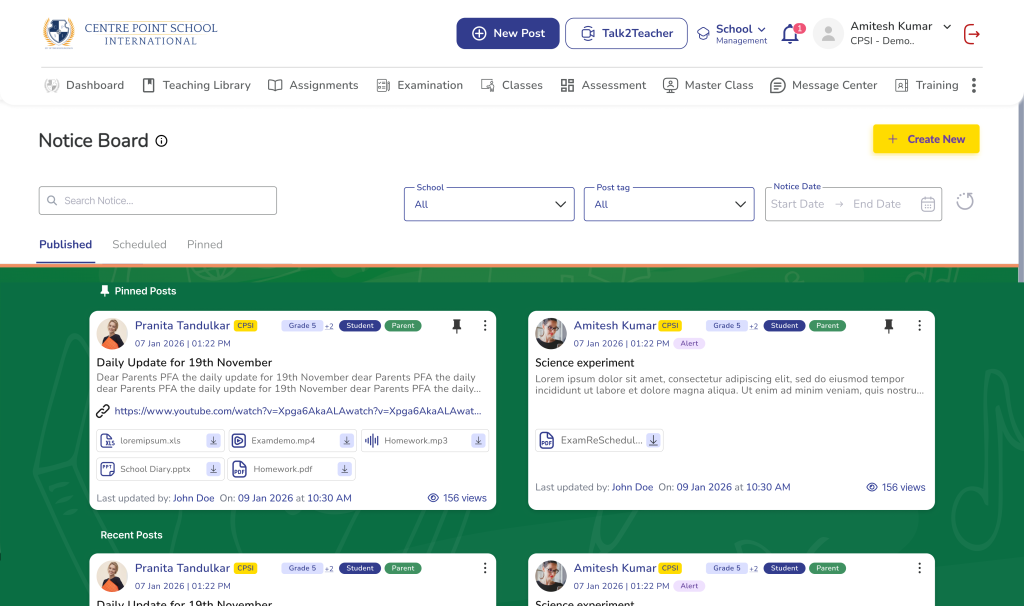
- Go to Notice Board
- Use 3 dots (⋮) to:
- Edit
- Delete
- Pin (Max 3 pinned posts per school)
Frequently Asked Questions
Only staff members with the required permissions (Admin/Coordinator/Authorized Staff) can create notices.
Yes. You can select multiple schools. In this case, Board–Grade–Division defaults to “All”.
Yes. Go to Notice Board → click the 3 dots (⋮) → select Edit.
You can pin up to 3 notices per school. Older pinned notices must be unpinned first.
Yes. Use the checkboxes under “Visible to” while creating the notice.