Argus Jr.

  • Viewing school announcements as a Student or Parent

    Viewing school announcements as a Student or Parent

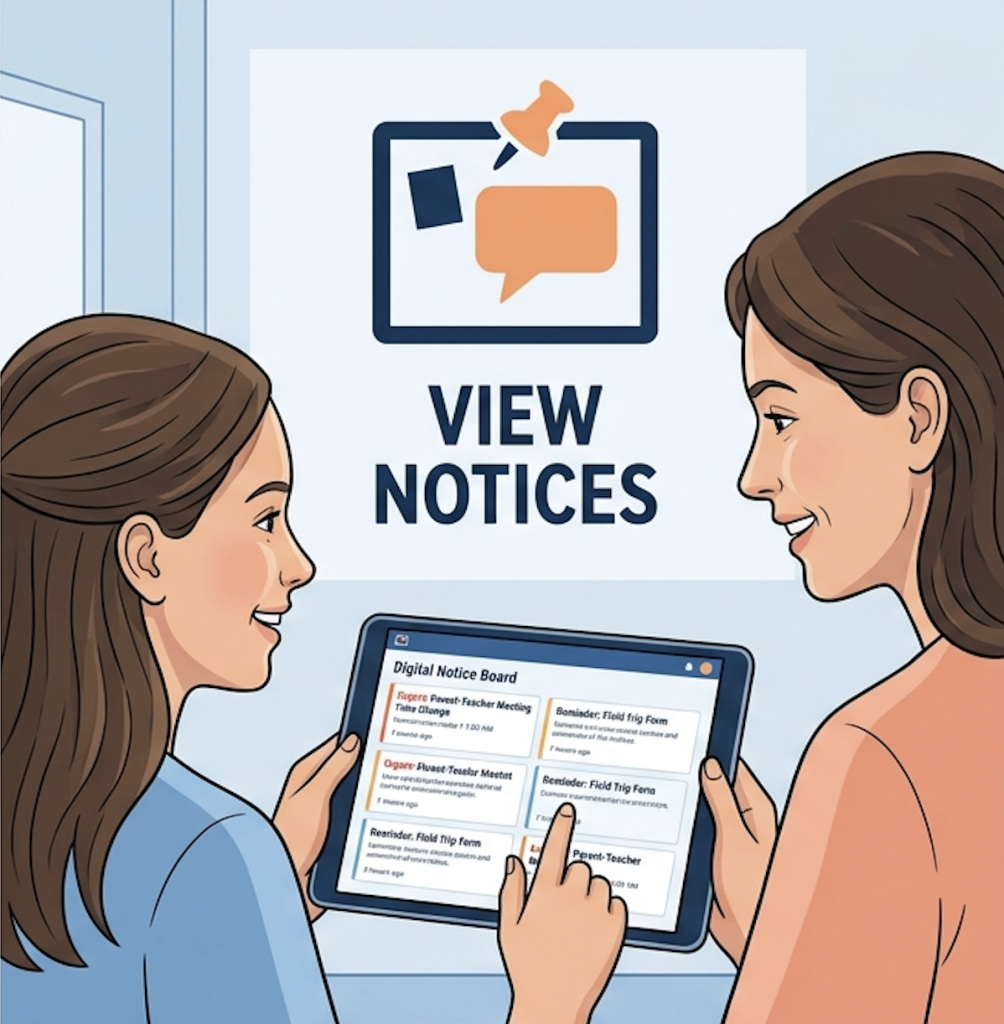
    Notice Board is used to share important, official announcements with students, parents, or staff.

    View Notices

    Where to Access

    • Login as Student/ Parent
    • Go to Message Center → Notice Board

    What You’ll See

    • 📌 Pinned notices (on top)
    • Latest notices below
    • Filters:
      • Search
      • Tag
      • Date

    Frequently Asked Questions

    Go to Message Center → Notice Board.

    You may not be part of the selected audience (grade/division/school).

    Pinned notices are important announcements shown at the top for easy access.

    No. Notices are for viewing only and do not allow interaction.

    Yes. Use filters like Search, Tag, or Date to find specific notices.

  • View General Post

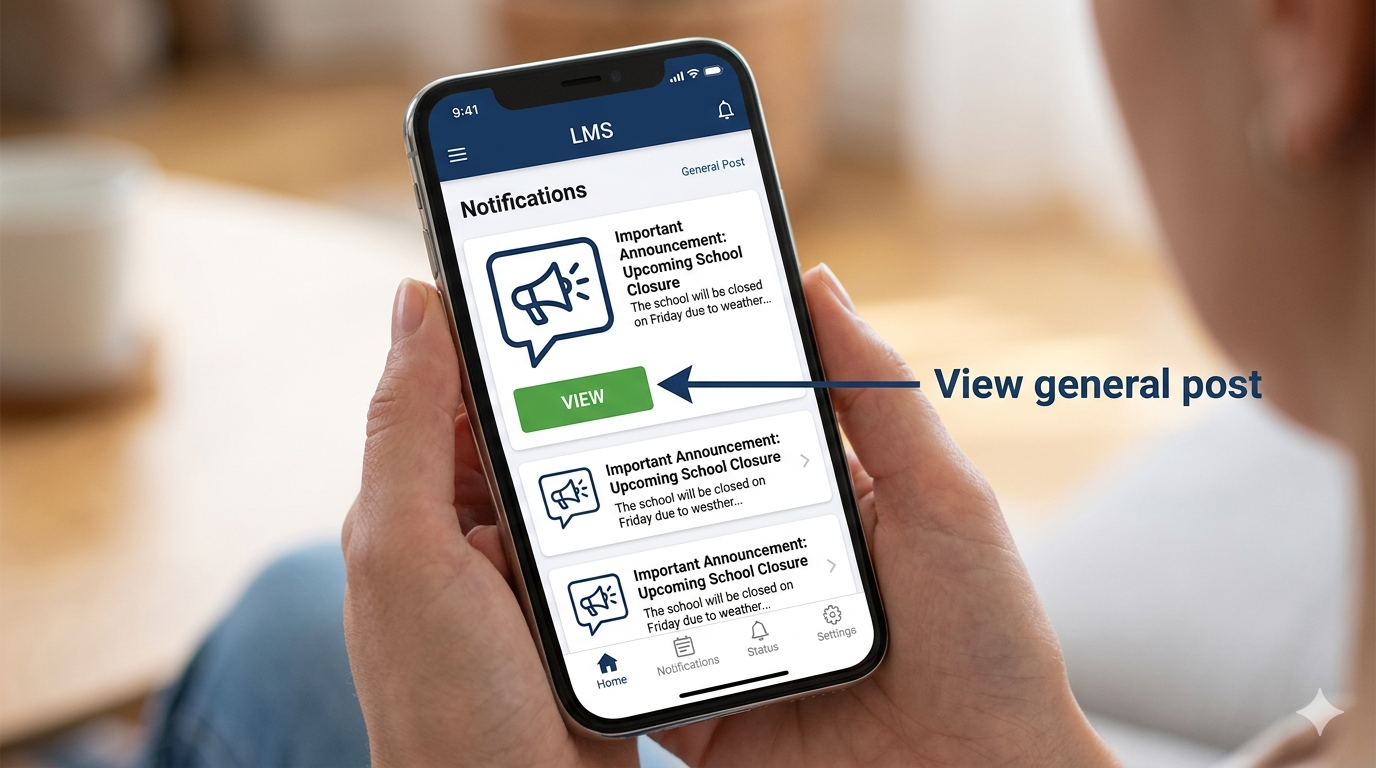
    View General Post

    General Post is used to share non-homework updates within a group.

    View Posts

    Where to Access

    • Message Center → Group

    What You Can Do

    • Read updates
    • View attachments
    • Comment (if enabled)
    • Cannot create posts

    Frequently Asked Questions

    Go to Message Center → Your Group (Subject/Mentoring).

    Yes, but only if the teacher has enabled comments.

    You may not be part of the selected group.

    Yes. Click on the attachment to view or download it.

    General Post → Class-level updates Notice Board → Official announcements

  • Create & Manage Notice Board

    Create & Manage Notice Board

    Notice Board is used to share important, official announcements with students, parents, or staff.

    How to Create a Notice

    1. Click + New Post
    2. Select Notice
    3. Select Audience:
      • School / Multiple Schools
      • Board → Grade → Division
    4. Choose visibility:
      • Students / Parents (or both)
    5. Add:
      • Title
      • Description
      • Optional: URL / Attachments (upto 5 attachments only)
    6. Select Post Tag (Alert / Circular if needed)
    7. Click Save & Publish

    ⚠️ Important Guidelines

    • Use for official communication only
    • Avoid using for daily updates or homework
    • Pin only critical notices

    Manage Notices

    • Go to Notice Board
    • Use 3 dots (⋮) to:
      • Edit
      • Delete
      • Pin (Max 3 pinned posts per school)

    Frequently Asked Questions

    Only staff members with the required permissions (Admin/Coordinator/Authorized Staff) can create notices.

    Yes. You can select multiple schools. In this case, Board–Grade–Division defaults to “All”.

    Yes. Go to Notice Board → click the 3 dots (⋮) → select Edit.

    You can pin up to 3 notices per school. Older pinned notices must be unpinned first.

    Yes. Use the checkboxes under “Visible to” while creating the notice.

  • Review and close a ticket in Parent Connect

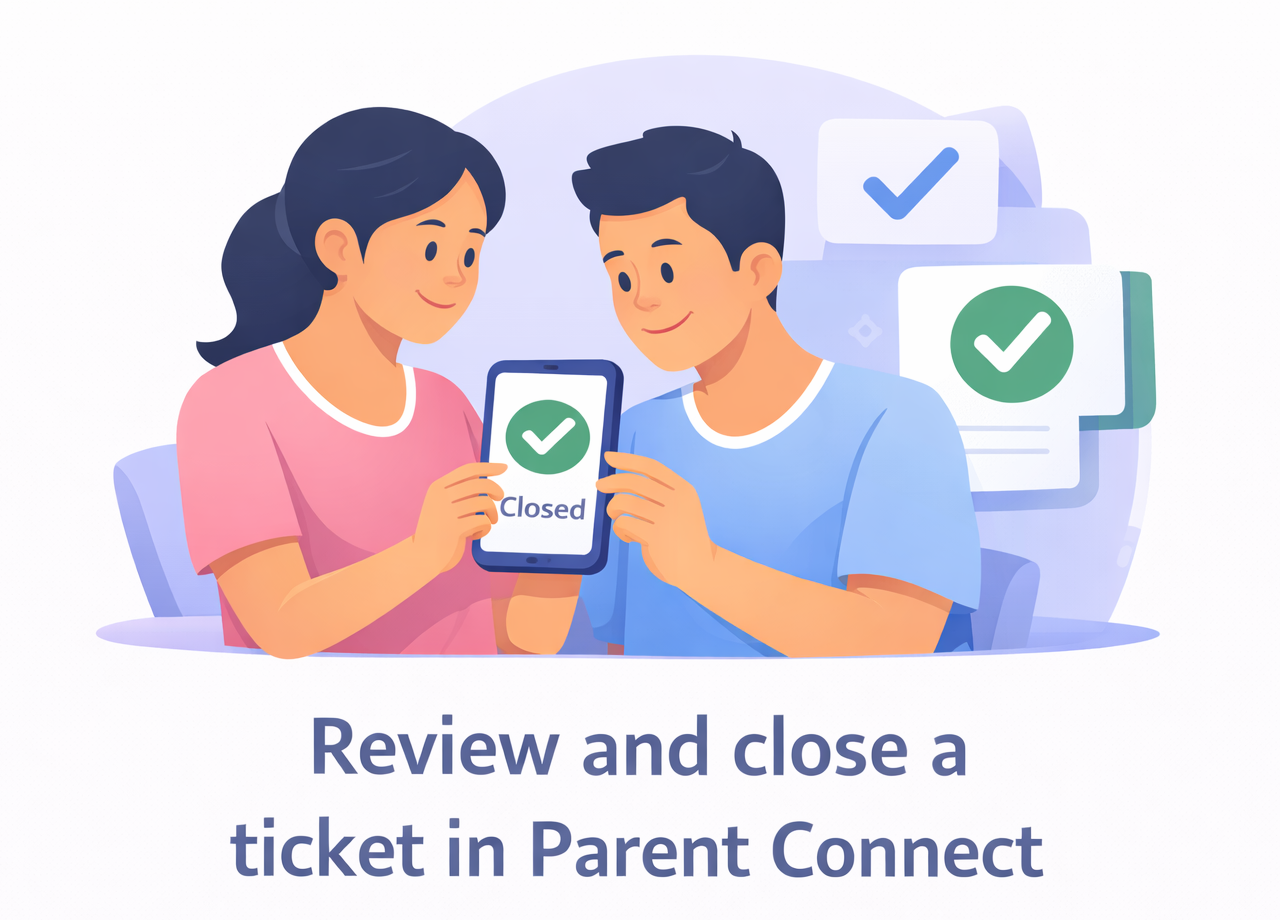
    Review and close a ticket in Parent Connect

    Overview

    This guide explains how parents can review the school’s response in Parent Connect and close a ticket after confirming that the issue is resolved.

    What You’ll Learn

    • How to review the school’s response
    • What the Yes / No resolution confirmation means
    • How to close a ticket
    • What happens after a ticket is closed

    Who Can Use This

    Applicable Role:

    • Parent

    Prerequisites

    • You must be logged in to the LMS app as a Parent
    • You must have an active ticket with a response from the school

    Steps to Review and Close a Ticket

    Step 1: Open Parent Connect

    Go to:
    More → Parent Connect

    Expected Result: The Parent Connect tickets screen opens.


    Step 2: Open the required ticket

    Tap the ticket that you want to review.

    Expected Result: The ticket details page opens.


    Step 3: Read the school’s response

    Go through the staff response in the ticket chat carefully.

    Review:

    • The action taken by the school
    • The clarification shared
    • Any next steps mentioned
    • Whether your issue has been resolved fully

    Expected Result: You understand the school’s response and are ready to confirm whether the issue is resolved.


    Step 4: Respond to the resolution confirmation

    If the ticket displays the message:

    Are you happy with the resolution?

    Choose one of the following:

    • Yes
    • No

    Step 5: Tap Yes

     if the issue is resolved

    If you are satisfied with the resolution, tap Yes.

    Expected Result: The ticket is closed, and you may see a confirmation message such as:

    This issue is now successfully resolved. Thank you!


    Step 6: Tap No

     if the issue is not resolved

    If you are not satisfied, tap No.

    Expected Result The ticket can continue for further review or action as per the school’s process.

    Important: If you are not satisfied, do not close the ticket. Use the available flow to continue the issue for re-check.


    What Happens After a Ticket is Closed

    Once you confirm the resolution:

    • The ticket status changes to Closed
    • The conversation remains visible in your history
    • You can still refer to the ticket later for records

    Warning: Review the staff response carefully before selecting Yes, because that action closes the ticket.


    Frequently Asked Questions (FAQs)

    When the school shares a resolution, you may see a prompt asking Are you happy with the resolution? inside the ticket.

    If you tap Yes, the ticket will be closed.

    If you tap No, the issue can continue for further review based on the school’s process.

    Usually, a closed ticket cannot be reopened directly. If more help is needed, you may need to raise a new query.

    Yes. Always read the school’s response carefully before selecting Yes, because that action closes the ticket.

    The Yes / No option appears only when the school has shared a resolution and is waiting for your confirmation. If you don’t see it yet, the ticket may still be in progress.

    Yes. Closed tickets remain visible in Parent Connect for future reference.

    If you need more help after closing a ticket, you may need to raise a new query for the same issue.