Overview
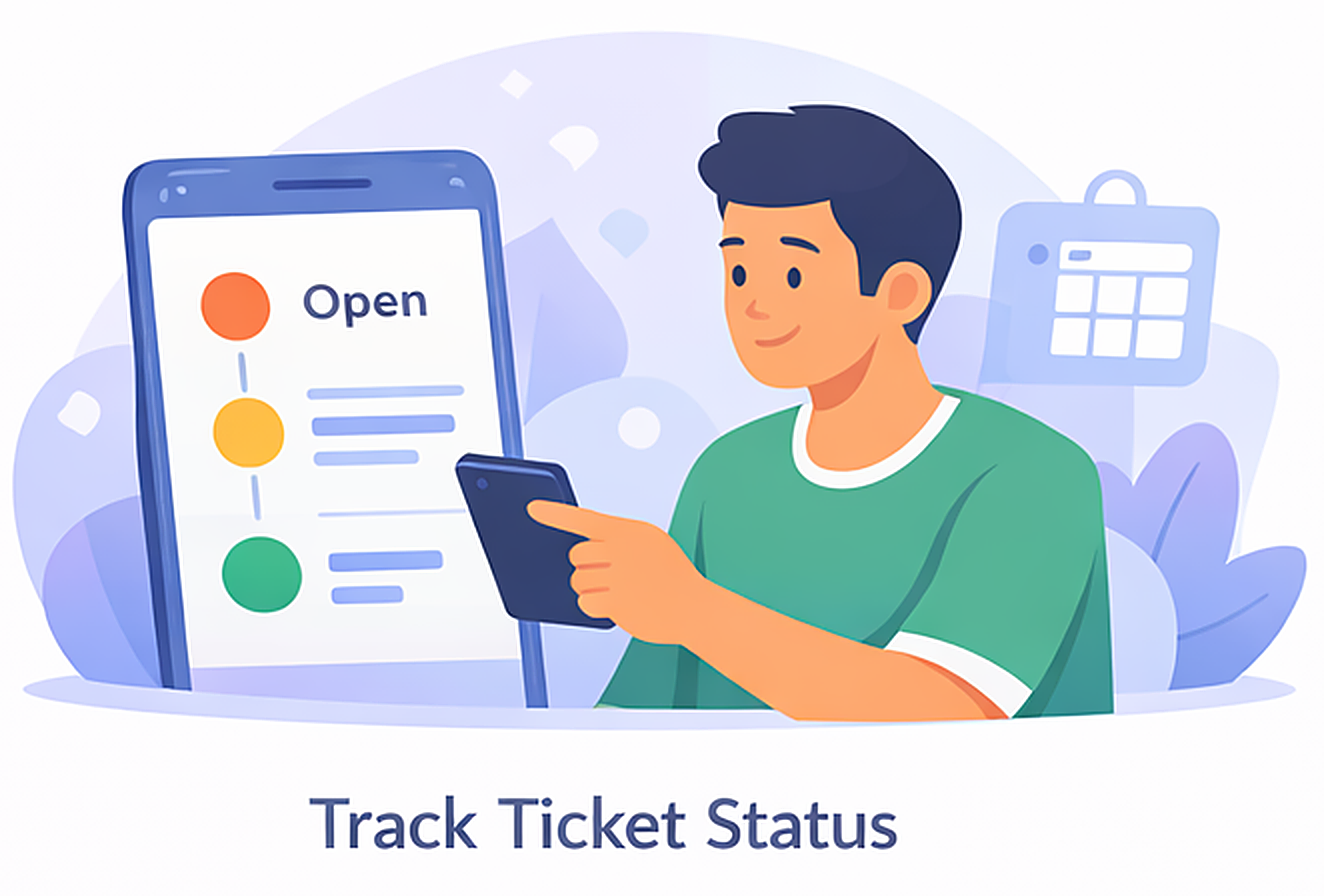
This guide explains how parents can track ticket progress in Parent Connect and understand common ticket statuses.
What You’ll Learn
- How to check ticket status
- How to understand ticket timeline updates
- What common statuses mean
- How to know whether action is pending
Who Can Use This
Applicable Role:
- Parent
Prerequisites
- You must be logged in to the LMS app as a Parent
- You must have raised at least one ticket in Parent Connect
Steps to Track Ticket Status
Step 1: Open Parent Connect
Go to:
More → Parent Connect
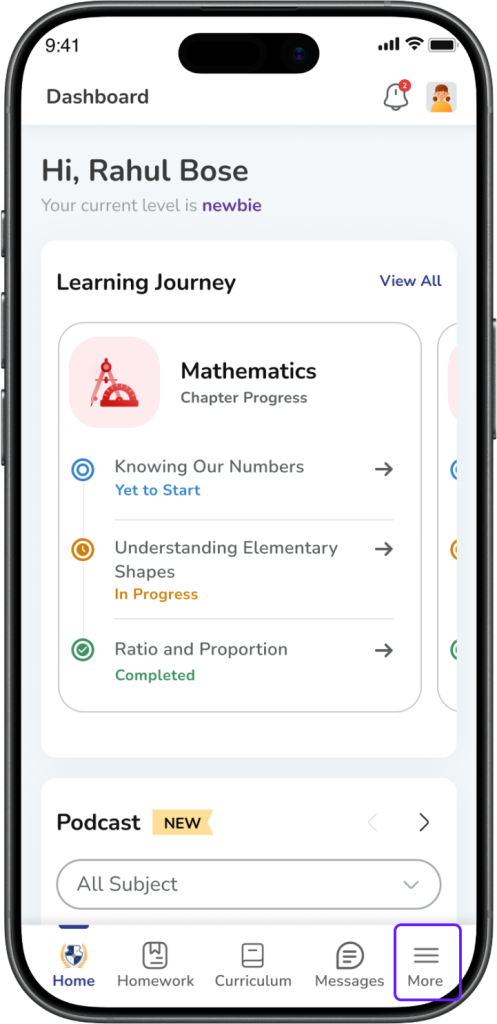
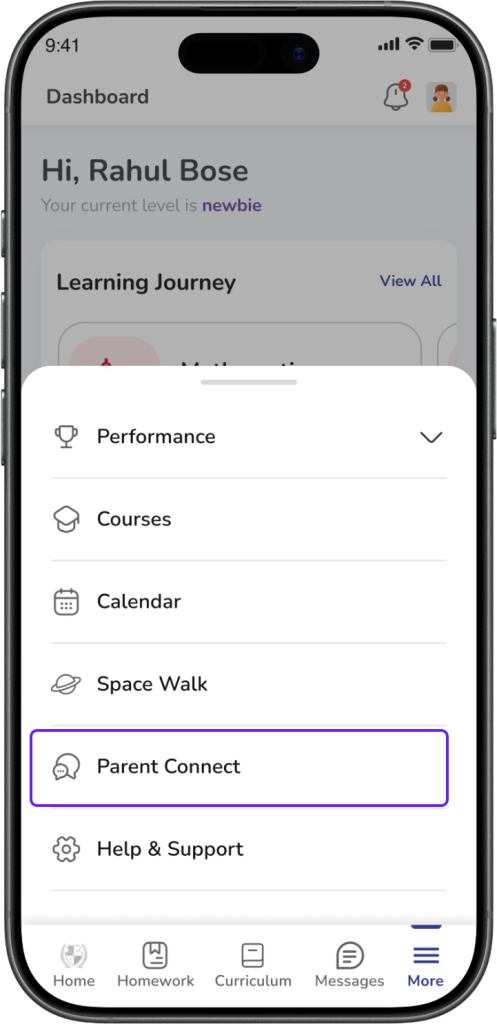
Expected Result: The Parent Connect tickets screen opens.
Step 2: View your tickets
On the ticket list page, you can see all your tickets grouped under tabs like:
- All
- Open
- Closed
- Escalated
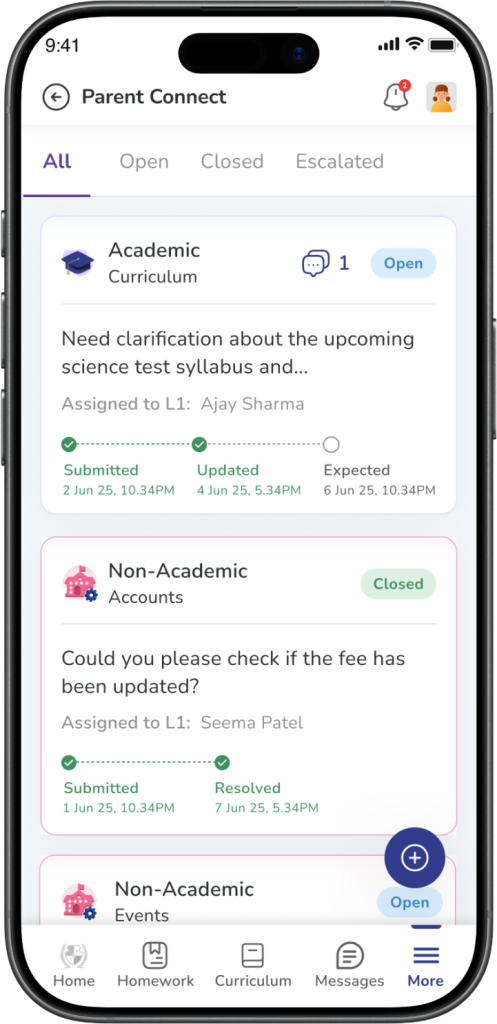
Each ticket card shows a quick summary of the current status.
Expected Result: You can identify the latest state of each ticket from the ticket list.
Step 3: Open the ticket for more details
Tap any ticket card to open the Query Details page.
Step 4: Review the timeline
In the ticket details section, you may see timeline labels such as:
- Submitted
- Updated
- Due
- Resolved
These timestamps help you understand when the ticket was raised, when it was last updated, and when a response is expected.
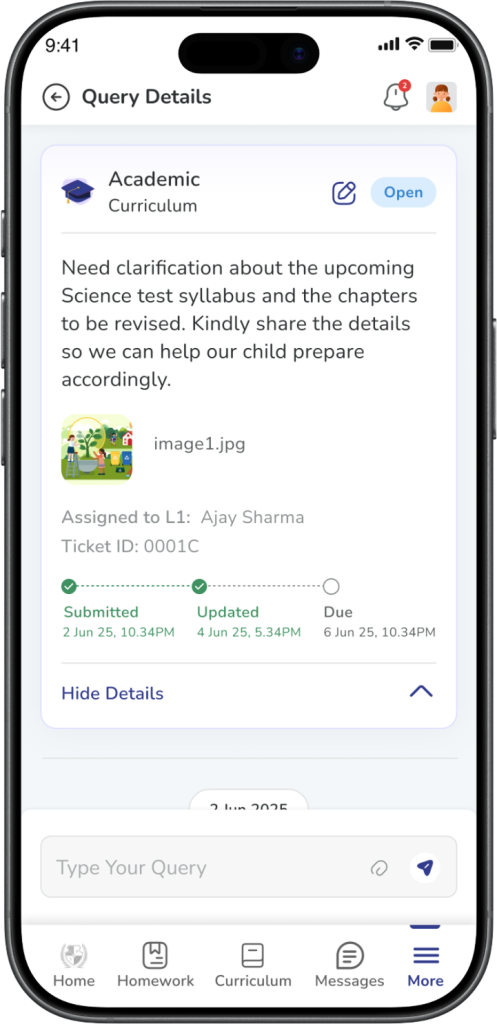
Expected Result: You can see where the ticket currently stands in the process.
Common Ticket Statuses
Open: The ticket has been raised and is still active.
Updated: The school has shared a reply or an update.
Due: The expected response or resolution time is approaching.
Closed: The issue has been resolved and the ticket is complete.
Important: Your school may also use internal escalation levels, but parents will mainly see the statuses available in the parent app.
How to Know if Action is Pending
You may need to take action if:
- The school has replied and is waiting for your response
- You see a closure request
- You are asked whether you are happy with the resolution
If no action is needed from you, you can continue tracking updates in the ticket.
Frequently Asked Questions (FAQs)
Open Parent Connect and tap the required ticket. You can view the latest status on the ticket card and inside the Query Details page.
Open means your query has been raised successfully and is still active.
Updated means the school has shared a new reply or update in the ticket.
Closed means the issue has been resolved and the ticket is now complete.
Due usually shows the expected response or resolution timeline for the ticket.
You may need to act if the ticket asks whether you are happy with the resolution or if the school has sent a reply and is waiting for your response.
Yes. Closed tickets remain available in Parent Connect so you can check them later if needed.