Overview
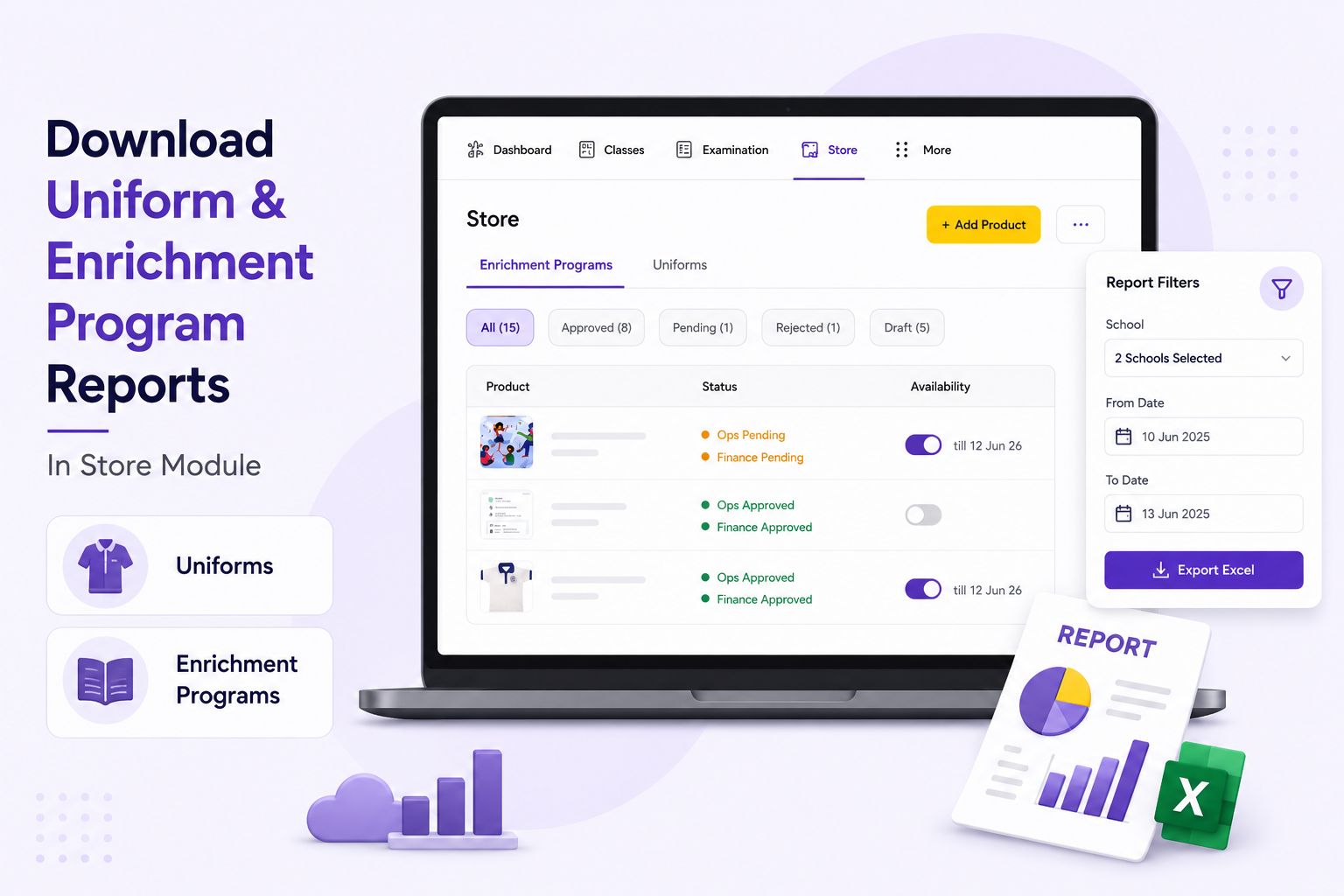
This guide explains how staff users can download Uniform and Enrichment Program reports from the Store Module.
You can use this report section to download order data for:
- uniforms
- enrichment programs
- selected schools
- selected date range
- selected students, if needed
What You’ll Learn
- how to open the Reports section
- how to download Uniform reports
- how to download Enrichment Program reports
- how to filter reports by school, group, student, and date range
- who can access which reports
Who Can Use This
Applicable Role:
- Store Manager at school level
- Ops Admin
- Finance Admin
Before You Begin
Please note:
- school-level users can download reports only for their own school
- brand-level / HO users can download reports for multiple schools under their brand
- Uniform and Enrichment Program reports are downloaded separately
- the report will be downloaded in Excel format
Step 1: Log in to the staff portal
Open the login page.
- Select Staff
- Enter your login credentials
- Click Proceed
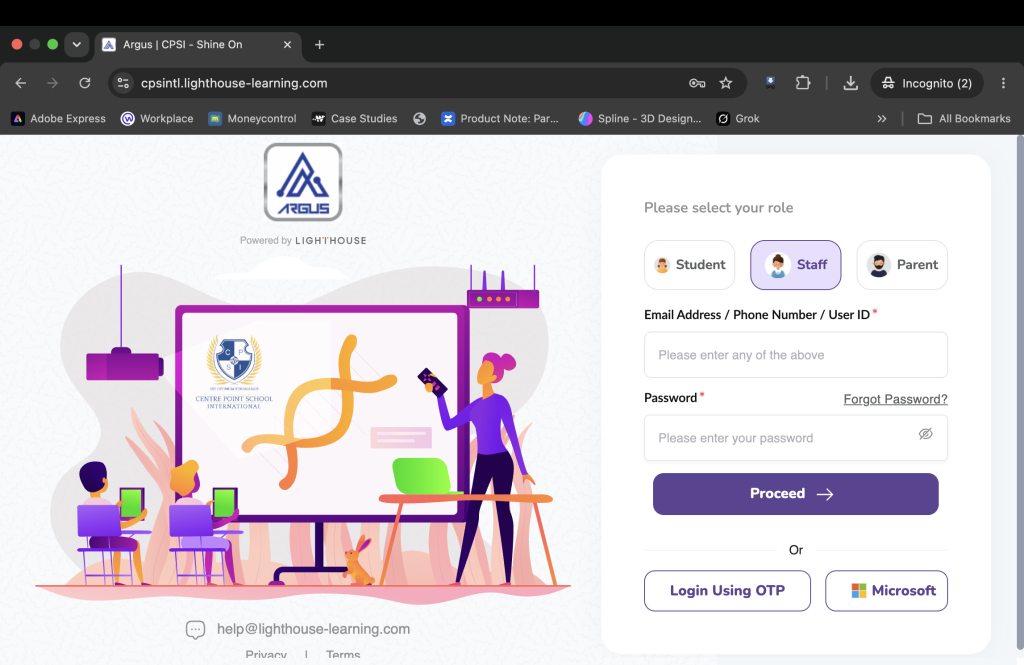
Expected Result: You are logged in successfully.
Step 2: Open Store Management
After login:
- go to School Management
- click Store Management
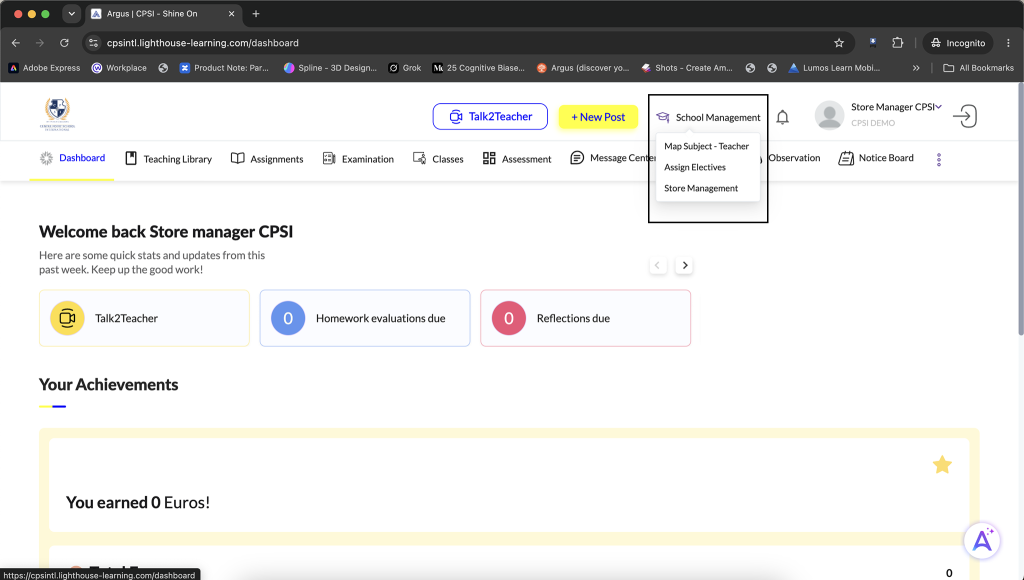
Expected Result: You land on the Store Management page.
Step 3: Open Reports
On the Store page:
- click the three-dot menu
- click Reports
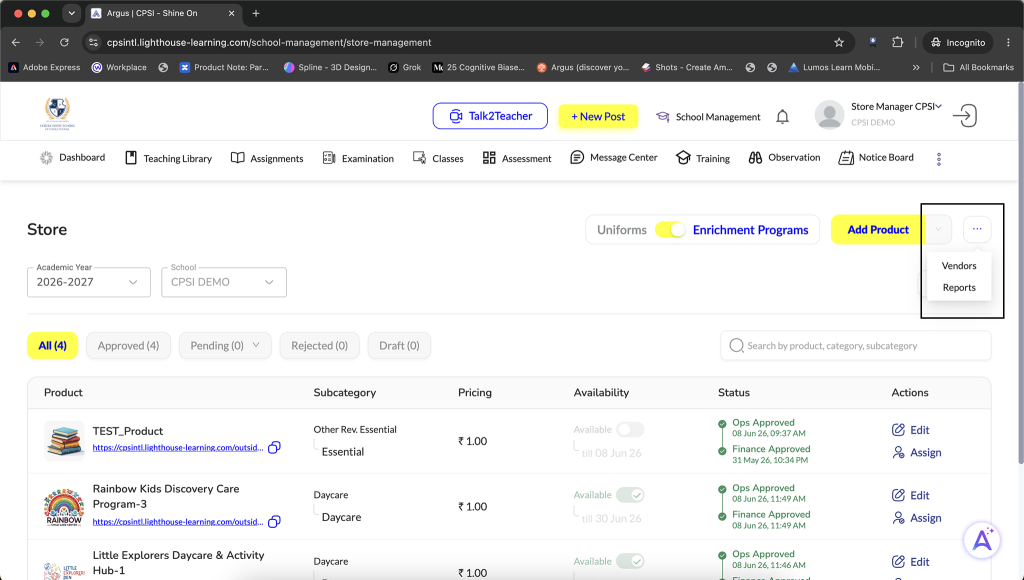
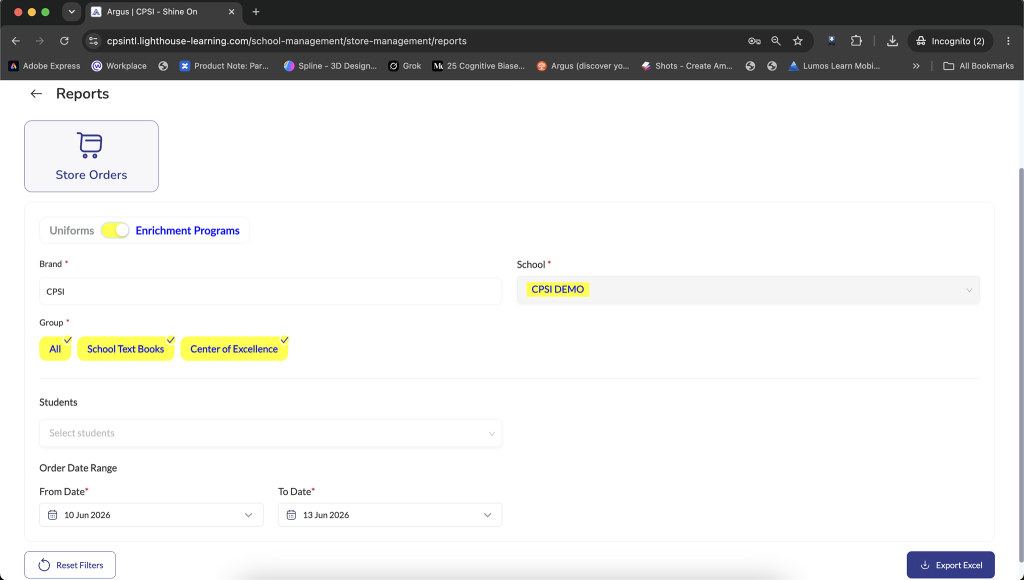
Expected Result: You land on the Reports page.
Step 4: Choose the report type
In the Reports section, you can choose either:
- Uniforms
- Enrichment Programs
You can switch between these two tabs based on the type of report you want to download.
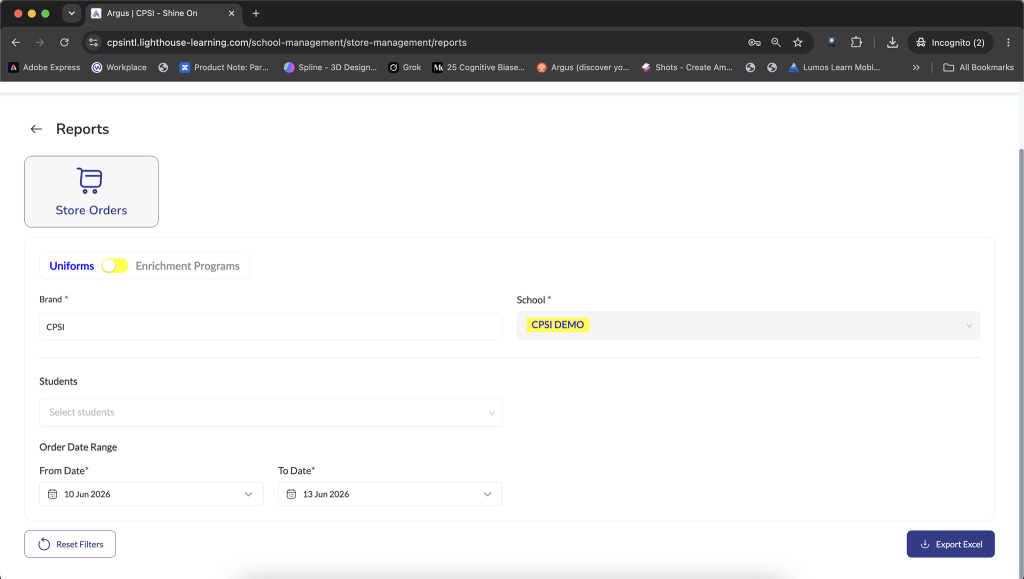
Expected Result: The selected report type is shown on screen.
Step 5: Select the required filters
Now fill the required filters for the report.
For Uniform reports, select:
- School
- From Date
- To Date
For Enrichment Program reports, select:
- School
- Group, if required
- Student, if required
- From Date
- To Date
For Enrichment Program reports, the available groups may include School Text Books, Center of Excellence, etc., depending on the configuration available for your brand.
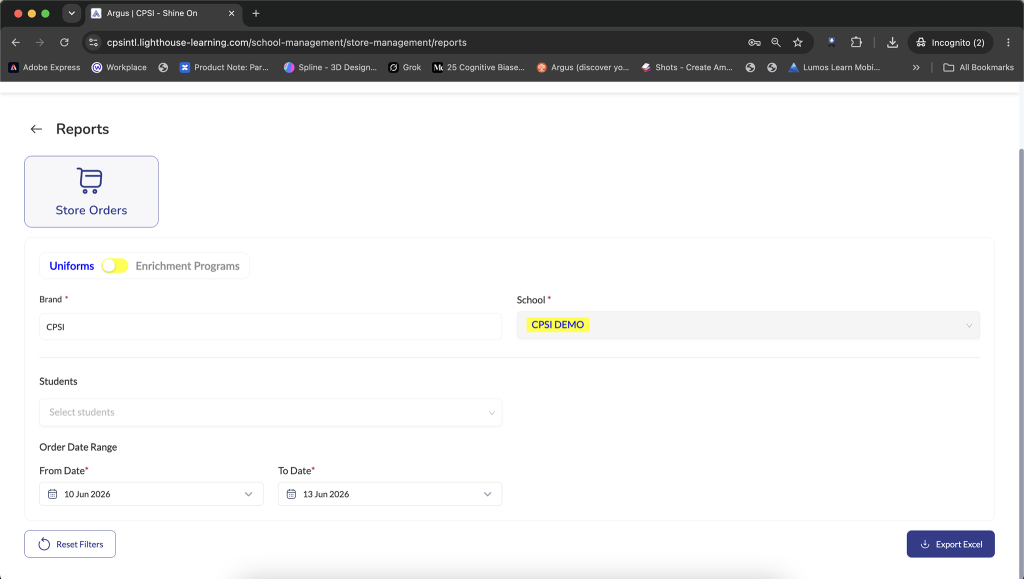
Expected Result: The required filters are selected successfully.d successfully.
Step 6: Download the report
After selecting the required filters, click Export Excel.
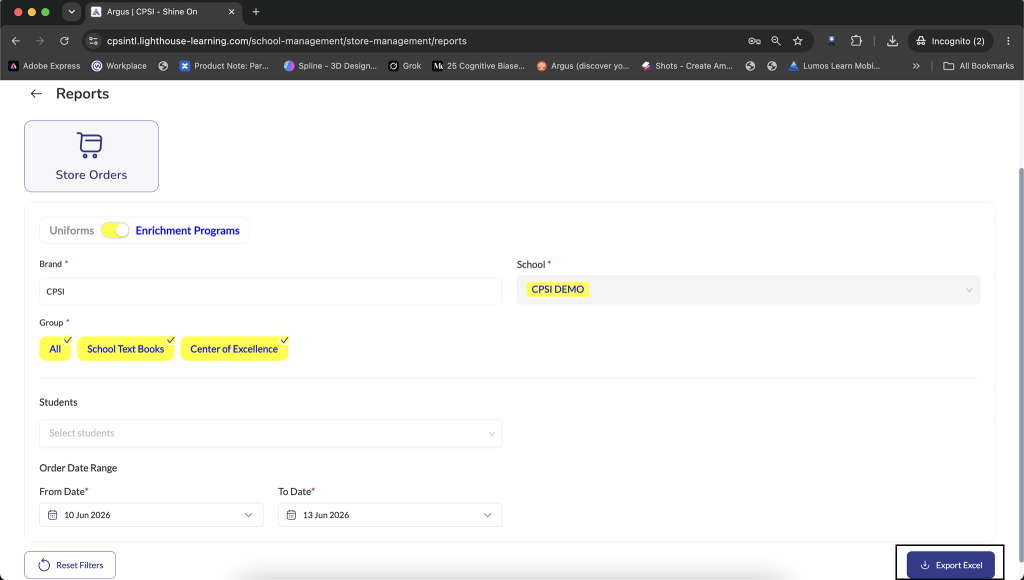
Expected Result: The report is downloaded in Excel format.
What the report contains
The downloaded report contains details such as:
- order details
- transaction details
- parent details
- student details
The report structure follows the same format as the reports used previously.
Access Rules
School-level users
School-level users can download reports only for their own school.
Brand-level / HO users
Brand-level or HO users can download reports for multiple schools under their brand.
Important Notes
- Uniform and Enrichment Program reports are separate
- select the correct tab before downloading the report
- date range selection is mandatory for report download
- student filter can be used if you need the report for a specific student
- the report is downloaded in Excel format
Frequently Asked Questions (FAQs)
No. These reports are available separately and need to be downloaded separately.
Yes. You can use the Student filter to download the report for a specific student.
Yes. Brand-level / HO users can download reports for multiple schools under their brand.