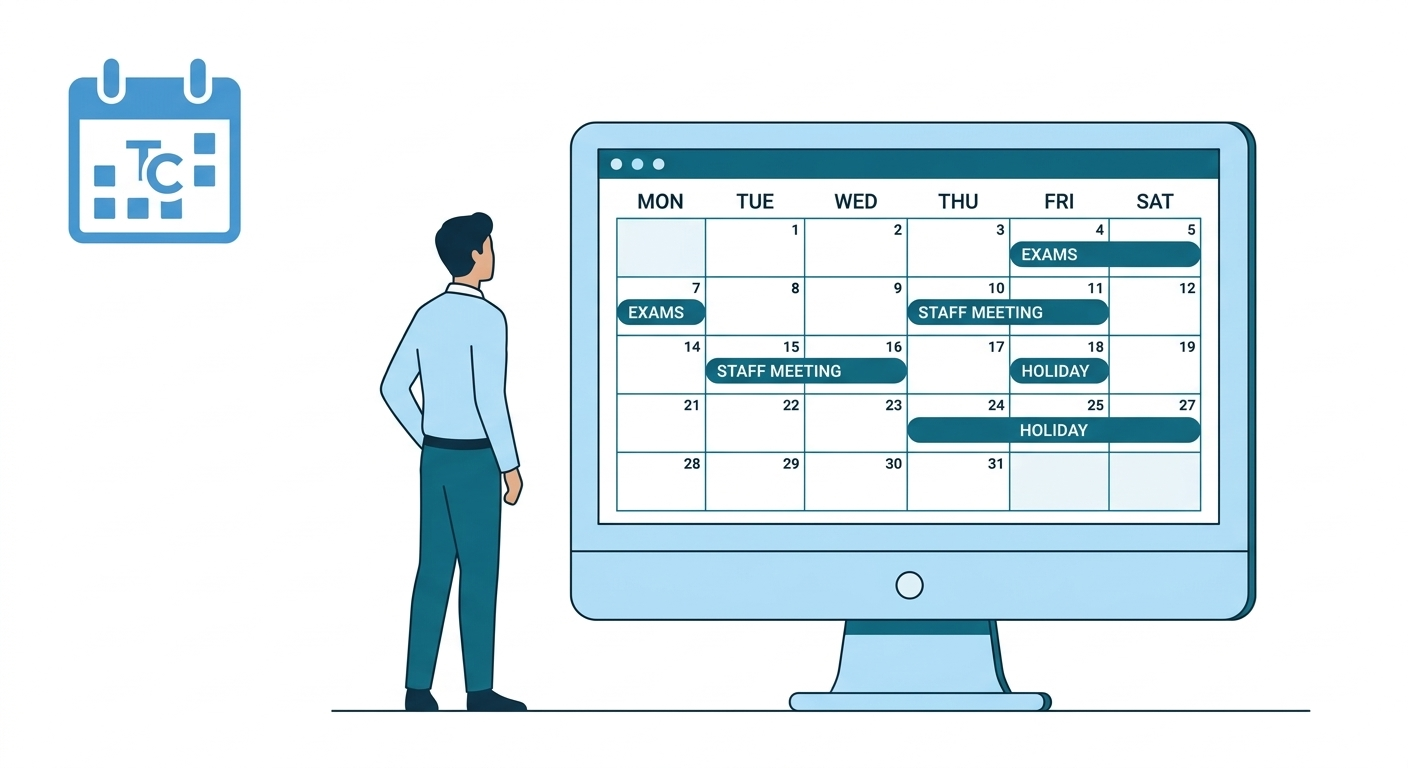
Almanac is the centralized academic calendar module within the K-12 LMS. It provides a structured and reliable source of information for all school-related events, including academic activities, examinations, holidays, vacations, and institutional events.
Parent and Student Guide (Desktop & Mobile App)
Access Almanac
Mobile App (ios and Android)
Login to your account
Navigate to More –> Almanac
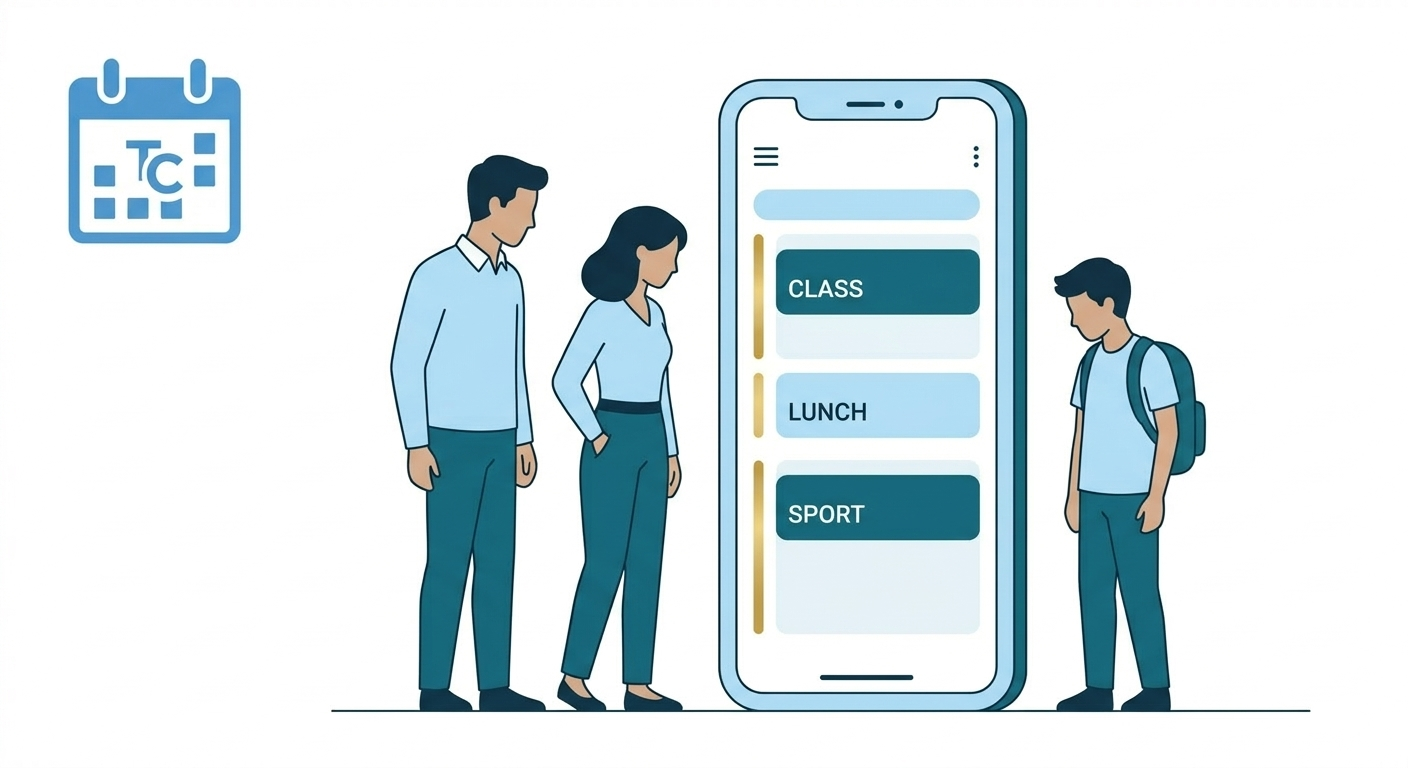
Events are displayed in a list format
Apply filters to customise view
Use left and right arrows to switch months or tap the month name to change month or academic year
Desktop (Web)
Login to your account
Navigate via Side Navigation to Calendar –> Almanac
Events are displayed in a calendar format
Apply filters to customise view
Use left and right arrows to switch months
Default View & Navigation
Current month opens as default
Mobile app auto-scrolls to current date
Event Detail contains Event name, Date, Time and Description
Frequently Asked Questions (FAQs)
You can access the Almanac by navigating to: More → Almanac in the mobile application.
The Almanac includes all important school events such as:
Exams
Holidays and vacations
PTMs
School functions
Academic and co-scholastic activities
No. The Almanac is read-only for parents and students. Events are created and managed by the school administration.
A single day may include multiple school activities such as exams, competitions, or meetings. The Almanac displays all events scheduled for that day so you can stay fully informed.
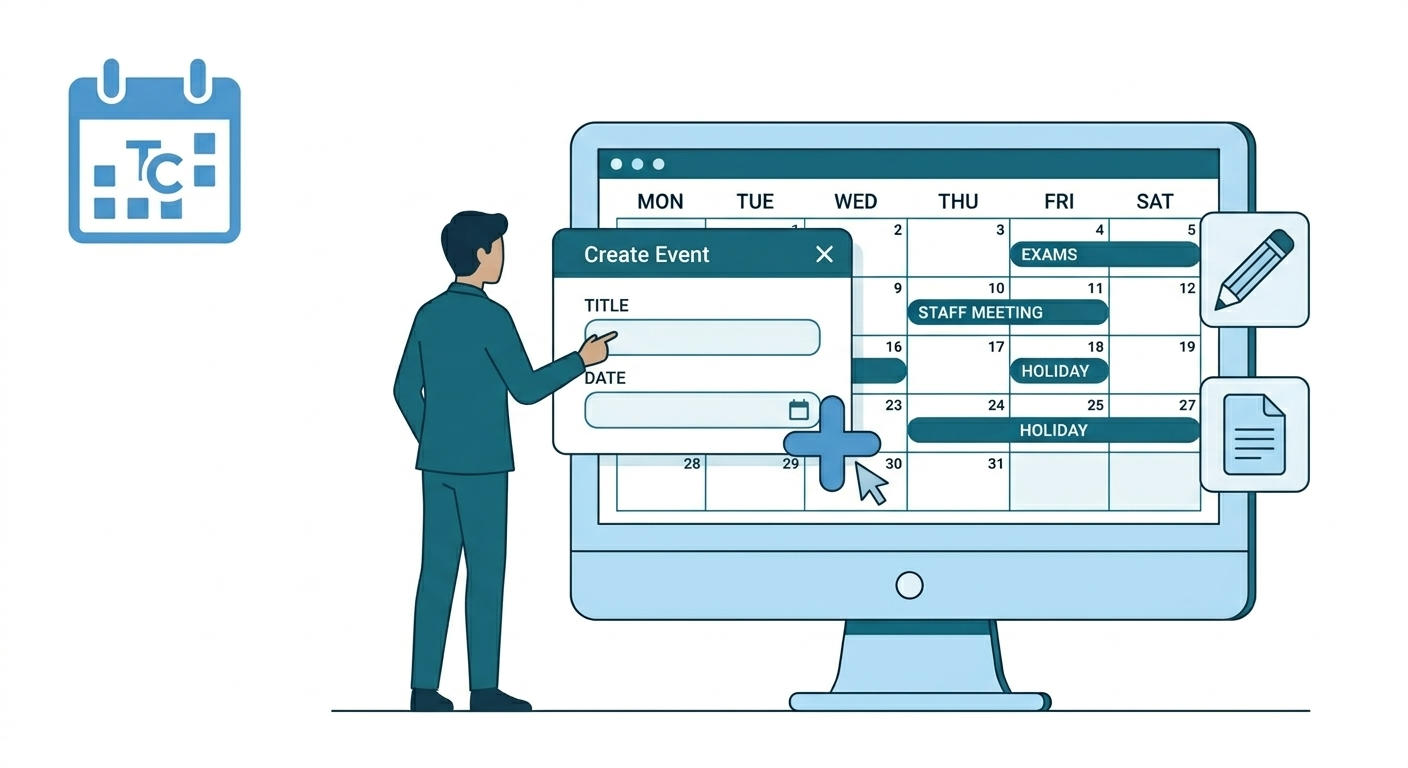
Creating a new event in Almanac is the primary method for broadcasting essential academic and institutional dates to your school community. By utilizing the web-based creation suite, authorized administrators can build highly targeted entries—ranging from single-class exams to school-wide holidays—by defining specific audiences through advanced filters such as Board, Grade, and Division. This centralized process ensures that once an event is confirmed, it is instantly mapped to the personalized dashboards of relevant teachers, students, and parents, maintaining a synchronized and reliable schedule across both web and mobile platforms.
Almanac is the centralized academic calendar module within the K-12 LMS. It provides a structured and reliable source of information for all school-related events, including academic activities, examinations, holidays, vacations, and institutional events.
Role & Platform Matrix
Access to Almanac features is determined by your user role. Please note that administrative tasks, such as creating events, are currently restricted to the web platform.
Role
Web Access
Mobile Access
Create/Edit/Delete
View
Super Admin
Yes
No
Yes
Yes
HO Admin
Yes
No
Yes
Yes
School Admin
Yes (View Only and Personalised to LMS mapping)
No
Yes
Yes
Teacher
Yes (View Only and Personalised)
No
No
Yes
Parent
Yes (View Only)
Yes
No
Yes
Student
Yes (View Only)
Yes
No
Yes
School Admins and Teachers see events personalized to their specific LMS mapping and assignments.
How to Create an Event
To ensure accuracy across the LMS, creating events must be done via a web browser. Follow these steps to add a new activity to the calendar:
Navigate to Almanac: Open the LMS on your computer and go to School Management > Almanac (Web).
Initiate Setup: Click the Add Event button.
Define Your Audience: Select the scope of the event by choosing the relevant School, Board, and Grade.
Optional: Use Advanced Filters to narrow the audience down to specific Divisions or individual Students.
Finalize: Once all mandatory fields are complete, click Create event.
Confirm: Click Confirm on the pop-up notification to publish the event to the calendar.
Web-Only Creation: Event creation and management tools are not available on the mobile app. To add or modify the academic calendar, you must log in via the web portal.
Frequently Asked Questions (FAQs)
Yes. Use the Advanced Filters during the creation process to select a specific Division. This ensures only the relevant students and teachers see the event on their personalized calendars.
Marking an event as a holiday typically designates that day as non-instructional. This status is reflected on attendance reports and student/parent dashboards to indicate that school is not in session.
The Create event button only becomes active once all mandatory fields (marked with an asterisk) are filled. Double-check that you have selected an Audience, Event Type, and Date Range.
Yes. While parents cannot create events, any event you publish on the web version of Almanac syncs instantly to the parent and student mobile apps.
Yes. Ensure the Full day event toggle is set to No. This will open the Time Range fields, allowing you to set specific start and end times for the activity.
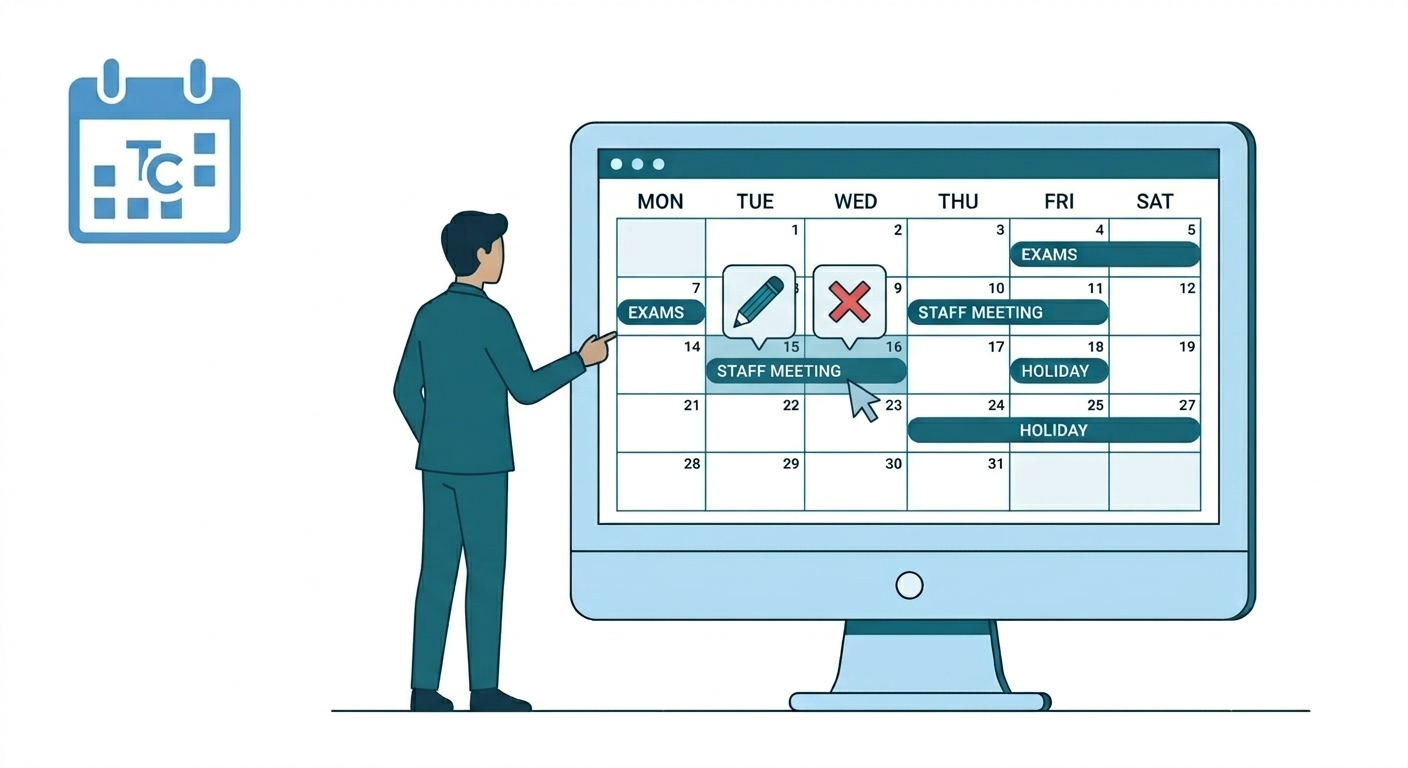
To update an existing event in Almanac, authorized administrators must log in via the web portal and navigate to the calendar grid or side navigation. Clicking on the event name opens its detailed view in the side panel, where a pencil icon triggers the edit mode. In this mode, users can modify targeted fields like Audience (School, Board, Grade, or Division) and Event Details (Title, Date Range, Time, or Holiday status). However, to preserve data integrity, specific rules apply: events that have already started or finished can only have their Title and Description changed, while the Event Type remains a permanent classification that cannot be altered for any event once created. After all required adjustments are made, clicking Update Event and confirming on the subsequent pop-up publishes the changes in real-time across all user dashboards and mobile apps.
Role-Based Access Overview
Your ability to modify events depends on your assigned administrative role. Modification tools are available exclusively through the Web portal.
Role
Web Access
Mobile Access
Manager
View
Super Admin
Yes
No
Yes
Yes
HO Admin
Yes
No
Yes
Yes
School Admin
Yes (View Only and Personalised to LMS mapping)
No
Yes
Yes
Teacher
Yes (View Only and Personalised)
No
No
Yes
Parent
Yes (View Only)
Yes
No
Yes
Student
Yes (View Only)
Yes
No
Yes
School Admins can edit events within their specific LMS school mapping.
How to Update an Event
To maintain calendar integrity, the system applies specific rules based on when the event occurs.
Future Events: You can edit all fields for events that have not yet started.
Past Events: For events that have already started or finished, you can only edit the Title and Description.
Permanent Fields: The Event Type (e.g., Holiday vs. Exam) cannot be changed once an event is created. If the type is incorrect, you must delete the event and create a new one.
Locate the Event – Navigate to the Almanac module on the web. Find your event either directly on the Calendar grid or by using the Side Navigation list. Click on the event name to open its details.
Enter the edit mode – Once the event details expand in the side panel, click the Update/Edit (pencil) icon.
Event details open up on the Side Navigation
Modify Required Fields:
Audience
School
Board
Grade
Advanced filters (Optional)
Division
Students
Event Details:
Event Title
Subtype
Full day event (Y/N)
Date range
Time Range (if not full-day)
Mark as Holiday (Y/N)
Mark attendance (Y/N)
Save Changes
Click Update event (after all mandatory details are filled)
Click Confirm on Confirmation Pop up
How to Delete an Event
Locate the Event: Find the event on the main calendar or via the Side Navigation and click on it.
Open Details: The event details will expand in the Side Navigation panel.
Enter Edit Mode: Click the Update/Edit icon (usually represented by a pencil).
Remove Event: Click the Delete icon (trash can).
Confirm: A pop-up will appear asking for confirmation. Click Delete to permanently remove the event.
Only events with Start time in the future can be deleted
Frequently Asked Questions (FAQs)
The delete option only appears for events scheduled in the future. Additionally, ensure your user role (such as Super Admin or HO Admin) has the necessary permissions to manage events.
Currently, creating, editing, or deleting events is only supported on the Web version of the LMS for authorized administrators. Mobile access is primarily for viewing the calendar.
This means you only see the events relevant to your specific school, grade level, or classes. For example, a Teacher will see their specific academic milestones rather than the entire district’s administrative schedule.
No. Once you click “Delete” on the confirmation pop-up, the event is permanently removed from the Almanac module. Please double-check before confirming.
Yes. Because Almanac is the centralized module, any changes made by an Admin are updated in real-time across all user dashboards and mobile apps.
To preserve the accuracy of school records, the system locks the date and time settings once an event has passed. You can still update the title or description for clarity, but the timing remains fixed.
No. The Event Type is a permanent classification. If an event was categorized incorrectly at the time of creation, you will need to delete it and create a new entry with the correct type.
Changes made in Almanac update the calendar in real-time across all user dashboards and mobile apps. Depending on your school’s notification settings, users may see the update reflected instantly.
In the Audience section of the edit screen, open Advanced Filters. Here, you can select a specific Division to ensure the update only applies to that group.
If the pencil icon is missing, it is likely because your user role does not have “Edit” permissions for that specific event or school mapping. Contact your Super Admin to verify your access levels.
Almanac is the centralized academic calendar module within the K-12 LMS. It provides a structured and reliable source of information for all school-related events, including academic activities, examinations, holidays, vacations, and institutional events.
Role-Based Access Overview
Access to Almanac is governed by role-based permissions.
Role
Web Access
Mobile Access
Create/Edit/Delete
View
Super Admin
Yes
No
Yes
Yes
HO Admin
Yes
No
Yes
Yes
School Admin
Yes (View Only and Personalised to LMS mapping)
No
Yes
Yes
Teacher
Yes (View Only and Personalised)
No
No
Yes
Parent
Yes (View Only)
Yes
No
Yes
Student
Yes (View Only)
Yes
No
Yes
Access Almanac
Click School management
Click Almanac to view
Opens Almanac screen with current month as default. School , Board and Grade filters will be selected as per LMS access.
Click on filters to change view
Default View & Navigation
Current month opens as default
Side bar auto-scrolls to current date
Event Detail contains Event name, Date, Time and Description
Frequently Asked Questions (FAQs)
Event creation, editing, and deletion can only be done from the web version of the LMS.
Events visible to you depend on your role and LMS mapping (such as school, grade, or board). If an event is not relevant to your assigned mapping, it may not appear in your view.
You can use the filter option available on the Almanac screen. Tapping the filter icon opens a selection panel where you can refine the events displayed based on available filter criteria.
Editing permissions depend on your role and access level. Only authorized administrators can edit events, and past or ongoing events cannot be modified due to system rules.
Almanac is the centralized academic calendar module within the K-12 LMS. It provides a structured and reliable source of information for all school-related events, including academic activities, examinations, holidays, vacations, and institutional events.
The module is designed to:
Consolidate event communication in one place
Improve visibility for parents and students
Enable structured planning for schools
Ensure consistency across web and mobile experiences
2. Role-Based Access Overview
Access to Almanac is governed by role-based permissions.
Role
Web Access
Mobile Access
Create/Edit/Delete
View
Super Admin
Yes
No
Yes
Yes
HO Admin
Yes
No
Yes
Yes
School Admin
Yes (View Only and Personalised to LMS mapping)
No
Yes
Yes
Teacher
Yes (View Only and Personalised)
No
No
Yes
Parent
Yes (View Only)
Yes
No
Yes
Student
Yes (View Only)
Yes
No
Yes
3. Super Admin Guide
3.1 Responsibilities
Super Admin oversees system-level governance and configuration of the Almanac module across brands and schools. Upload brand-level regional and national holidays list.
3.2 Administration
Access Almanac via Web (School Management → Almanac (Web))
View and manage events across all brands and schools
Upload brand-level regional and national holidays list.
3.3 Configuration
Configure academic year dates
Define limits for National and Regional holidays
Manage shared holiday lists
Oversee permission mapping for Almanac roles
3.4 Permissions
Super Admin can:
Create, Edit and Delete events (subject to business rules)
Click Create event (after all mandatory details are filled)
Click Confirm on Confirmation Pop up
How to Update an Event
Only events with Start time in the future can be edited
Events with Start time in the past can only change Title and Description
Event Type cannot be changed
Access a Particular Event by clicking on it on the calendar or Side Navigation.
Event details open up on the Side Navigation
Click Update/ Edit icon
Update required fields:
Audience
School
Board
Grade
Advanced filters (Optional)
Division
Students
Event Details:
Event Title
Subtype
Full day event (Y/N)
Date range
Time Range (if not full-day)
Mark as Holiday (Y/N)
Mark attendance (Y/N)
Click Update event (after all mandatory details are filled)
Click Confirm on Confirmation Pop up
How to Delete an Event
Only events with Start time in the future can be deleted
Access a Particular Event by clicking on it on the calendar or Side Navigation.
Event details open up on the Side Navigation
Click Update/ Edit icon
Click Delete icon
Click Delete on Confirmation Pop up
9. Event Hierarchy & Display Logic
Events are grouped by date
Longest duration event appears first
Full-day events are visually highlighted
Icons and colors follow defined design standards
10. Notifications Overview
Monthly Digest – Sent 3 days before the next month begins if events exist.
New Event Created – Triggered when a new event within 30 days is created.
Event Updated – Triggered when an event within 30 days is updated.
11. Governance & Compliance
Events must fall within academic year boundaries
Past and live events cannot be deleted
Permission checks are enforced at both UI and API levels
12. Frequently Asked Questions
Can teachers create events?
No. Teachers have view-only access.
Can parents edit events?
No. Almanac is read-only on mobile.
Why can’t I create an event in the past?
Events must be scheduled for current or future times, with defined system rules.
13. Conclusion
Almanac provides a unified and structured academic calendar experience for schools, ensuring clarity, transparency, and alignment across administrators, teachers, parents, and students.