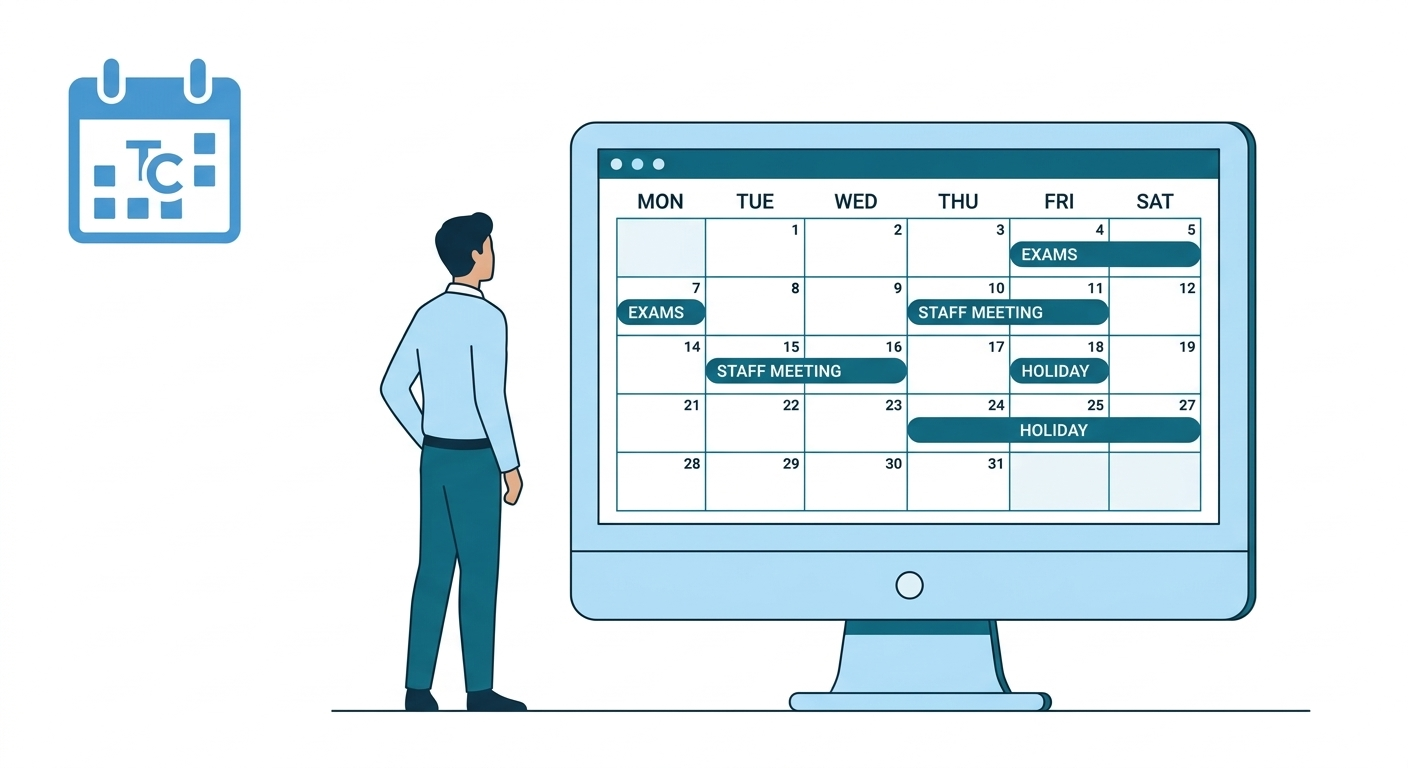
Almanac is the centralized academic calendar module within the K-12 LMS. It provides a structured and reliable source of information for all school-related events, including academic activities, examinations, holidays, vacations, and institutional events.
Role-Based Access Overview
Access to Almanac is governed by role-based permissions.
| Role | Web Access | Mobile Access | Create/Edit/Delete | View |
| Super Admin | Yes | No | Yes | Yes |
| HO Admin | Yes | No | Yes | Yes |
| School Admin | Yes (View Only and Personalised to LMS mapping) | No | Yes | Yes |
| Teacher | Yes (View Only and Personalised) | No | No | Yes |
| Parent | Yes (View Only) | Yes | No | Yes |
| Student | Yes (View Only) | Yes | No | Yes |
Access Almanac
- Click School management
- Click Almanac to view
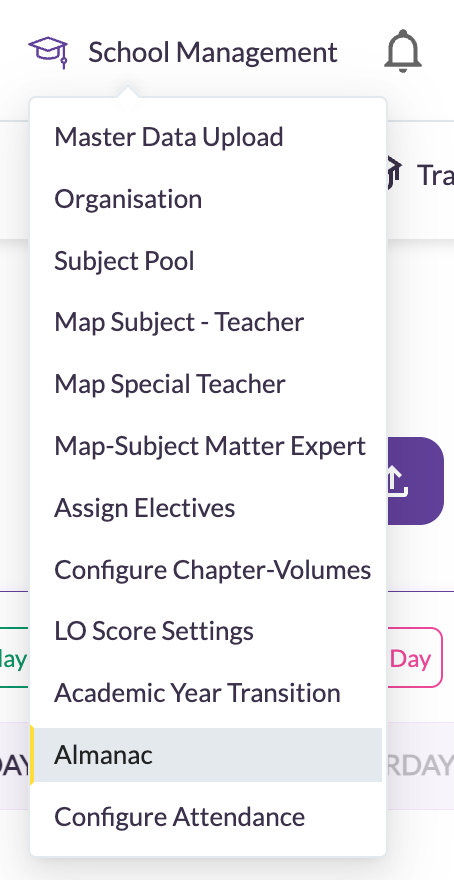
- Opens Almanac screen with current month as default. School , Board and Grade filters will be selected as per LMS access.
- Click on filters to change view
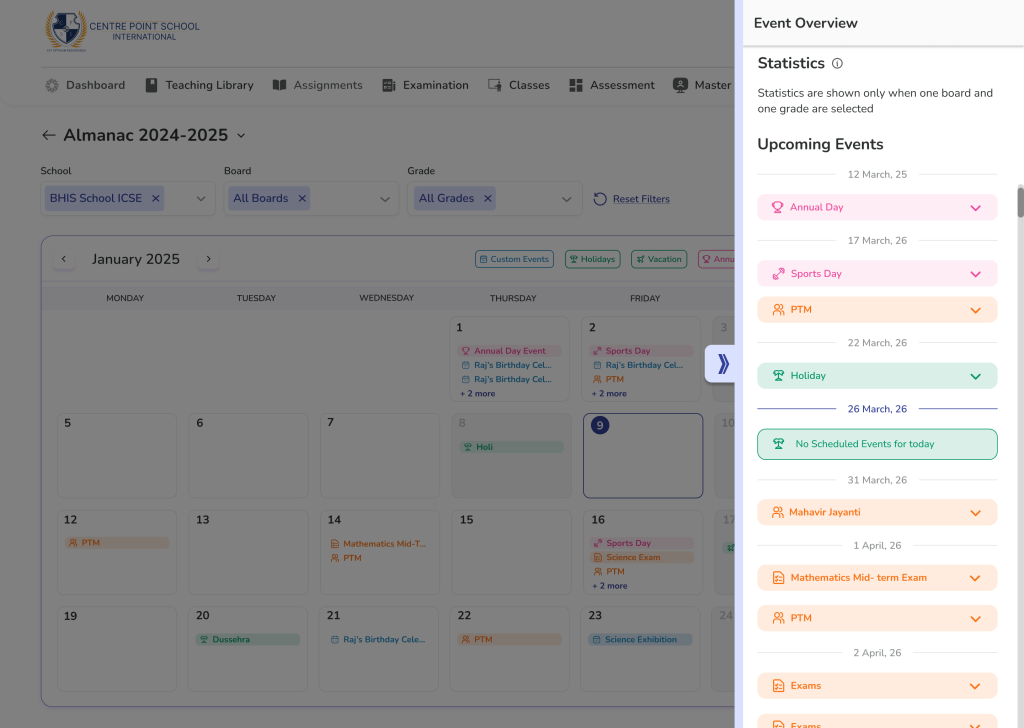
Default View & Navigation
- Current month opens as default
- Side bar auto-scrolls to current date
- Event Detail contains Event name, Date, Time and Description
Frequently Asked Questions (FAQs)
Event creation, editing, and deletion can only be done from the web version of the LMS.
Events visible to you depend on your role and LMS mapping (such as school, grade, or board).
If an event is not relevant to your assigned mapping, it may not appear in your view.
You can use the filter option available on the Almanac screen.
Tapping the filter icon opens a selection panel where you can refine the events displayed based on available filter criteria.
Editing permissions depend on your role and access level.
Only authorized administrators can edit events, and past or ongoing events cannot be modified due to system rules.