
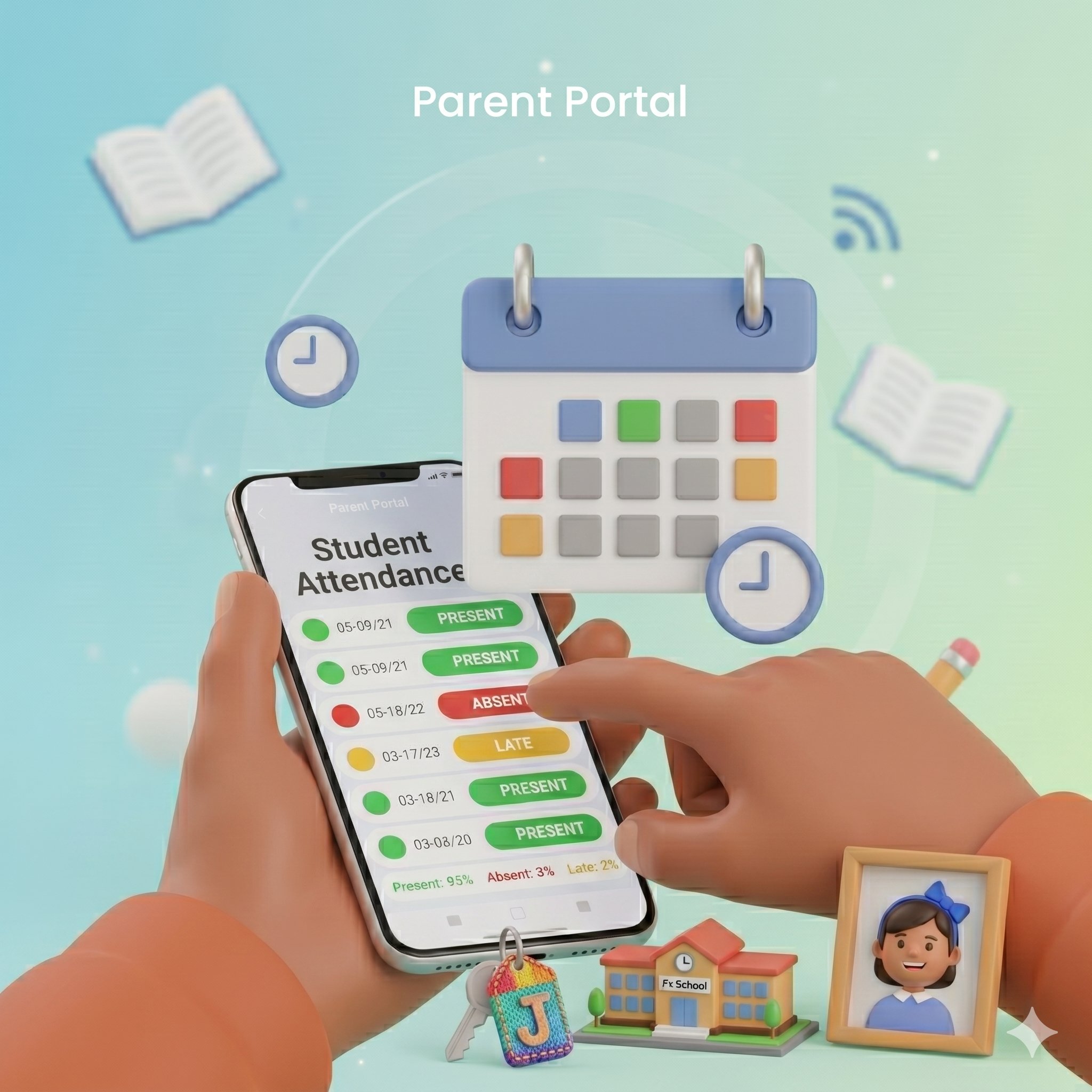
This guide explains how parents can check their child’s attendance using the LMS Parent App.
Table of Content
Using the Attendance feature, parents can:
- View daily attendance status
- See monthly attendance summary
- Check if the child was present, absent, late, or left early
- Review past attendance records
- Track attendance trends
Quick Video Guide
View Today’s Attendance from the Dashboard
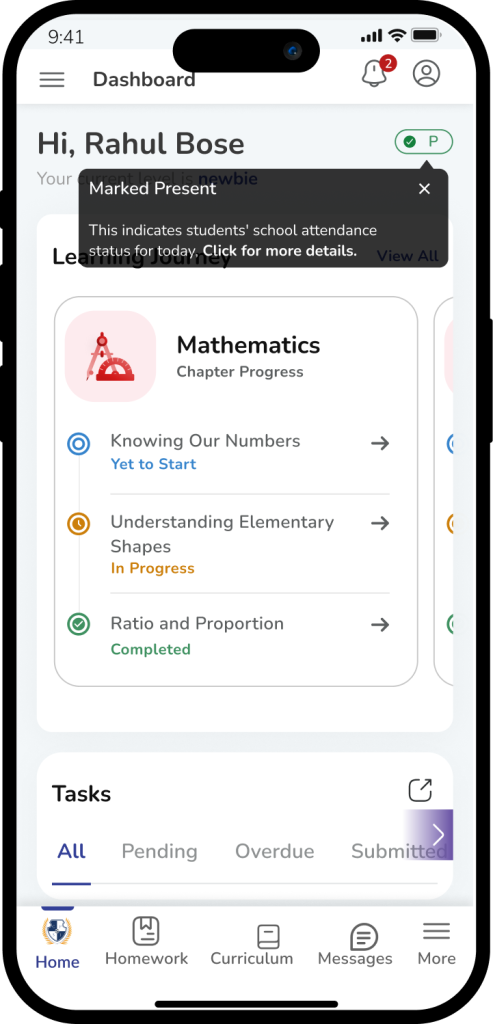
Parents can quickly check the child’s attendance from the home screen.
The attendance indicator appears next to the student’s name on the dashboard.
What the attendance status mean?
The system may show the following status:
- P – Present
- A – Absent
- NT – Not Taken (attendance not yet marked)
- H – Holiday
View more details
Tap the attendance indicator to open the full attendance page. This will show detailed attendance information.
Open the Attendance PageView Today’s Attendance from the Dashboard
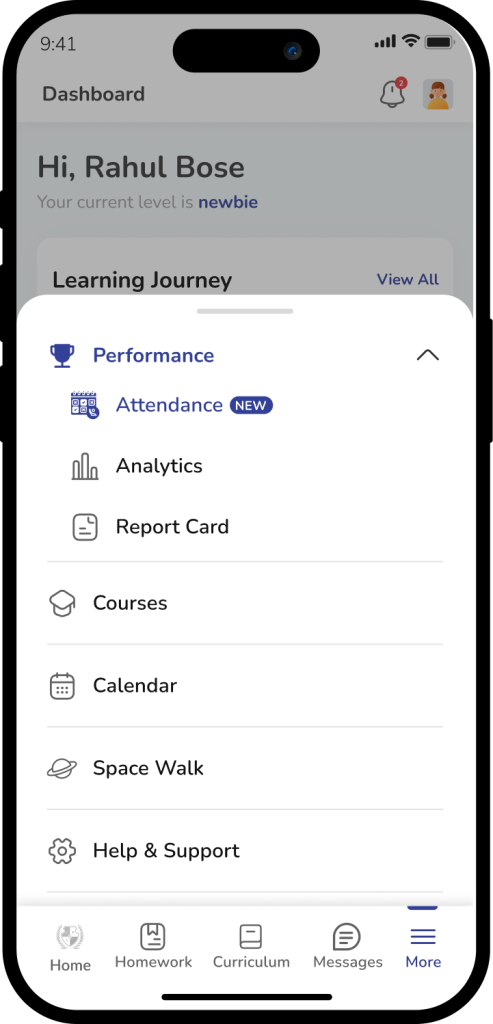
Parents can also open the attendance section from the main menu.
Steps to open the attendance page
- Tap More from the bottom navigation menu.
- Select Performance.
- Tap Attendance.
This will open the Attendance page.
View Attendance SummaryOpen the Attendance PageView Today’s Attendance from the Dashboard
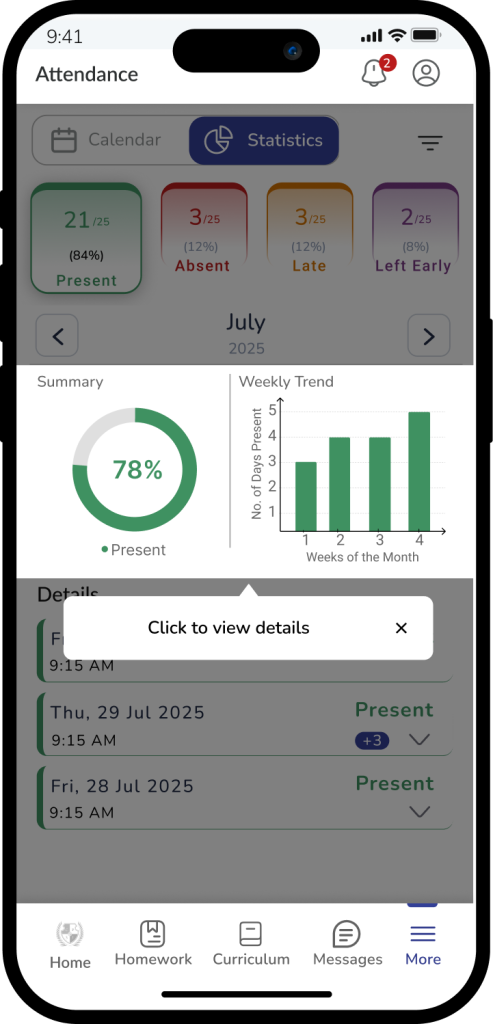
When the attendance page opens, the Statistics view appears by default.
This page shows a quick overview of the child’s attendance for the selected month.
Information shown in the summary
The statistics view includes:
- Monthly attendance percentage
- A visual attendance summary
- Weekly attendance trend
This helps parents understand the student’s attendance pattern.
Understand the Attendance Status CardsView Attendance Summary
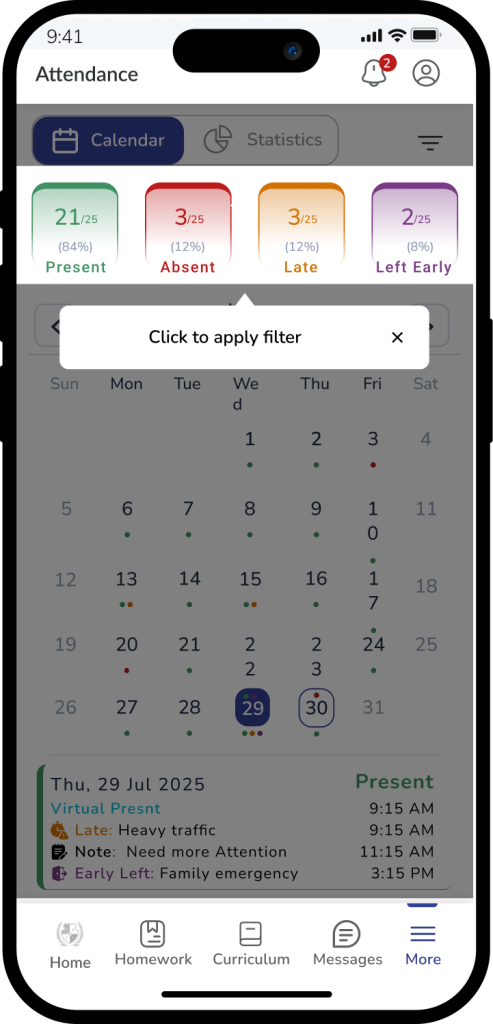
At the top of the attendance page, parents will see attendance summary cards.
These cards show the total number of days for each status.
Attendance status cards include
- Present – Green
- Absent – Red
- Late – Amber
- Left Early – Purple
Each card shows the number of days and the percentage for the selected month. Parents can tap any card to filter the attendance view.
View Daily Attendance Details
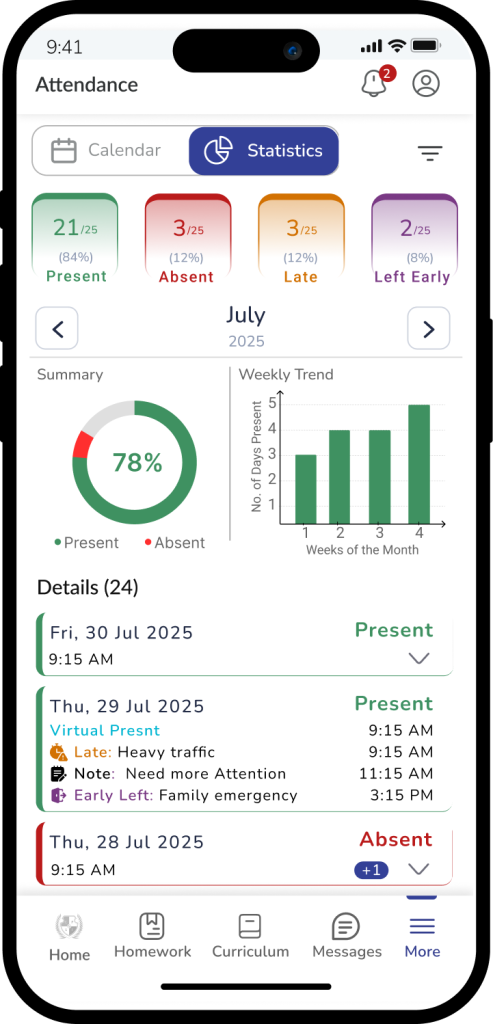
Parents can scroll down to see day-wise attendance records.
Information shown for each day
Each attendance record shows:
- The date
- The attendance status
- The time when attendance was recorded
- Notes added by the teacher (if available)
This helps parents understand why a student was late or left early.
Switch to Calendar View
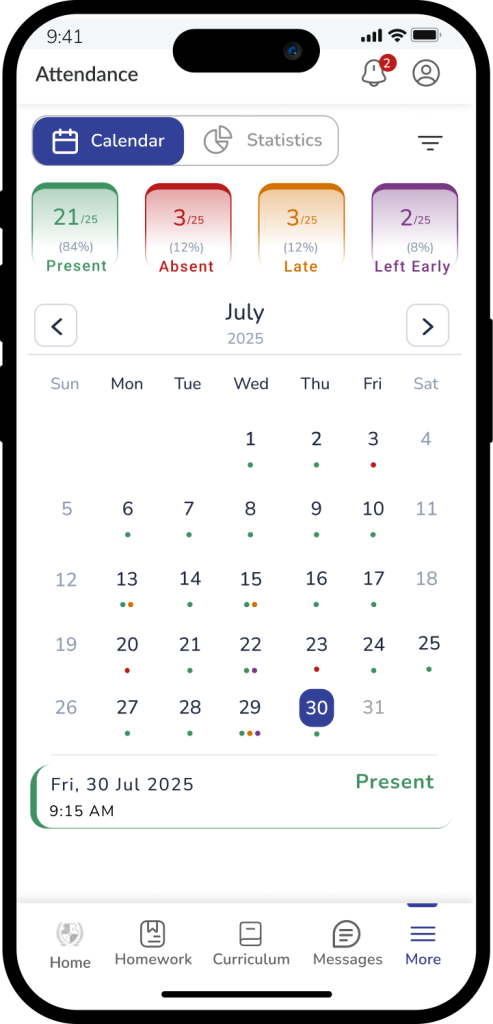
Parents can also see attendance using the calendar view.
How to open calendar view
Tap the Calendar tab on the attendance page.
The calendar shows attendance for each day of the month.
Color indicators used in the calendar
- Green – Present
- Red – Absent
- Amber – Late
- Purple – Left Early
Parents can tap any date to view more details.
Check Attendance for a Specific Date
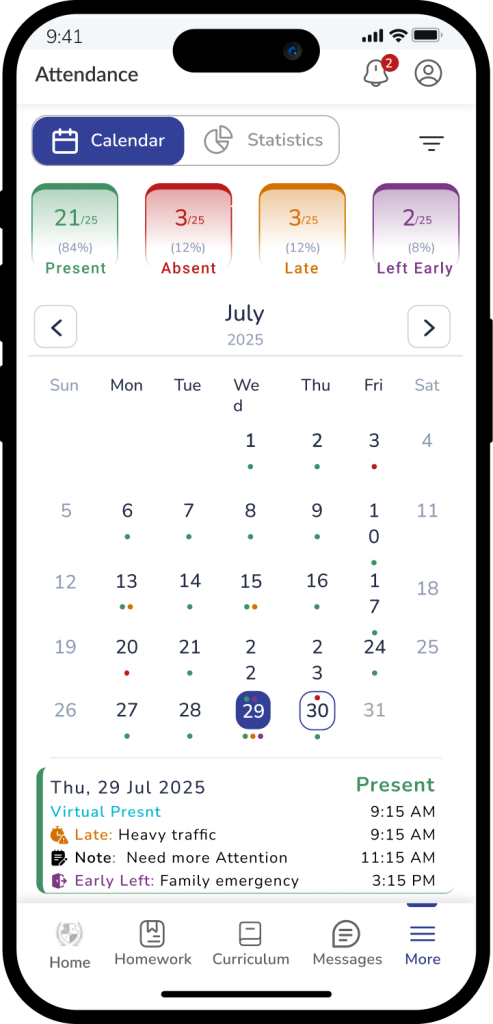
Parents can tap a date in the calendar to view the attendance details for that day.
Details shown
The system will show:
- Attendance status
- Time when attendance was marked
Any notes added by the school
View Previous Attendance
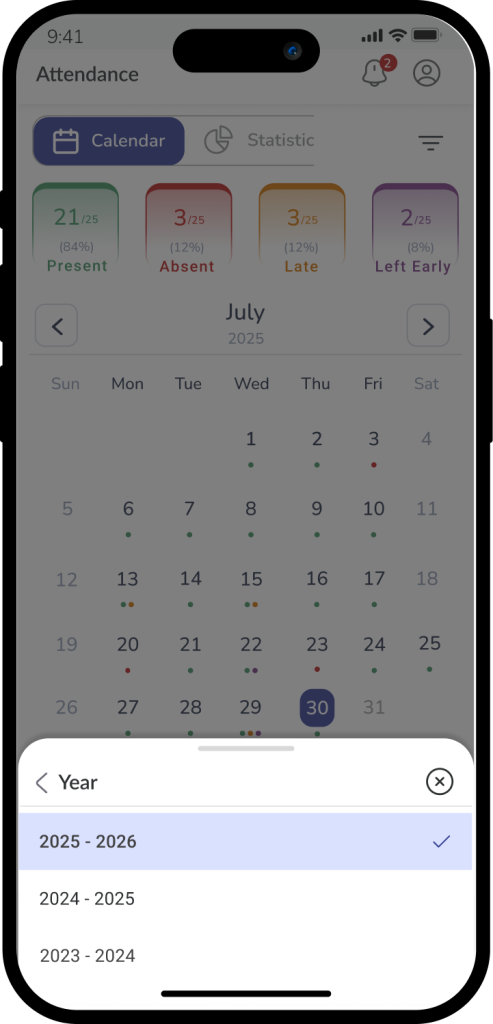
Parents can review attendance from earlier months or academic years.
Change the month or academic year
Tap the month selector or the Academic Year dropdown at the top of the screen.
Choose the duration you want to review.
The attendance information will update automatically.
User Guide
Important Information
- Attendance is recorded and updated by the school.
- If attendance is not yet marked, the status may show Not Taken (NT).
- Attendance details may include notes added by teachers.
Need Help?
If you have questions about your child’s attendance, please contact the school.